Image
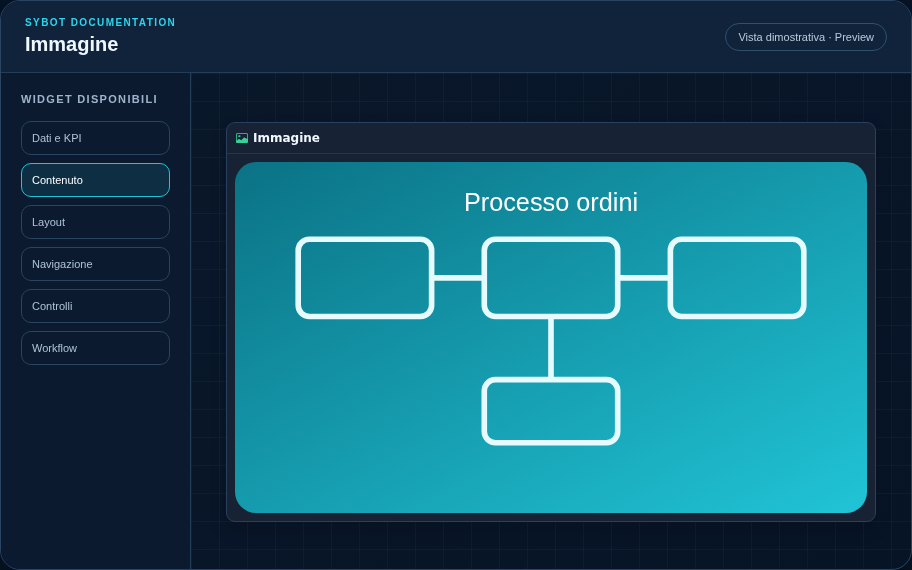
Displays an uploaded and managed image as a user view asset.
Recommended Configuration
- Select the image file in the Content section.
- Wait for the asynchronous upload to complete.
- Resize the widget and configure the container, border, and shadow.
Configuration Options
| Area | Options |
|---|---|
| Image | Loaded asset, alternative text, and adaptation within the container. |
| Identity | Title, Subtitle, header visibility, icon type, and action button. |
| Presentation | Standard, Compact, or Dense variant and message to display when data is unavailable. |
| Appearance | Background, background image, border, radius, padding, shadow, and typography of different areas. |
| Position | Coordinates and dimensions in cells in the page or container grid. |
Best Practices
- Use optimized images to avoid unnecessary loading times.
astuce
Always verify the widget in Preview, in light and dark themes, and with no data state before publishing the view.