Human Task
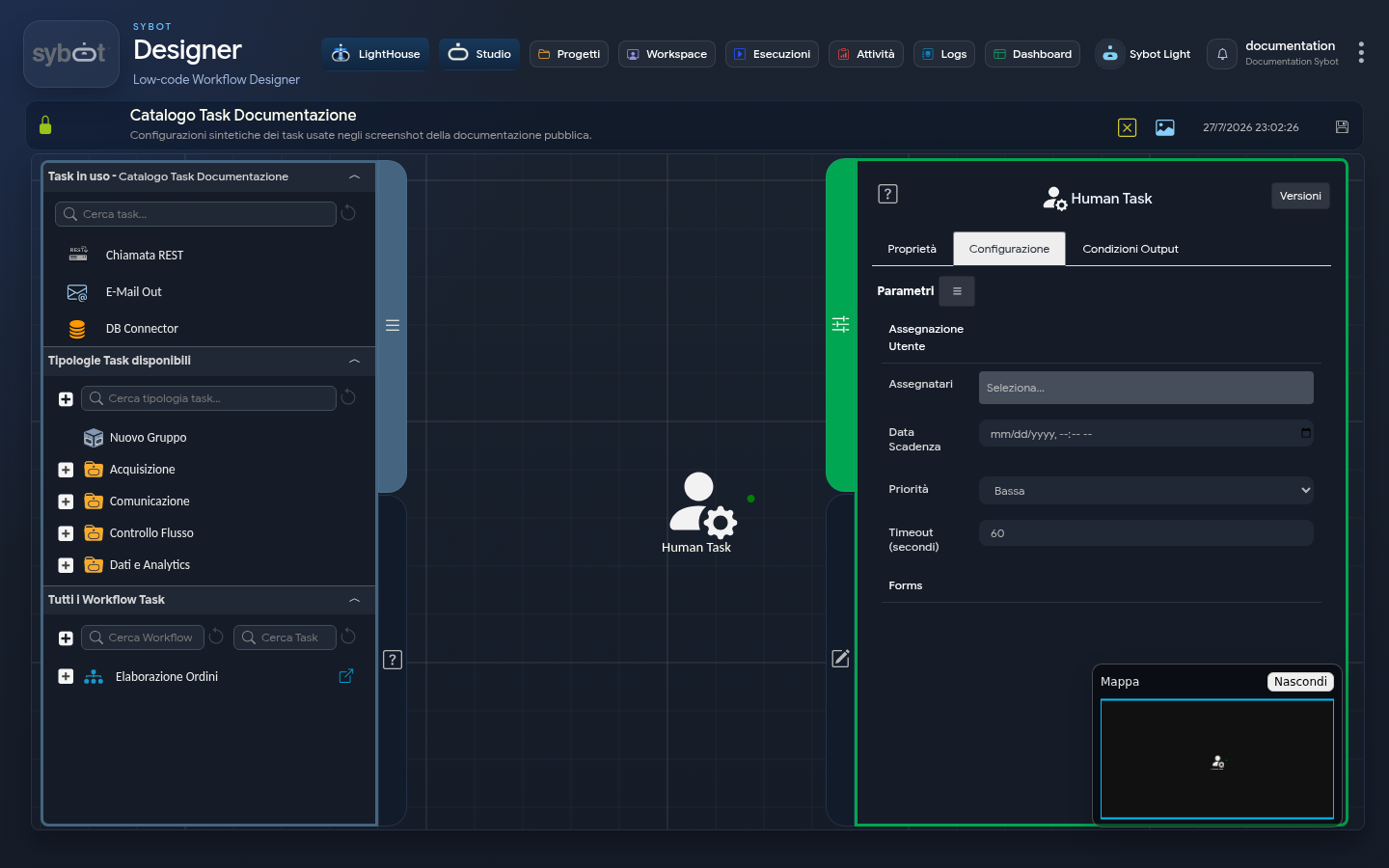
The "Human Task" is a fundamental component for orchestrating processes that require human intervention. Its primary function is to suspend the execution of a Workflow and create a pending task, assigning it to one or more specific users.
The Workflow will remain in a waiting state (in the Execution Logs it will be in Running status) until the designated user completes the task, cancels it, or until a timeout expires. This interaction occurs via the user's Workspace interface.
This Task serves as the bridge between system automation (System-to-System) and human decision-making or data entry processes (Human-in-the-Loop).
1. Configuration
The configuration of the Task defines who the task is assigned to, its deadlines, and the fields (forms) that the user will view or fill out.
1.1 User Assignment
- Assignees: A multi-selection field to specify one or more users to whom the task will be assigned.
- Due Date: A date/time field to define the deadline by which the task must be completed.
- Priority: A dropdown menu to set the task priority (Low, Medium, High).
- Timeout (seconds): A numeric value in seconds that defines a maximum waiting time. If the task is not completed within this timeout, the Workflow will automatically resume execution, typically following a specific exit path.
1.2 Forms
This section allows you to build a dynamic form that will be presented to the user in their Workspace. For each field to display (+ to add), you define:
| Column | Technical Description |
|---|---|
| Label | The name of the field as displayed to the user (e.g., test_pdf). |
| Type | The data type of the field (e.g., String, Number, Boolean). |
| Value | The initial or pre-filled value of the field. It can be a static value or, more commonly, a dynamic parameter from a previous Task (#>Importa Testo.result<#). |
| Required | If checked, the user cannot complete the task without filling out this field. |
| Read-Only | If checked, the user can view the field's value but cannot modify it. |
2. User Interaction in Workspace
When a running Workflow reaches a Human Task, the following occurs:
- The Workflow execution is suspended.
- A new pending task appears in the "Human Task List" section of the Workspace interface of the assigned users.
- The task displays all configured details: assignees, priority, due date, and the form (Forms) to be completed.
- The user can interact with the task by filling out the required fields and choosing one of the two final actions:
- Complete: Completes the task and resumes the Workflow.
- Cancel: Cancels the task and resumes the Workflow, typically following a different exit path.
3. Output Parameters
Once the Human Task is completed, it exposes a series of output parameters containing the data entered by the user and the result of their interaction.
These parameters are essential for subsequent Tasks, which can use the validated or user-entered data to continue with the process logic (e.g., saving data to a database, sending an email with the entered information, etc.).
3.1 Base Section
- result: The final state of the interaction (e.g., "Completed", "Cancelled", "TimedOut").
- resultJSON: A JSON object containing all form data, including values entered by the user.
- choicesJSON: A JSON object collecting the choices made by the user, the completion status, and the associated user. (e.g.,
{"choices":{"x":"243"},"status":"Completed","username":"user_test"})
3.2 Forms Section
This section exposes each field defined in the Forms module as an individual output parameter, making access to user-entered data extremely straightforward.
The mapping follows this structure:
- Field Name (Label): For each field created with a certain Label in the configuration, an output parameter with the same name is created. This parameter will contain the final value of the field, as it was potentially modified and confirmed by the user upon completion of the activity.