Convert to DOCX
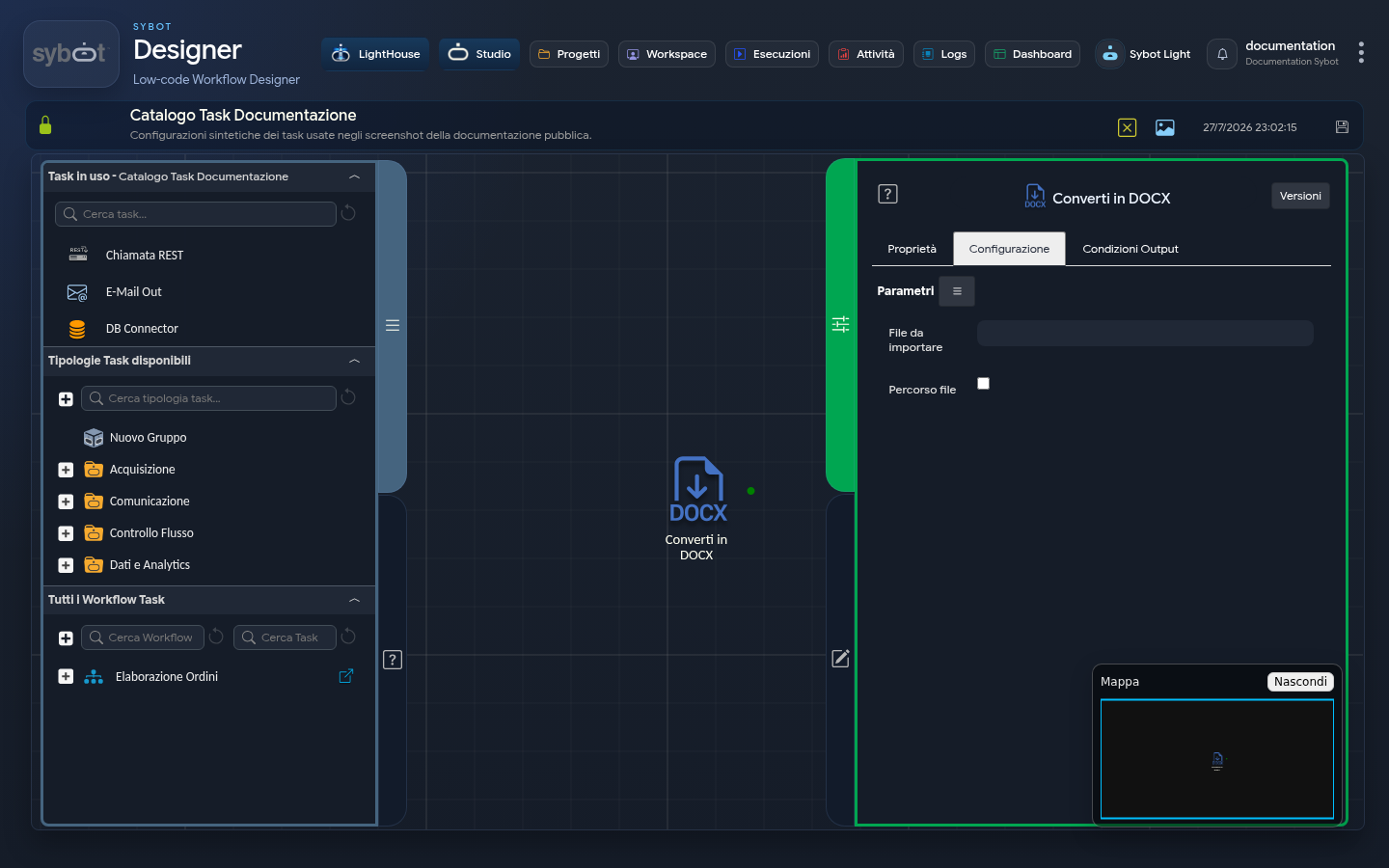
The Convert to DOCX task is designed to take an input file (it does not accept PDF files) and convert it into a Microsoft Word (.docx) document, making it available for subsequent tasks.
Configuration
The task configuration allows you to specify the source file and, optionally, the destination for the generated DOCX file.
- File to import: Enter the full path of the file to be converted in this field. It can be a static value or, more commonly, a dynamic parameter coming from a previous task or workflow parameters.
Customising the Output Path
The default behaviour depends on how the source file is provided:
- Case 1: Input via Dynamic Parameter When the source file is passed via a dynamic parameter from a previous task or workflow parameters, the converted DOCX file is saved in a system-managed directory.
- Case 2: Input via Manually Written Path When you write the full path of an existing file directly in the "File to import" field (e.g., /data/input/report.txt), the converted DOCX file is saved by default in the same directory as the source file (therefore in /data/input/).
Instead, by selecting the File path checkbox, you can specify a custom destination. The following fields will be shown:
- Output path: Enter the folder path where you wish to save the converted DOCX file here. This field can also contain a static value or a dynamic parameter.
- Create path if not exists: If this option is enabled, the task will automatically create the folder structure specified in "Output path" if it does not exist. If disabled, the task will fail if the destination folder is not present.
Output Parameters
Once the task has completed the conversion, it exposes the following output parameters:
- file: Returns the full path of the newly created DOCX file (e.g., /path/output/document.docx). This parameter is ideal for passing the file to subsequent tasks, such as an email send with an attachment.
- filename: Returns only the name of the generated DOCX file (e.g., document.docx).
- result: Indicates the overall status of the conversion operation (e.g., "Success" or an error message).
- resultJson: Represents the execution result of the task in JSON format, including general information, configurations, and execution details.