XML to Table v.2
- Task type:
xml-to-table_v2
Description
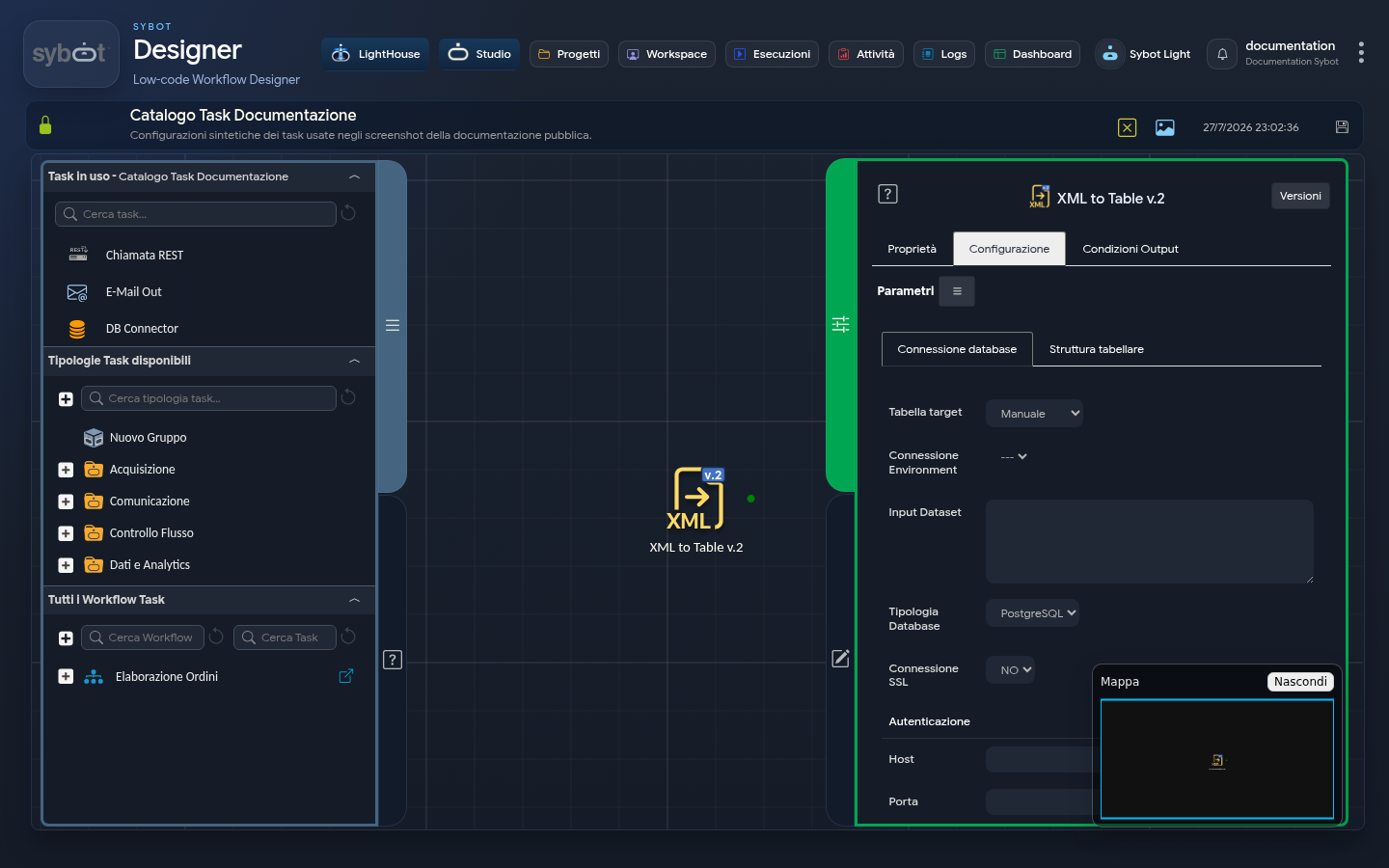
The "XML to Table v.2" task allows you to import data in XML format directly into a table in a supported database. The system internally converts the XML structure to map values to the fields of the destination table.
1. Database Connection
In this section, you define the data source and the database coordinates.
Target Table (Connection Source)
Select how to configure access to the database:
Manual: manual entry of host, port, and credentials.Environment: use of a preconfigured connection environment.
Environment Connection
Select the desired environment from the dropdown (e.g., Example_Connection). Authentication parameters will be populated automatically.
Input Dataset
Enter the XML content to be processed.
- You can use dynamic parameters (e.g.,
#>Run Script Python xml.result<#) to link the output of a previous task that generates or retrieves the XML.
Database Type
Select the DBMS: PostgreSQL, SQLserver, MySQL, Oracle, SAP HANA.
SSL Connection
Indicate whether the connection requires SSL (YES / NO).
Authentication
Fill in the Host, Port, DB Name, User, and Password fields (click the Set password button) if operating in manual mode.
2. Table Management
Target Table (Action)
Define the operation to perform on the database:
Create Table: creates a new table.Existing Table: inserts data into an existing table. You can choose between:- Append: adds records.
- Truncate Insert: empties the table before inserting new data.
Create Table if Not Exists: creates the table only if not detected, avoiding errors in repeated executions.
Target Table Name
Specify the name of the table in the database (e.g., example_table).
3. Table Structure
In this tab, you define the mapping between XML nodes and table columns. Even though the input is XML, the field mapping uses JSONPath syntax on the internal representation of the document.
| Field | Description |
|---|---|
| Type | Data type (STRING, NUMERIC, DATE, DATE AND TIME). |
| Precision | Maximum length (strings) or numeric precision. |
| Alias | Column name in the database. |
| JSONPath Expression | Path to extract the value from the XML node (e.g., $.task_name). |
Table Structure Management
Three buttons are available at the bottom right of the Table Structure tab:
| Button | Action |
|---|---|
| Save | Saves the defined structure |
| Import | Imports an existing structure |
| Export | Exports the defined structure |
This feature allows you to save, export, or reuse mappings, avoiding manual field completion and reducing the risk of errors.
Technical Note
Visibility: Structures saved in the system are visible exclusively to the user who created them. Further Reading: For a detailed description of all options and the operating logic, refer to the Table Structure page.
4. Configuration Example
Given the following incoming XML:
<tasks>
 <task>
 <task_name>Generate Summary</task_name>
 <status>pending</status>
 </task>
</tasks>
Table Structure
The Table Structure will be configured as follows:
| Type | Precision | Alias | JSONPath Expression |
|---|---|---|---|
| STRING | 1000 | task_name | $.task_name |
| STRING | 1000 | status | $.status |
Output Parameters
- exitStatus: Status code (0 = Success)
- rowCount: Number of records inserted (e.g., 3)
- targetTable: Name of the destination table
- DataExportCsv / DataExportJson: Imported data formatted in their respective standards
- Dataset.Field.Name: Field value for use in an Iterator
- DataColumn.Field.Name: String containing all column values separated by commas (e.g., pending, done, running)
- resultJson: Complete technical report of the operation
Example resultJson
{
  "run_info": {
    "status": "Completed",
    "run_result": "Success"
  },
  "output_parameters": {
    "exitStatus": "0"
  }
}