JSON to Table v.2
- Task type:
json-to-table_v2
Description
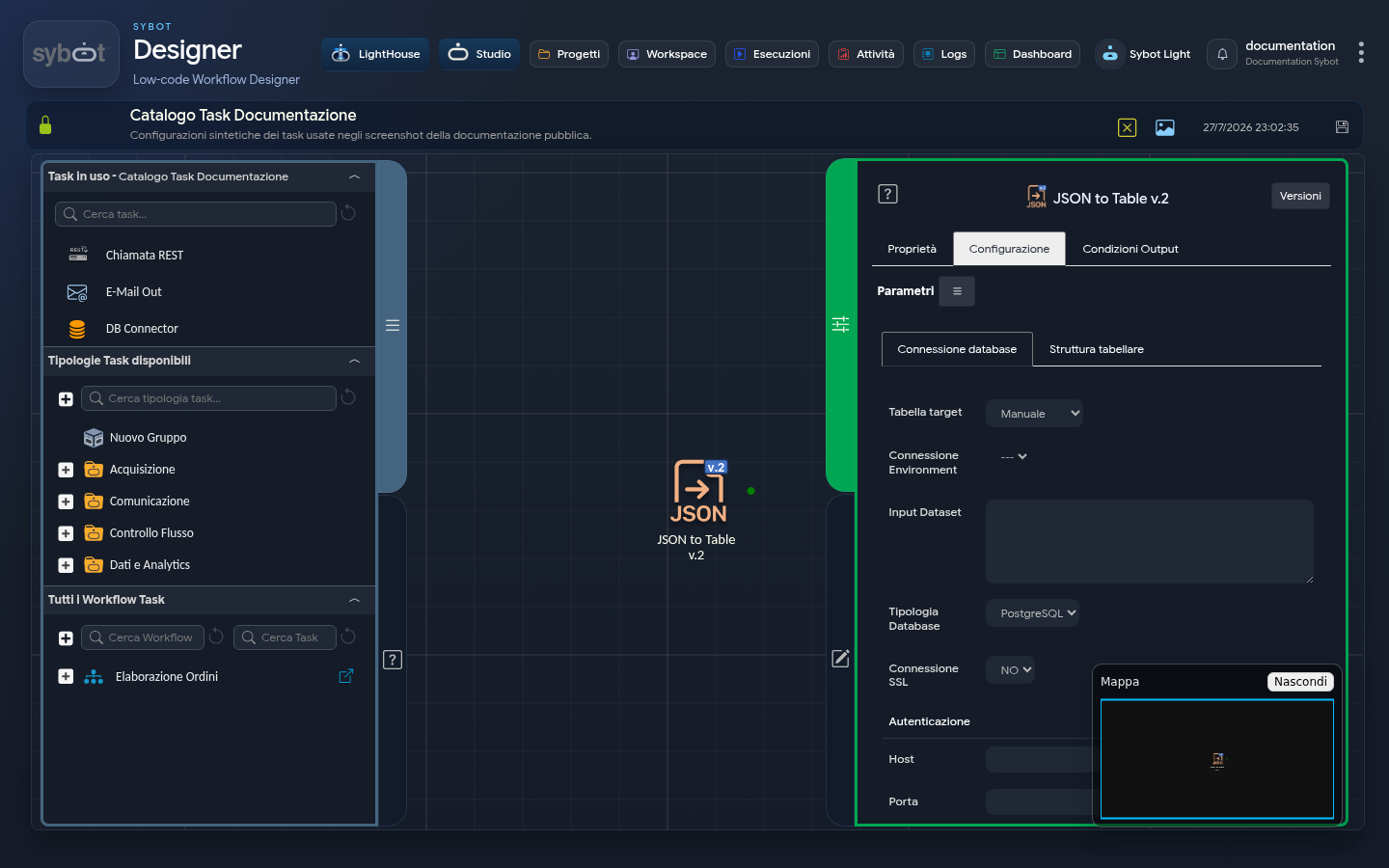
The "JSON to Table v.2" task allows you to import a tabular JSON object directly into a table in a supported database. The task handles the creation of the table or the insertion of data into existing tables.
1. Database Connection
Target Table
Select the source of the configuration:
Manual: to enter connection data field by field.Environment: to use a preconfigured connection environment in the system.
Environment Connection
Dropdown menu to select the desired environment (e.g., SqlServer_TEST). Authentication parameters are populated automatically.
Input Dataset
Field to define the data source:
- Must contain the JSON to be processed.
- Dynamic parameters can be used to link the output of previous tasks (e.g.,
#>JSON print.result<#).
Database Type
Select the destination DBMS from PostgreSQL, SQLserver, MySQL, Oracle and SAP HANA.
SSL Connection
Indicates whether to enable secure connection (YES / NO).
Authentication
If in Manual mode, fill in the fields: Host, Port, DB Name, User and Password.
2. Table Management
Target Table Action
Create Table: generates a new table in the database.Existing Table: inserts data into an existing table. Options:- Append: adds records to the end.
- Truncate Insert: empties the table before insertion.
Create Table if not exists: creates the table only if not detected, avoiding errors in multiple executions.
Target Table Name
Specifies the physical name of the table in the database (e.g., example_table).
3. Tabular Structure
In this tab, you define the mapping between JSON keys and table columns.
| Field | Description |
|---|---|
| Type | Defines the data type (STRING, NUMERIC, DATE, DATE AND TIME). |
| Precision | Maximum length for strings or digits for numerics. |
| Alias | Name of the column in the database. Use double quotes (e.g., "User Name") to preserve spaces or special characters. |
| JSONPath Expression | The JSON path to extract the value (e.g., $.task_name). |
Table Structure Management
Three buttons are present at the bottom right of the Tabular Structure:
| Button | Action |
|---|---|
| Save | Saves the defined structure |
| Import | Imports an existing structure |
| Export | Exports the defined structure |
This feature allows you to save, export or reuse mappings, avoiding manual field completion and reducing the risk of errors.
Technical Note
Visibility: Structures saved in the system are visible exclusively to the user who created them. Further Reading: For a detailed description of all options and operating logic, refer to the Table Structure page.
4. Configuration Example
To import a JSON dataset such as the following:
[{"task_name": "Backup", "status": "OK"}, {"task_name": "Restore", "status": "FAIL"}]
Configuration of the Tabular Structure:
| Type | Precision | Alias | JSONPath Expression |
|---|---|---|---|
STRING | 1000 | name | $.task_name |
STRING | 1000 | status | $.status |
Output Parameters
- exitStatus: Operation status code (0 = Success).
- rowCount: Number of rows actually inserted into the database.
- targetTable: Name of the destination table used.
- DataExportCsv: Processed data exported in CSV format.
- DataExportJson: Processed data exported in JSON format.
- DataColumn.ColumnName: List of all column values separated by commas (e.g.
Backup, Restore). - resultJson: Complete JSON report of the task execution.
resultJson Example
{
  "run_info": {
    "status": "Completed",
    "run_result": "Success"
  },
  "output_parameters": {
    "exitStatus": "0"
  }
}