CSV to Table
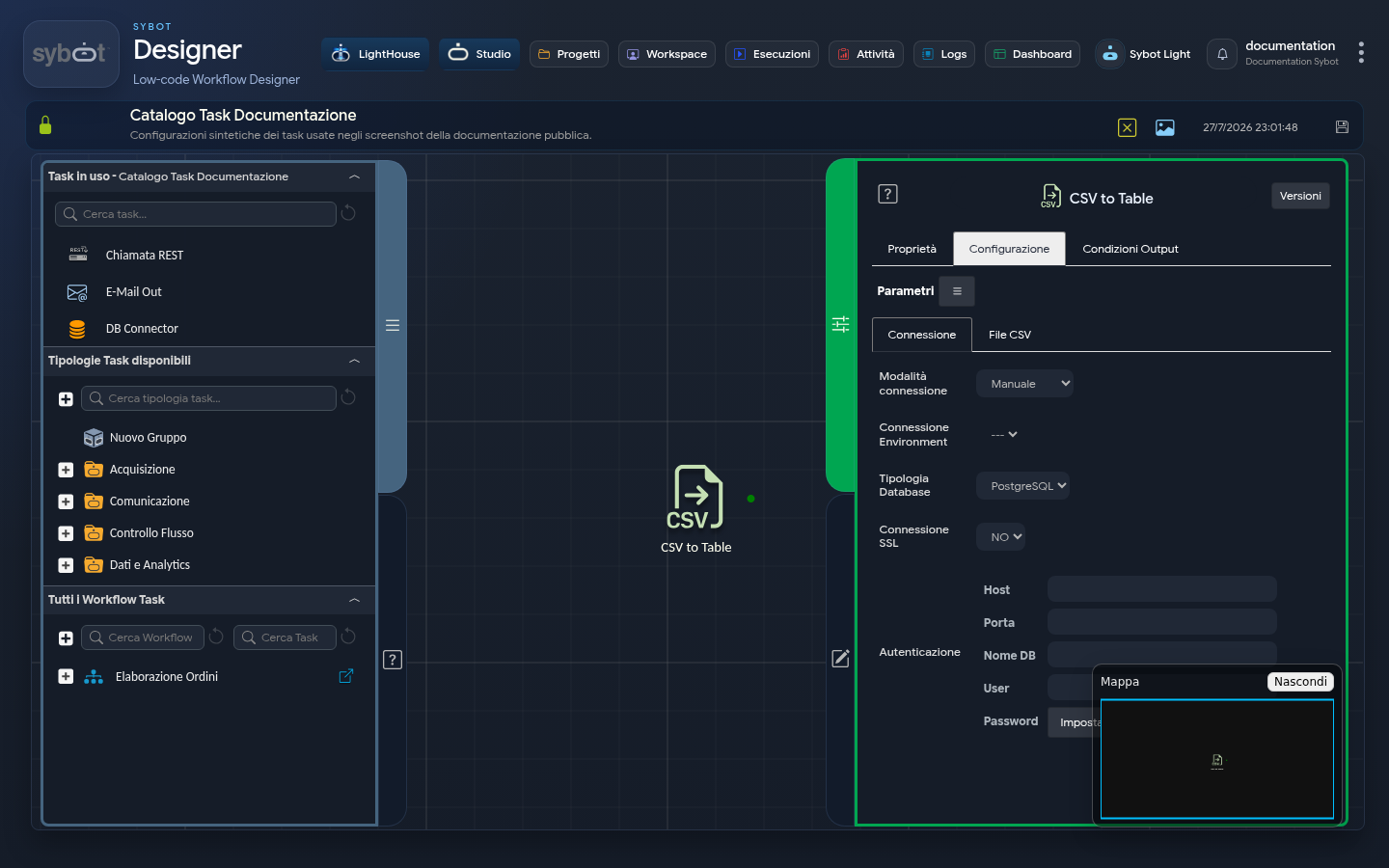
- Type Task: csv-to-table
The CSV to Table task is designed to import data from a file in CSV (Comma-Separated Values) format and insert it into a database table. Its function is twofold: it connects to a database to physically write the data and, simultaneously, exposes the imported data as a Dataset for use by subsequent tasks in the Workflow (such as an Iterator).
Configuration
Configuration is divided into two main tabs: Connection for database details and CSV File for source file specifications.
1. "Connection" Tab
This section is identical to that of other database write tasks and defines how to connect to the destination.
- Connection Mode: Select the source of credentials:
- Manual: Manually enter all connection data.
- Environment: Select a preconfigured connection environment to automatically populate fields.
- Database Type: Select the database type, including SAP HANA. With SAP HANA, both creating a new table and using Truncate Insert on an existing table are supported.
- SSL Connection: Specify whether to use a secure connection (SSL).
- Authentication: Enter details for access:
- Host: The database server address.
- Port: The communication port.
- DB Name: The database name.
- User: The username.
- Password: The associated password.
2. "CSV File" Tab
This tab is the core of the task and defines how the CSV file should be read and mapped.
- CSV Structure:
- Field Definition: Clicking this button opens the "CSV Structure - CSV to Table" window. Here you define the structure of the destination table, mapping each column of the CSV. For each field (+ Add Field) specify:
- Name: The column name in the database.
- Type: The data type (String, Numeric, etc.).
- Size: The field size.
- Format: A specific format for data such as dates.
- Not Null: Whether the field cannot contain null values.
- CSV Header: Specify whether the first row of the CSV file is a header.
- Yes: The first row contains column names and will not be imported as data.
- No: The file has no header row; all data is imported.
- Encoding: The character encoding of the file (e.g., UTF-8, ISO-8859-1).
- Separator: The character used in the CSV file to separate values (e.g., ,, ;, |, =).
- String Quoting Character: The character used to enclose text fields, especially those containing the separator (e.g., ").
- Import Type: The file import method.
- Local CSV: Load a file from your computer via the "Choose file" button.
- Web CSV: Import a file from a web URL.
- Remote CSV: Import a file from a remote network path.
- Target Table: The action to perform on the database.
- Existing Table: Insert data into an existing table.
- New Table: Create a new table for the imported data.
- Target Table Name: The name of the destination table. It can be a static or dynamic value (e.g.,
#>nome_tabella<#). - Loading Mode: How to insert data into an Existing Table.
- Append: Add new data to existing data.
- Truncate Insert: Completely empty the table before inserting new data.
Manage Table Structure - CSV Structure
In the bottom right of the CSV Structure (CSV structure) modal, there are three buttons:
| Button | Action |
|---|---|
| Save | Save the defined structure |
| Import | Import an existing structure |
| Export | Export the defined structure |
This feature allows you to save, export, or reuse mappings, avoiding manual field compilation and reducing the risk of errors.
Technical Note
- Visibility: Structures saved in the system are visible exclusively to the user who created them.
- Deep Dive: For a detailed description of all options and operating logic, refer to the Table Structure page.
Output Parameters
Once the import is complete, the Task exposes the following parameters:
- targetTable: Returns the name of the database table into which the data was inserted.
- sourceFilename: Returns the name of the source CSV file that was processed.
- sourcePath: Returns the full path of the source CSV file.
- count: Indicates the total number of rows imported from the CSV file.
- result: Provides the overall status of the Task execution (e.g., "Success" or an error message).
- resultJson: Represents the task execution result in JSON format, including general information, configurations, and execution details.
- DataExportCsv: Returns the entire processed dataset, formatted as CSV text.
- DataExportJson: Returns the entire processed dataset, formatted as a JSON string.
- Dataset: This parameter represents the name of the column in the table (e.g., name). It is the most important parameter for linking this Task to an Iterator. To access the values of a specific column during an iteration, use the Dataset.ColumnName syntax.
- DataColumn: This parameter allows access to the entire content of a column as a single entity (e.g., an array or list).
- DataColumn.ColumnName: Returns all values of the “ColumnName” column. For example: “Luca, Maria, Giovanni, Elena”