Set Variables
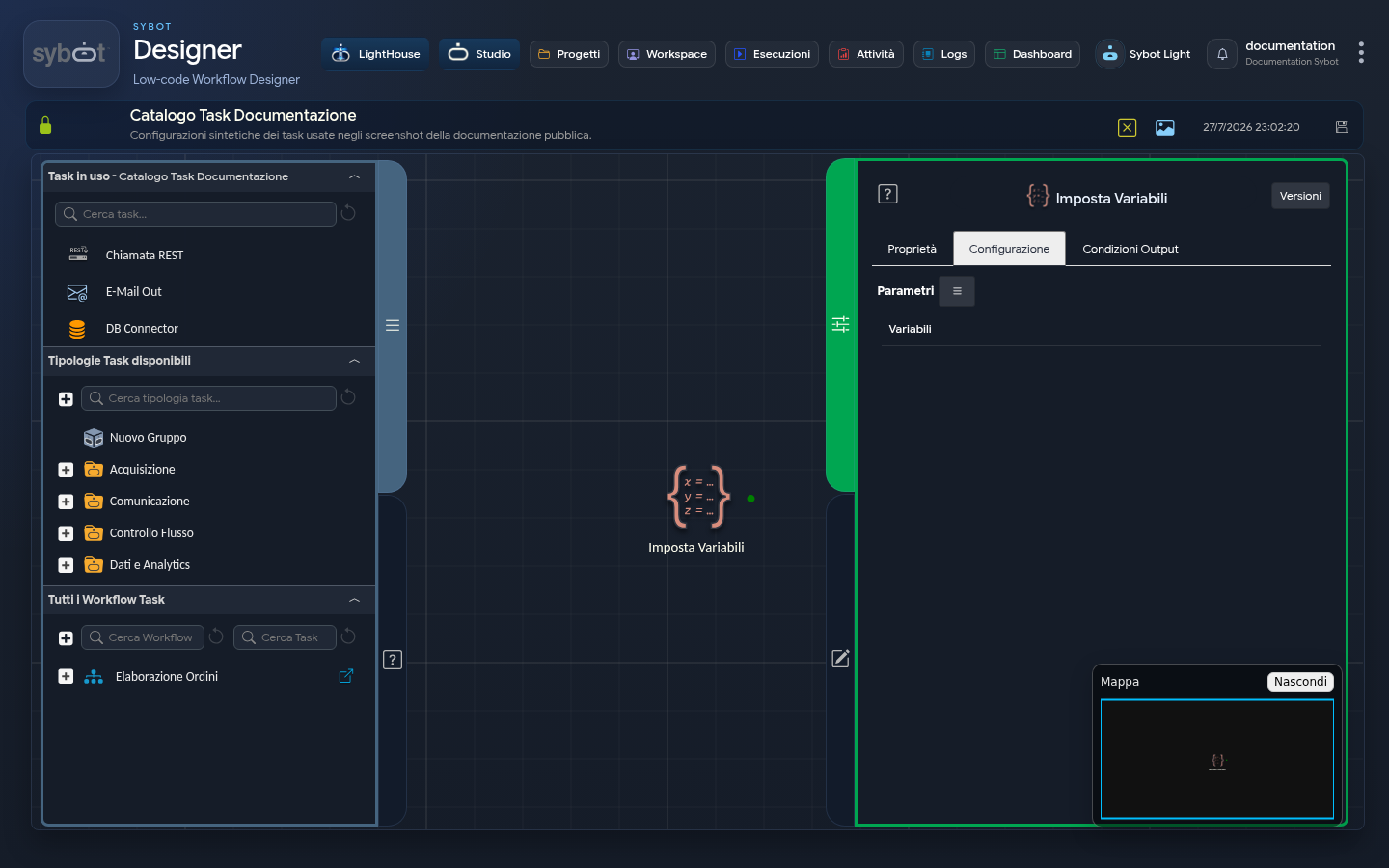
The Set Variables task is the primary tool for dynamically modifying and updating variable values during Workflow execution.
While the Declare Variables task is responsible for creating variables at the start, Set Variables allows you to overwrite their values based on the results of previous tasks, calculations, or specific logic. It is essential for implementing counters, changing the state of a process, or storing intermediate results.
Relationship with the "Declare Variables" Task
The use of this task is closely linked to the Declare Variables task:
- Dependency: Set Variables can modify only variables that have been previously created by a Declare Variables task upstream in the flow. It cannot create new variables.
- Accessibility: The Declare Variables task does not need to be immediately preceding; it is sufficient that it was executed at any point before the current Set Variables task.
Configuration (Configuration Tab)
Configuration consists of a table where each row represents the update of a single variable.
1. Selecting the Variable to Modify
In the Variables column, you can select a variable created by the Declare Variables task.
Note
In the absence of connections to previous tasks, no variables will be available in this section.
2. Defining the New Value
Once the variable is selected, you define the new value to assign to it:
- Type: Choose the data type for the new value.
- String: For text values.
- Number: For numeric values.
- Expression: To assign the result of a mathematical or logical expression.
- Value: Enter the new value.
- Static Value: You can type a fixed value directly (e.g., Completed or 100).
- Dynamic Value: By clicking the button ≡, the "Parameters List" opens, from which you can select parameters from other tasks, functions, or the variable itself to create complex expressions.
Example
- Initial State: A Declare Variables task at the beginning of the Workflow creates a numeric variable called "count" and initializes it to 0.
- Update Action: At a later point in the flow (for example, inside a loop), a Set Variables task is configured to modify the "count" variable.
- Detailed Configuration:
- Variables: From the dropdown, select "count".
- Type: Set to Expression.
- Value: Enter the expression "
#>Declare variables.count<#+ 1". This expression reads the current value of the "count" variable and adds 1 to it.
- Result: After executing this task, the value of the "count" variable (visible in the "Workflow Variables" section) will be 1. If the task were executed again, the value would become 2, and so on.
Output Parameters and Impact on the Workflow
The Set Variables task does not introduce new Output Parameters with its own name. Instead, its result is the direct modification of the variable value in the Workflow Variables section of the Parameters List.
Any task executed subsequently to Set Variables will read the updated value of the variable.
Important Notes
- You cannot set the same variable multiple times within the same instance of the Set Variables task. To update the same variable at different points in the flow, you must use multiple Set Variables tasks.
- The variables available in the dropdown depend solely on the Declare Variables task present in the Workflow.