Declare Variables
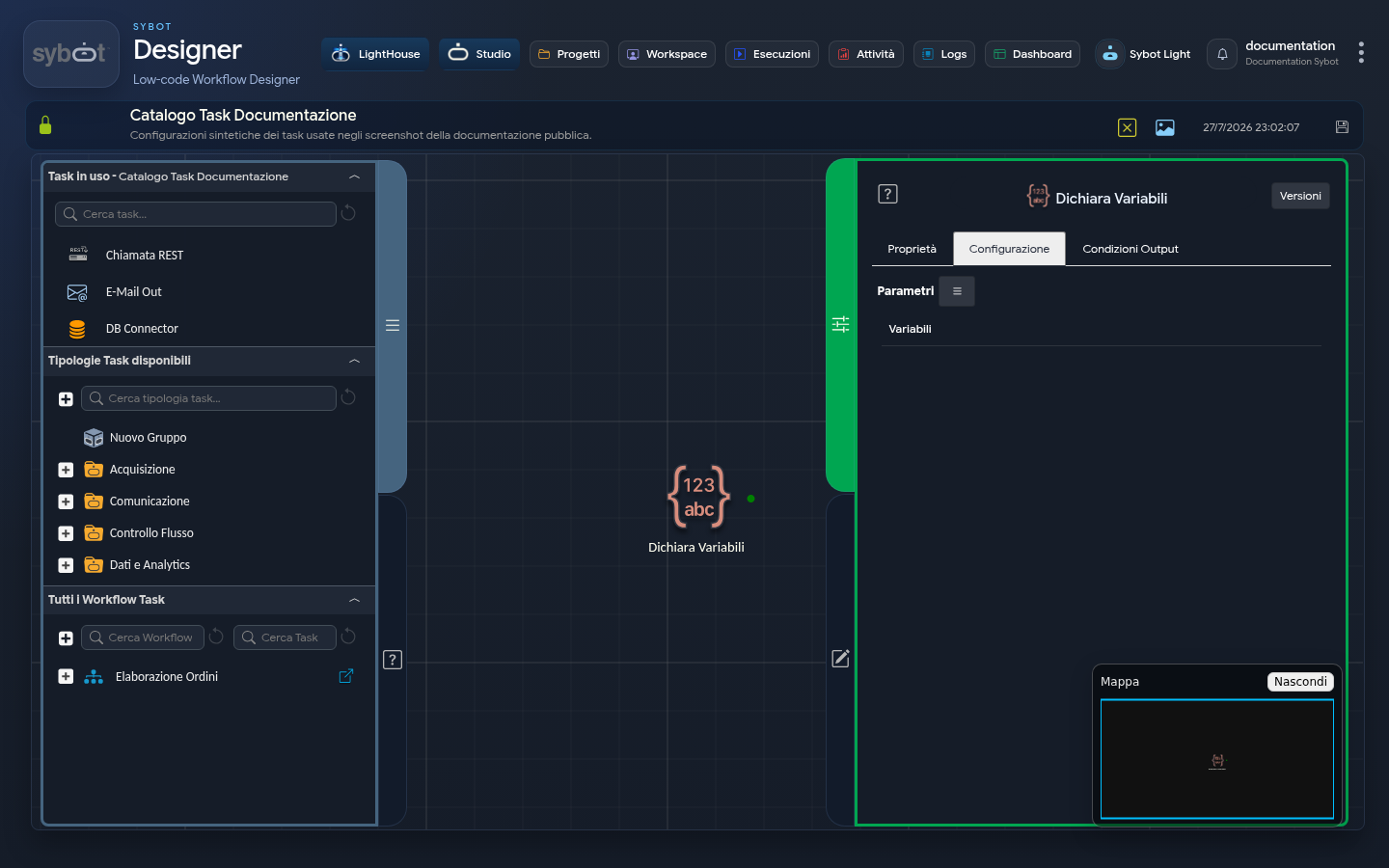
- Task Type:
manage-vars
The Declare Variables task function is to initialise one or more variables that will be available for all subsequent tasks within the Workflow. These variables can only be modified via the "Set Variables" task.
Configuration
Configuration consists of a table where each row defines a single variable.
- Variables: The name you want to give to the variable (e.g., "x", "counter", "process_status"). This will be the name used to reference it in subsequent Tasks.
- Type: The data type the variable will contain. Choosing the correct type is important for subsequent operations. Options include:
- String: For text values.
- Number: For numeric values, integers or decimals.
- Expression: To assign the result of a mathematical or logical expression as the value. To use a string-type dynamic parameter within an expression, enclose it in double quotes (e.g.,
>#param_string#<) - Value: The initial value to assign to the variable at the time of its creation. It can be:
- Static: A fixed value typed directly (e.g., 0, Pending).
- Dynamic: A value coming from a Workflow parameter or a function, selectable via the Parameters ≡ button
Availability and Output Parameters
The unique characteristic of this Task is how it exposes its variables:
-
Output parameters are the variables themselves: The defined variables become output parameters of the Task.
-
Availability in the Subsequent Flow: After execution, the variables are added to the Workflow Variables section.
In other words, the Task acts as the initialisation point for the context.
note
Fundamental Rules and Notes
- Only one "Declare Variables" Task per workflow A workflow can have only one instance of this task. This limitation ensures a single initialisation point for all global variables, making the flow more readable and easier to maintain.
- Variable names cannot be modified after creation Once a variable is created and you exit the task (by triggering auto-save), its name can no longer be modified. It is still possible to create new variables with different names, or delete and recreate existing variables if necessary.
- Variable deletion
- If there is only one variable, it cannot be deleted.
- If there are multiple variables, you can delete the desired ones, while keeping at least one variable active in the task.
- Variable availability and modification Variables initialised in the "Declare Variables" task are available for all subsequent tasks in the workflow. They can only be modified via the Set Variables task.