Send Sybot Notification
The Send Sybot Notification task allows a workflow to send an internal notification to one or more users. The notification is displayed in the Sybot notification center, alongside those generated by sharing a project or assigning a Human Task.
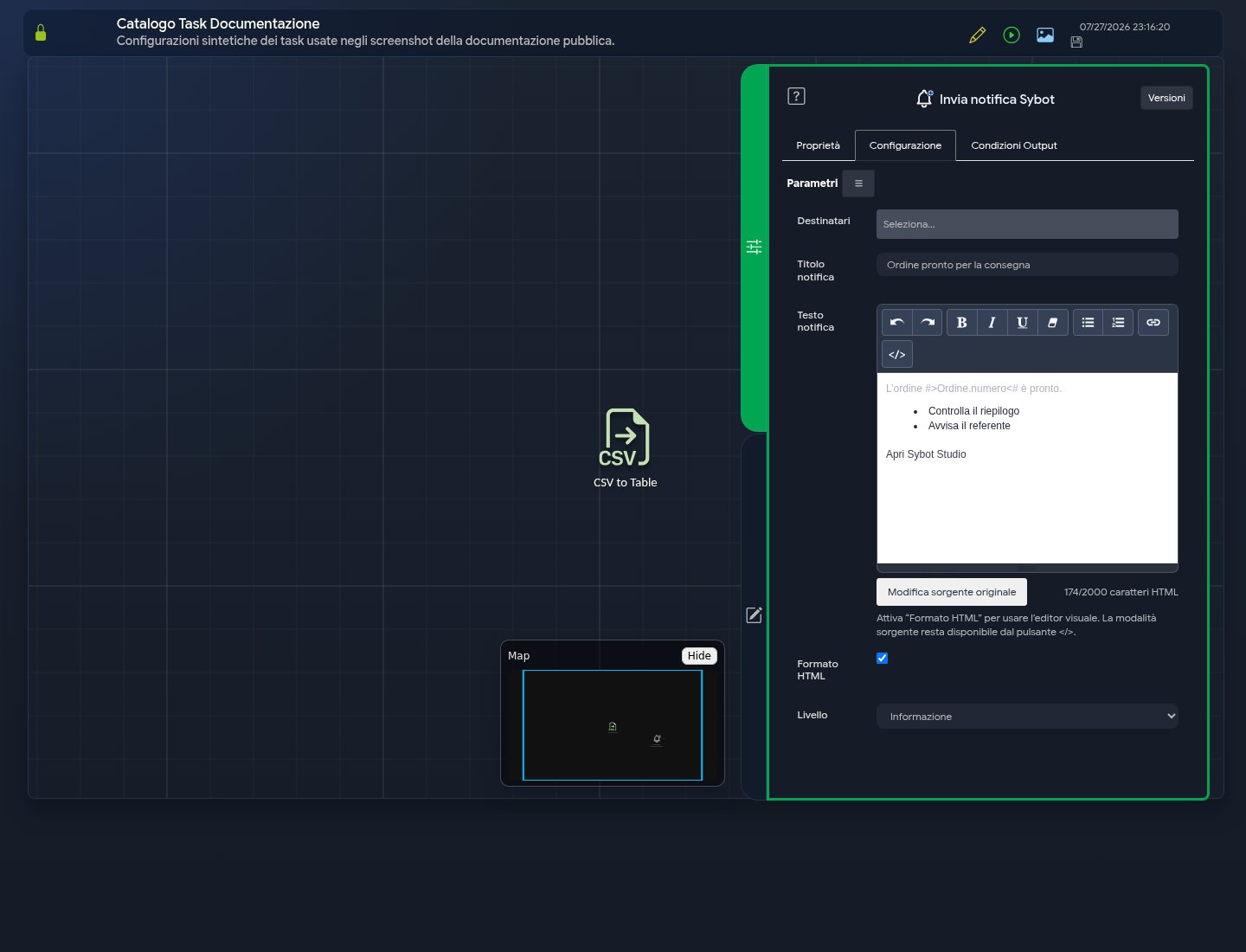
Configuration
- Recipients: select one or more users using the pill field. If, at the time of execution, a recipient is no longer active or available, the task will stop, indicating which selections to update, and will not send partial notifications.
- Notification Title: enter the title that users will see in the notification list. This is a dedicated field and does not depend on the name assigned to the task in the diagram. The maximum length is 255 characters.
- Notification Text: enter the message, up to 2000 characters. The counter also includes HTML tags generated by formatting.
- HTML Format: enable it to open the visual editor and use bold, italic, underline, lists, links, and local images. The A− and A+ buttons modify the size of the selected text; the colour button offers a predefined palette and a custom selector; Upload Image accepts PNG, JPEG, GIF, or WebP files up to 5 MiB. After insertion, select the image and drag the control to the corner to resize it: the chosen size is saved. The
</>button shows the HTML code of the sanitized multi-line version, with a horizontal scrollbar for long lines. Sybot automatically removes unsupported elements, attributes, and URLs. - Level: choose the visual emphasis between Information, Success, Warning, and Error.
In Sybot and Nova notification centers, levels are recognisable by colour and icon, and the HTML body is displayed with the corresponding formatting. The notification does not open the workflow when selected: if you have inserted a valid link in the HTML text, only that link is clickable, and web links open in a new tab.
Only images uploaded via the editor button are supported. Sybot makes them available via an unpredictable address: anyone who receives or knows that address can view them, so do not use confidential images. Remote images, videos, other embedded files, and tables are not supported. Only text size and colour, and the dimensions applied to images, are retained from styles. If you paste formatted content, the editor signals the cleaning of unusable elements; this check is repeated during task execution.
Parameters and Variables
Both Notification Title and Notification Text support workflow parameters, variables, and functions. You can insert them from the Parameter List, as with other text fields in the Designer.
For example:
Ordine #>Importa ordine.numero<# completato
During execution, the reference is replaced with the current value. For the complete syntax, see Workflow Parameters and Variables.
Parameters can be dragged directly into the desired point in the visual editor without losing the #>...<# syntax.
Task Result
Upon completion, the task exposes:
- result: concise message of the outcome;
- resultJSON: outcome in JSON format;
- recipient_count: number of validated recipients.
In case of a technical repetition of the same execution, Sybot avoids creating the same notification twice. However, if the workflow reaches the task again as part of its own flow, for example in a loop, a new notification is generated.