E-Mail Out v.2
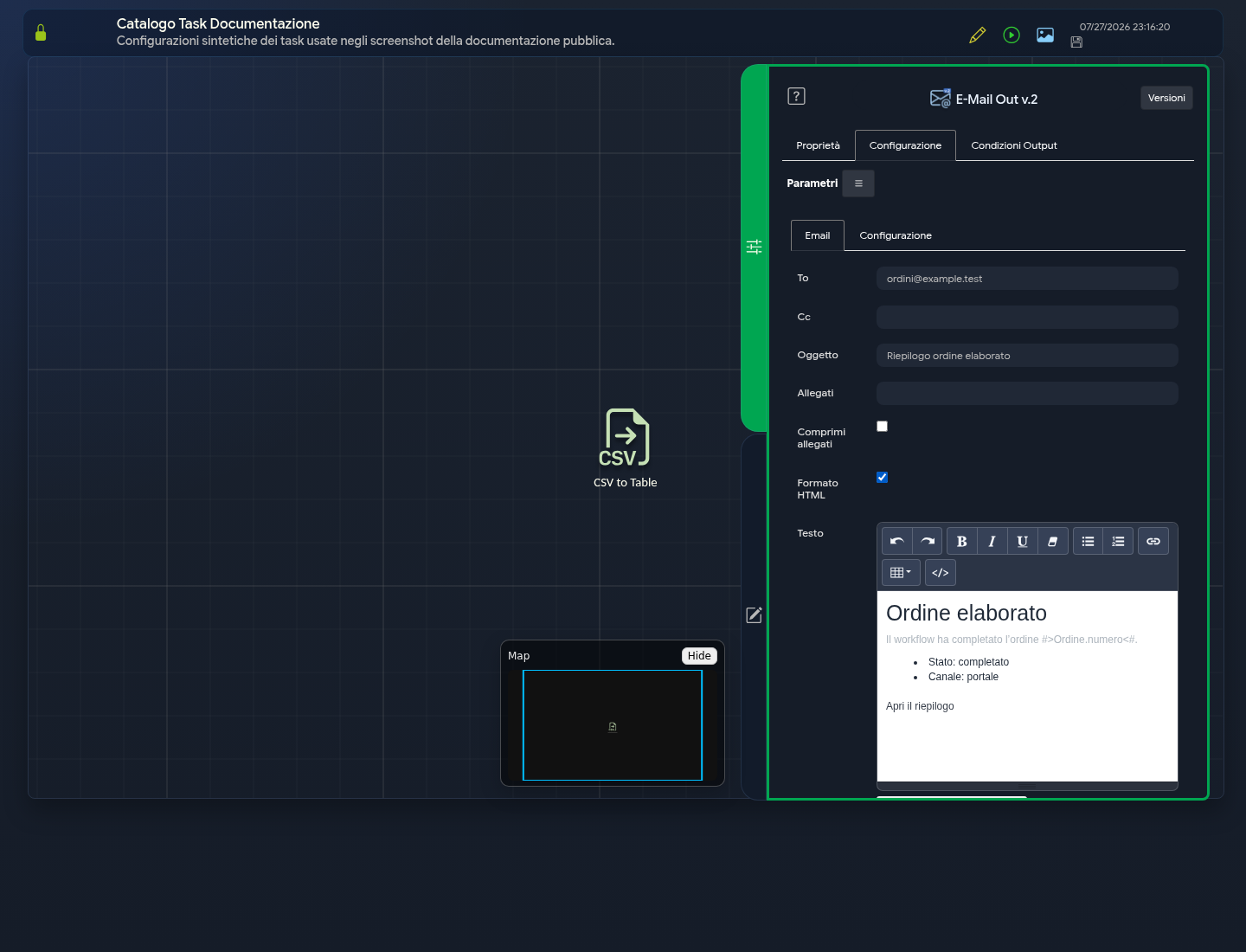
The E-Mail Out v.2 task sends an email message during workflow execution.
Email Tab
- To: primary recipients.
- Cc: recipients in copy.
- Subject: message subject.
- Attachments: files to attach, including those generated by previous tasks.
- Compress attachments: bundles attachments into an archive when specified.
- HTML Format: interprets the body as HTML content and activates the visual editor.
- Text: message body. In HTML mode, the toolbar allows you to apply formatting, adjust font size with A− and A+, choose text colour from a palette or custom picker, create lists and links, upload local images, add headings and tables, undo changes, and open the HTML code with the
</>button.
Fields can use direct values or references inserted from the Parameters menu.
With Upload Image, you can select a PNG, JPEG, GIF or WebP file from your device, up to 5 MiB. Sybot inserts the corresponding <img> tag and keeps the image available to recipients via an unpredictable address. To change its size, select the image and drag the control to the corner: the chosen size is saved in the HTML content. Anyone who receives or knows that address can view the file: do not upload sensitive images and always verify the result in the intended email clients. Videos and other embedded files are not supported.
The code view displays markup across multiple lines and does not force line breaks: for long lines, use the horizontal scroll bar.
Existing HTML Content
When the task contains advanced HTML created previously, Sybot displays a safe copy in the visual editor without automatically modifying the saved value. A warning allows you to choose whether to:
- continue in the visual editor and save the normalised version;
- select Edit Original HTML Code to work on the existing markup without visual conversion.
Simply opening and closing the task does not rewrite the body. Always check the result before saving if you have modified advanced HTML.
Configuration Tab
The Configuration tab collects the sending options made available in the environment. Select an authorised configuration or fill in only the data required by the interface.
Public documentation does not list specific servers, accounts or credentials.
Procedure
- Configure recipients and subject.
- Enter the body and, if necessary, enable HTML Format to use the visual editor.
- Add the necessary attachments.
- Verify the sending configuration.
- Save and test with sample recipients and content.
Security and Quality
- Do not enter passwords or tokens in the body.
- Verify that attachments do not contain data not intended for recipients.
- Use valid, essential and readable HTML even when images are not loaded.
- Fill in or verify image alt text and do not use them for sensitive content.
- Modify the original HTML code only when you know its origin and behaviour.
- Handle sending errors with an appropriate output condition.
- Avoid duplicate sends in repeated or parallel paths.
The outputs actually available can be selected from the parameters menu of subsequent tasks.