Scheduling
Scheduling is managed from the Executions page, not from the legacy Designer.
- Open Executions from the top bar.
- Search for the workflow in the list.
- Select the calendar icon.
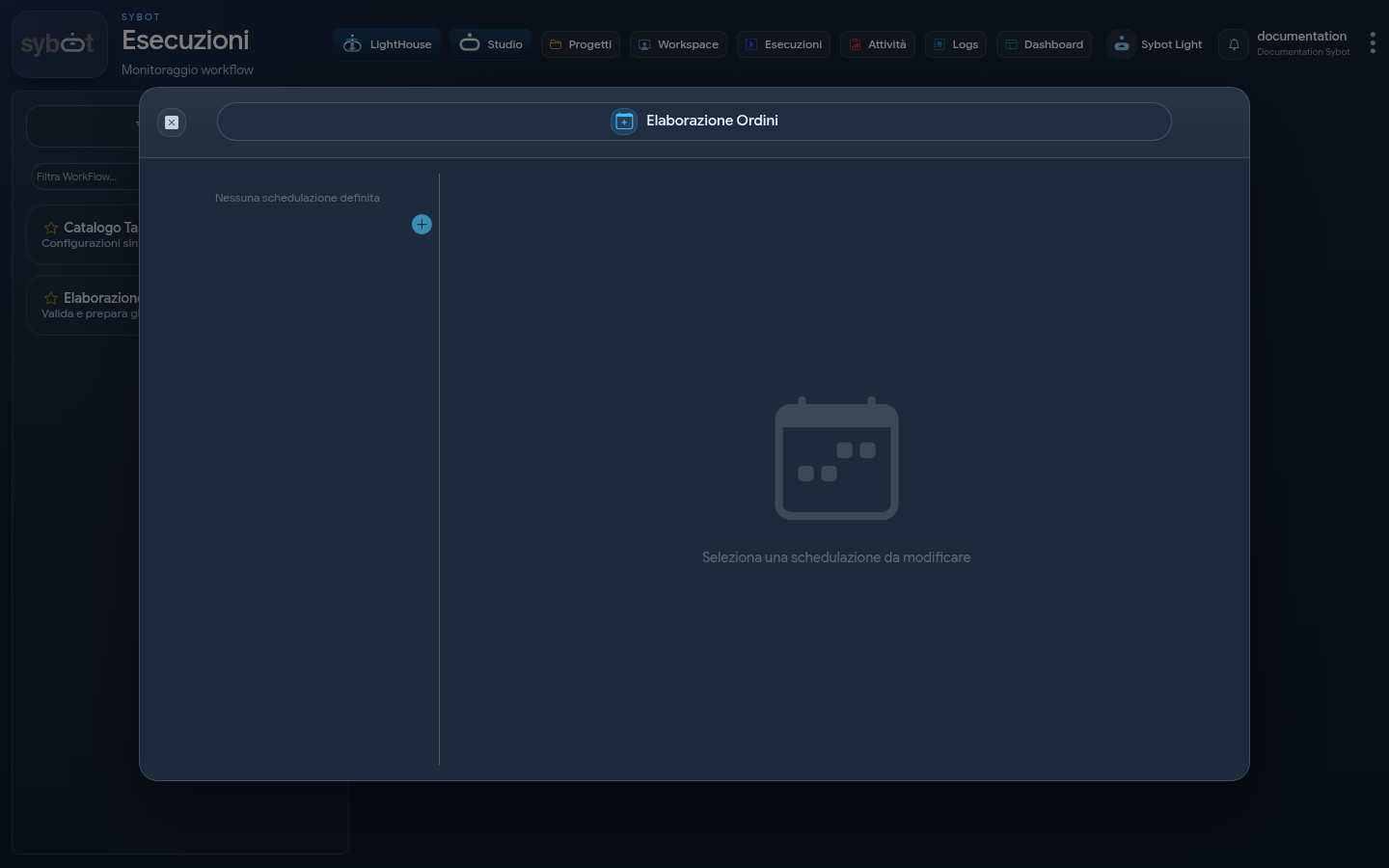
Create a schedule
Select + and fill in the suggested options:
- periodicity or scheduled date;
- active or suspended status;
- required input parameters;
- any limits available in the interface.
Save and verify that the schedule appears in the sidebar list.
Edit or remove
Select an existing schedule to view its details. Available actions allow you to update, enable, suspend, or remove it, depending on permissions.
Checks
- use parameters suitable for an automatic execution;
- do not enter secrets in unprotected fields;
- verify that the workflow is valid and active;
- check the first execution in the Logs;
- suspend the schedule before making changes that would make its inputs inconsistent.