Workflow Parameters and Variables
The strategic use of parameters and variables is crucial for creating dynamic and automated Workflows. These tools allow workflows to be reusable by providing specific data on each run, maintaining useful information during processing, and creating a logical sequence of interconnected tasks.
1. Workflow Parameters
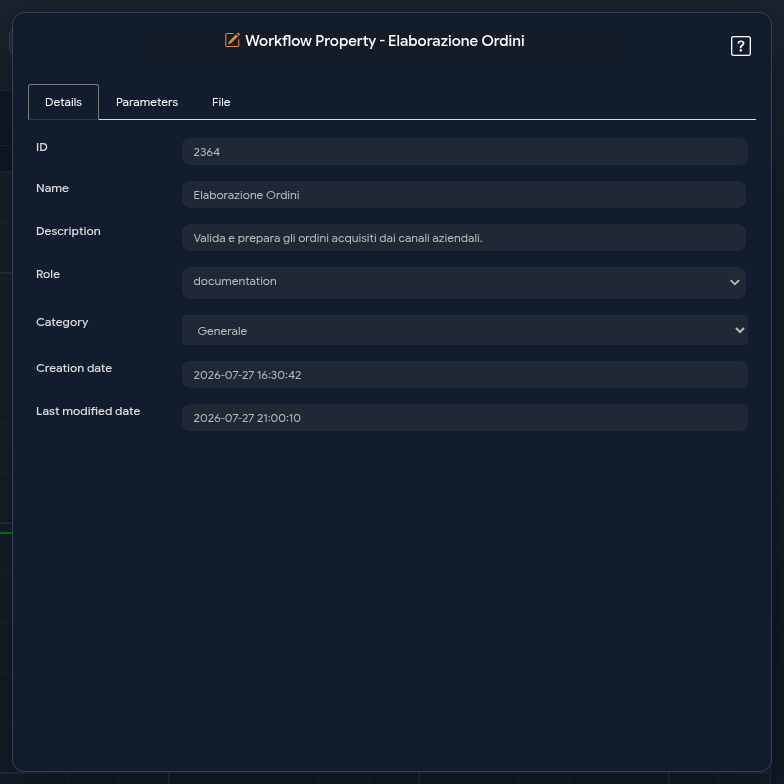
Parameters are input values defined for the entire Workflow. They can be created by accessing the properties section. Within the properties, you will find two dedicated tabs: "Parameters" and "Files".
"Parameters" Tab
In this section, you can define parameters of different types.
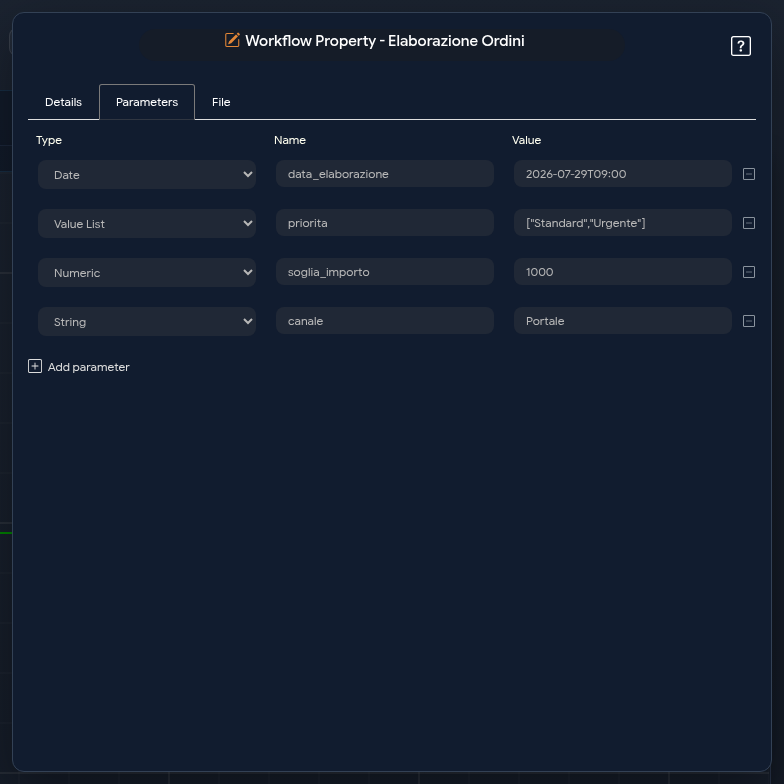
- Adding a parameter: To insert a new parameter, click the “+ Add Parameter” button. A new row will be created for configuration.
- Configuration: For each parameter, you must define:
- Type: Select the data type from the dropdown menu. The available options are:
- NUMERIC: For numeric values.
- STRING: For text values.
- DATE: For dates and times.
- ENCRYPT: For sensitive values that must be stored and managed in encrypted form.
- EXPRESSION: To define dynamic values via expressions.
- LIST VALUES: For lists of values.
- Name: Assign a unique name to the parameter (e.g., "x").
- Value: Enter the default value for the parameter (e.g., "1").
- Removal: To delete a parameter, click the minus (-) icon at the end of the row.
"Files" Tab
This section is dedicated to managing file-type parameters, useful for loading documents (e.g., CSV, XLSX) that the workflow will process.
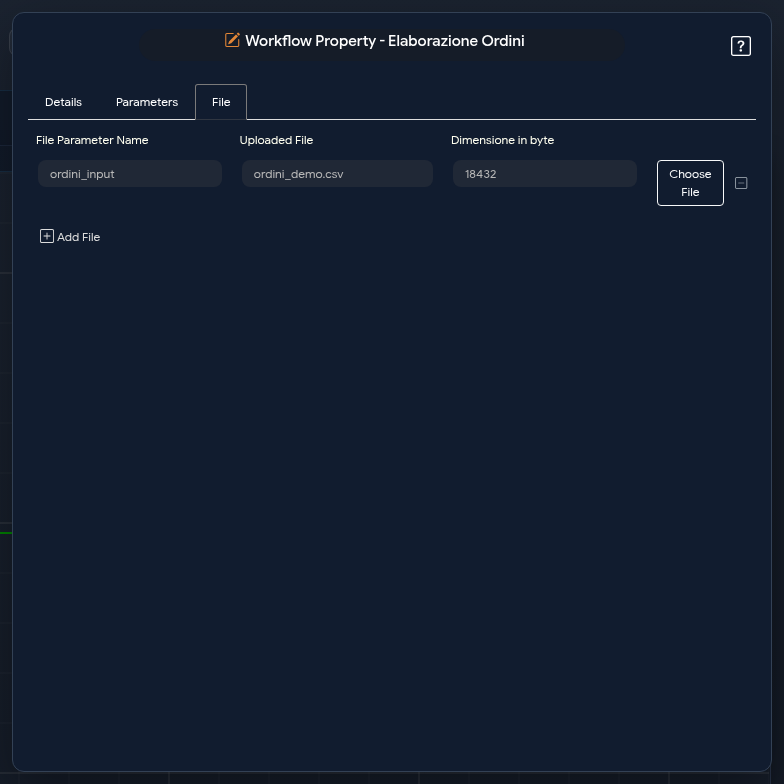
- Adding a file: Click on "+ Add File" to create a new file-type parameter.
- Configuration:
- File parameter name: Define a name for the parameter (e.g., "test_01").
- Choose file: Click this button to load the file from your computer. The name of the loaded file and its size in bytes will be displayed automatically.
- Three types of parameters associated with the file will be created: ".filename", ".file" (an absolute path) and ".content"
Using Parameters at Workflow Launch
Launch Modal: When a workflow is executed, its parameters are displayed in a launch modal. This allows the user to customise input values for that specific execution without modifying the Workflow.
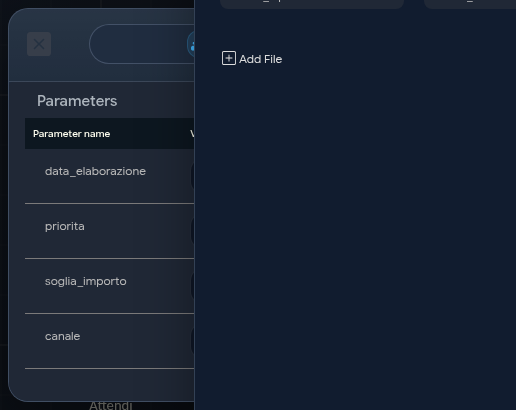
Modularity (Sub-Workflows): Parameters are fundamental for making Workflows reusable. They can be customised and passed as input to specific tasks such as: Run Workflow (to execute a sub-workflow), Parallel Run Workflow and Iterator.
2. Workflow Variables
Unlike parameters, variables have an internal-only scope and are used to manage intermediate data during workflow execution.
- Creation: Variables are not defined in workflow properties but are created through a specific task called Declare Variables.
- Constraint: It is important to note that within a single workflow, there can be only one Declare Variables task.
- Modification: Modifying variable values is allowed only through the use of the Set Variables task.
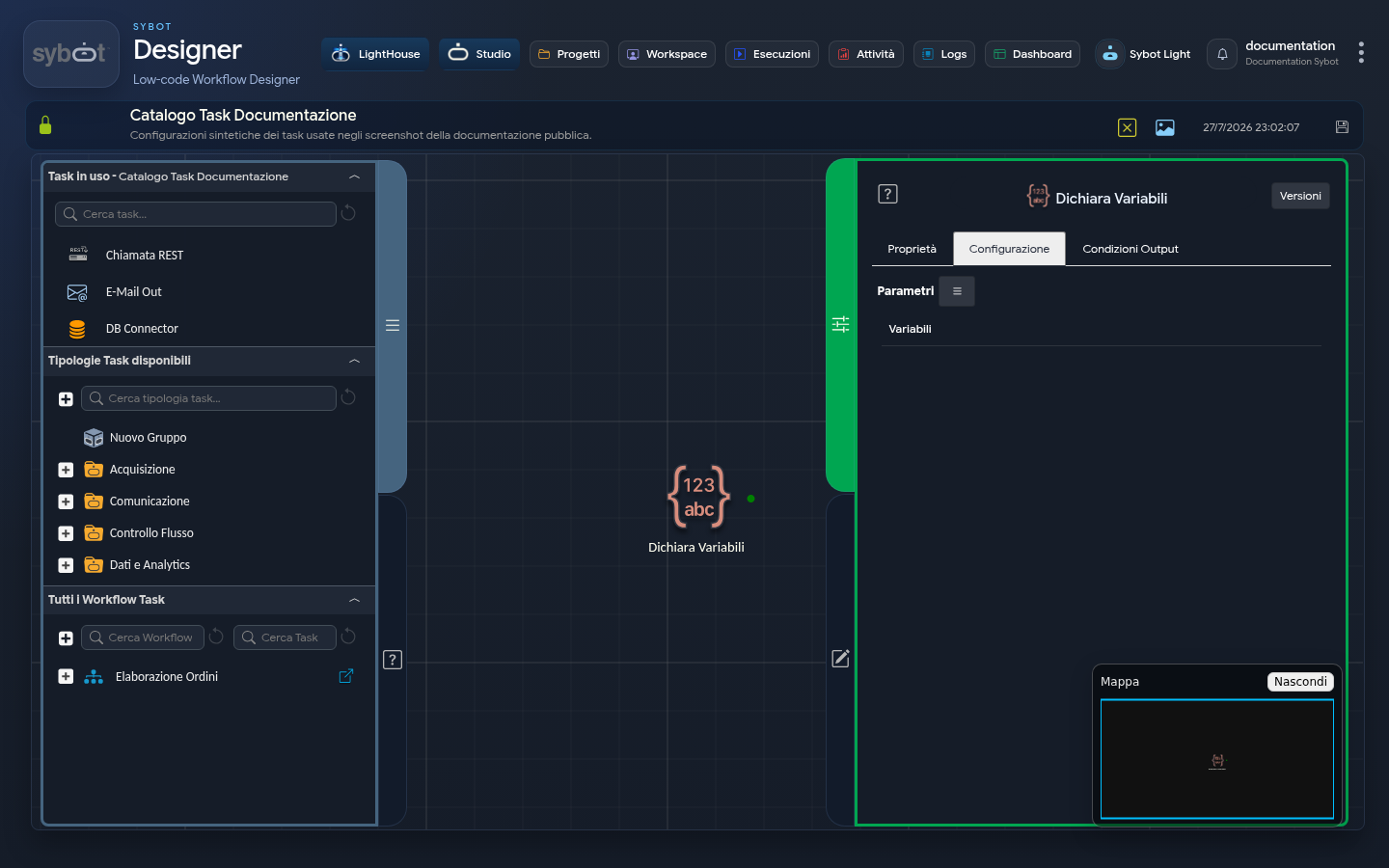
- Creation: Variables are not defined in workflow properties but are created through a specific task called Declare Variables.
- Constraint: It is important to note that within a single workflow, there can be only one Declare Variables task.
- Modification: Modifying variable values is allowed only through the use of the Set Variables task.
3. Using Parameters and Variables – “Parameter List” Menu
The “Parameter List” menu is an essential component of the Workflow. It enables the creation of dynamic processes by managing data passing between tasks and the use of values calculated during execution, making the workflow more flexible and adaptable.
Access and Usage
Within the “Configuration” and “Output Conditions” tabs of each task, the “Parameters ≡” button is available, which opens the “Parameter List” menu.
From this panel, you can drag (drag-and-drop) a parameter from the list and drop it into the desired input field (for example, in the Attachments or Content fields of an email).
The operation automatically inserts into the field the dynamic reference to the parameter, formatted according to the syntax:
`#>nome_parametro<#`
4. The “Parameter List” Menu in the “Configuration” Tab
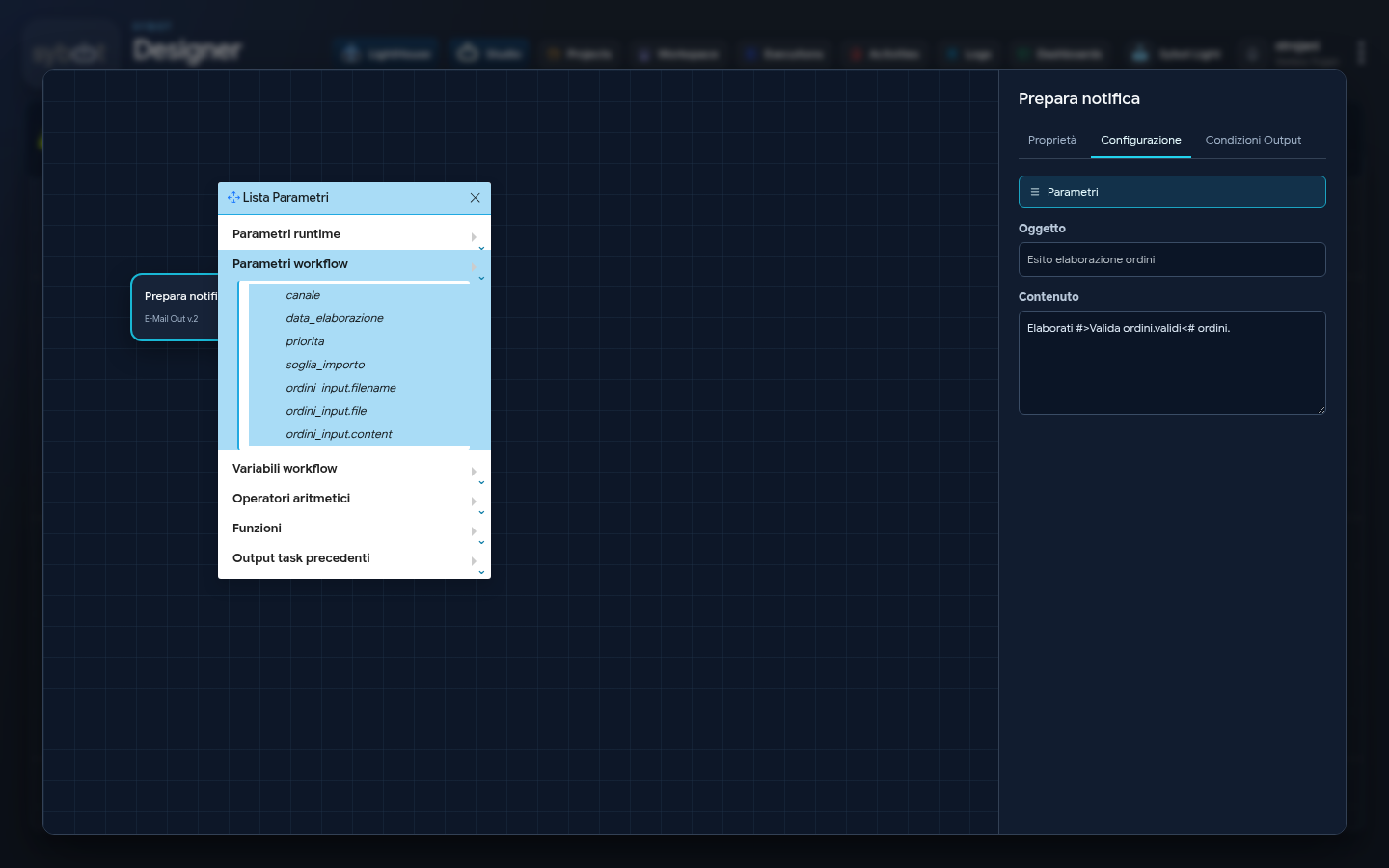
The menu is organised into sections, each exposing a different type of dynamic data.
Runtime Parameters
This section exposes system variables related to the ongoing execution. These are read-only parameters, automatically populated by the platform.
- Workflow Context: Information about the entire process execution.
- $$SYBOT_USER: The user who started the Workflow.
- $$RUN_ID: The unique ID of this specific execution.
- $$WORKFLOW_ID: The unique ID of the Workflow.
- $$WORKFLOW_NAME: The name of the Workflow.
- Task Context: Information about the immediately preceding Task.
- $$LAST_TASK_ID: The ID of the previous Task.
- $$LAST_TASK_NAME: The name of the previous Task.
- $$LAST_TASK_TYPE: The type of the previous Task (e.g., “db” for "Database" Tasks).
Workflow Parameters
Lists all input parameters defined for the entire Workflow in the "Parameters" and "Files" sections. For parameters of type "File", specific attributes are exposed to access different parts of the information:
- .file: The full path to the file.
- .filename: The file name only.
- .content: The file content (if textual).
Workflow Variables
Show the variables created via the Task "Declare Variables". These variables maintain their state during execution and can be read or modified (via the Task "Set Variables") at any point in the flow following their declaration.
Arithmetic Operators
This section provides shortcuts for inserting standard mathematical operators. They are used to perform real-time calculations, combining static values or dynamic parameters.
| Operator | Description | Usage Example |
|---|---|---|
| + | Addition | #>Declare variables.counter<# + 1 |
| - | Subtraction | #>Total Orders.count<# - 10 |
| * | Multiplication | #>Product.price<# * #>Order.quantity<# |
| / | Division | #>Annual Revenue.value<# / 12 |
| % | Modulo | #>Loop counter.loopCount<# % 2 (Returns the remainder of a division, useful for determining if a number is even or odd) |
Functions
This section exposes a set of built-in functions for performing complex operations that go beyond simple arithmetic calculations. Among these, there is a suite of functions dedicated to managing the current date and time, fundamental for generating dynamic timestamps and formatting time-based output.
| Function | Description | Returned Value (Example) |
|---|---|---|
| Date.datetime | Returns the current date and time. | 2025-09-17 10:30:00 |
| Date.date | Returns only the current date. | 2025-09-17 |
| Date.time | Returns only the current time. | 10:30:00 |
| Date.unix | Returns the current date and time in Unix Timestamp format (number of seconds elapsed since January 1, 1970). | 1757893800 |
| Date.format("...") | Formats the current date and time according to a custom pattern. | 17/09/2025 10:30:00 (using "d/m/Y H:i:s") |
Output of Previous Tasks
This section is the heart of the data flow. It is dynamically populated with a list of all Tasks that precede the currently selected Task in the diagram. Expanding a Task in this list grants access to all its output parameters, which can then be dragged and used as input for the current Task. For example, the result of a Database Task can be used in the Content of an E-Mail Out v.2 Task to send a report via email.
Insertion Syntax
When using an element from the "Parameter List", it is automatically inserted into the input field with a specific syntax: #>task_name.parameter_name<#. For example:
`#>E-Mail Out.body<#`
`#>Importa Testo.result<#`
`#>Database.Dataset.nome<#`
This notation acts as a placeholder. During workflow execution, #>Importa Testo.result<# will be replaced with the actual value produced by the "Import Text" task.
Note
- In the Database task, to use parameters in the Clause FROM and Statement sections, use the following syntax:
#>dbobj:table_name<#(after ">" use "dbobj:")
5. The "Parameter List" menu in the "Output Conditions" tab
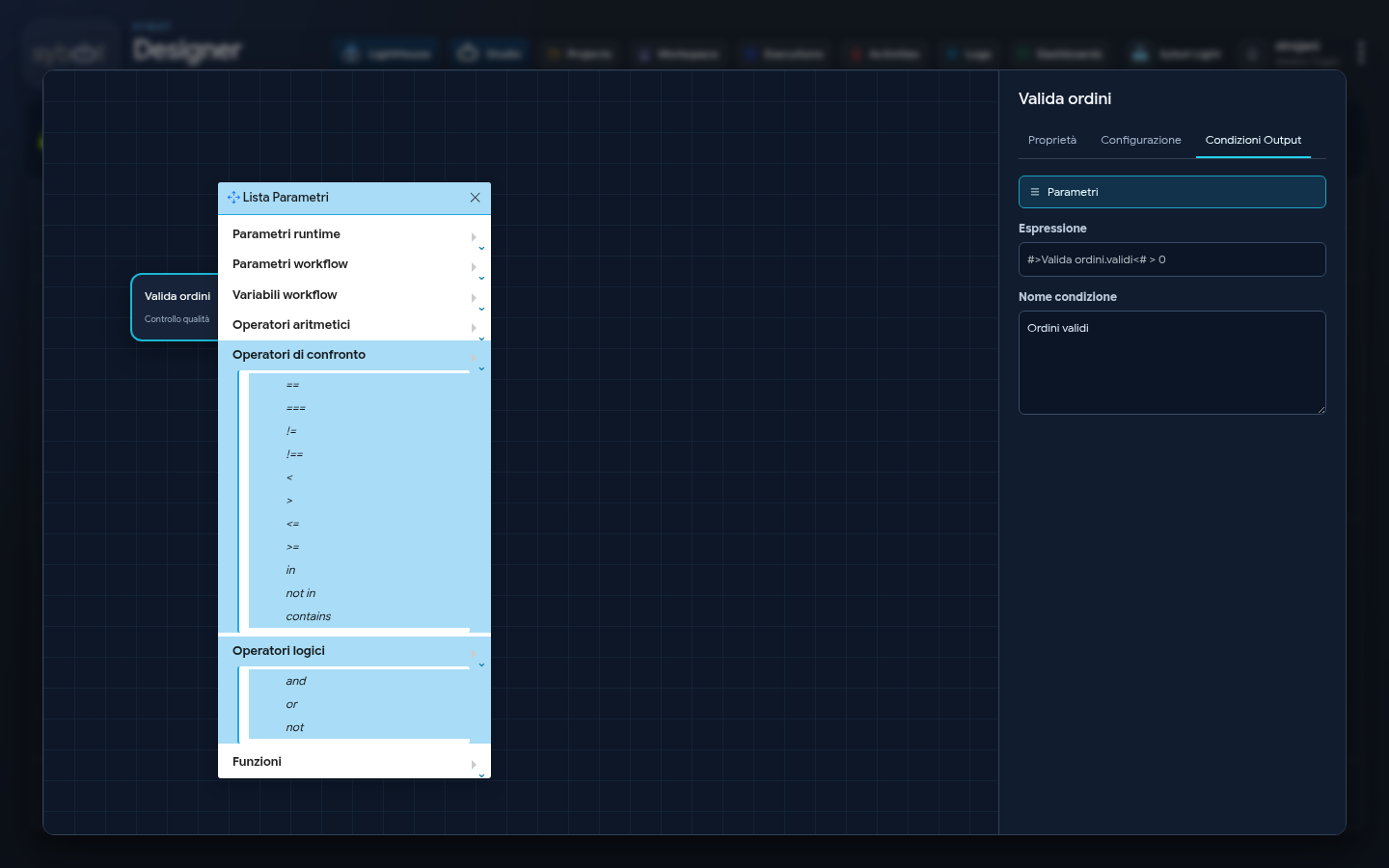
When accessing the "Parameter List" menu from the "Output Conditions" tab of a Task, its primary function is to assist in building complex logical expressions. These expressions determine which path the Workflow will follow after the Task execution.
The basic structure of the menu and the Runtime Parameters, Workflow Parameters, Workflow Variables, Functions, and Previous Task Outputs sections are identical to those described in the previous chapter.
The fundamental difference lies in the addition of two specific sections for building boolean logic: Comparison Operators and Logical Operators.
Comparison Operators
This section provides shortcuts for inserting operators used to compare two values. The result of a comparison is always a boolean value (true or false), which is the basis for any flow decision.
| Operator | Description | Example of Use in an Expression |
|---|---|---|
| == | Equal (value comparison, with type conversion) | #>Unix Search Process.exitStatus<# == 0 |
| === | Strictly equal (value and type comparison) | #>Chiamata REST.httpCode<# === 200 (compares a number with a number) |
| != | Not equal (value comparison) | #>Variabili Workflow.stato<# != 'Completed' |
| !== | Strictly not equal (value and type comparison) | #>Database.count<# !== '0' |
< / > | Less than / Greater than | #>Iterator.Dataset.Count<# > 10 |
<= / >= | Less than or equal to / Greater than or equal to | #>Controllo loop.loopCount<# <= 5 |
| in | Checks if a value is present in a list or array. | |
| not in | Checks if a value is not present in a list or array. | |
| contains | Checks if a string contains another substring. | contains(#>Importa Testo.result<#, 'ERROR') |
Logical Operators
These operators are used to combine two or more comparison expressions, allowing the construction of complex and multi-factorial conditions.
| Operator | Description | Example Usage in an Expression |
|---|---|---|
| and | Returns true only if both expressions are true. | #>REST Call.httpCode<# === 200 and #>REST Call.response<# contains 'success' |
| or | Returns true if at least one of the expressions is true. | #>Service Status.result<# == 'stopped' or #>Service Status.exitStatus<# != 0 |
| not | Inverts the result of an expression (from true to false and vice versa). | not (#>Workflow Variables.active_user<#) |
The combined use of parameters, functions, and these logical and comparison operators allows you to precisely and granularly define Workflow behaviour in response to any result from executed Tasks.