Workspace
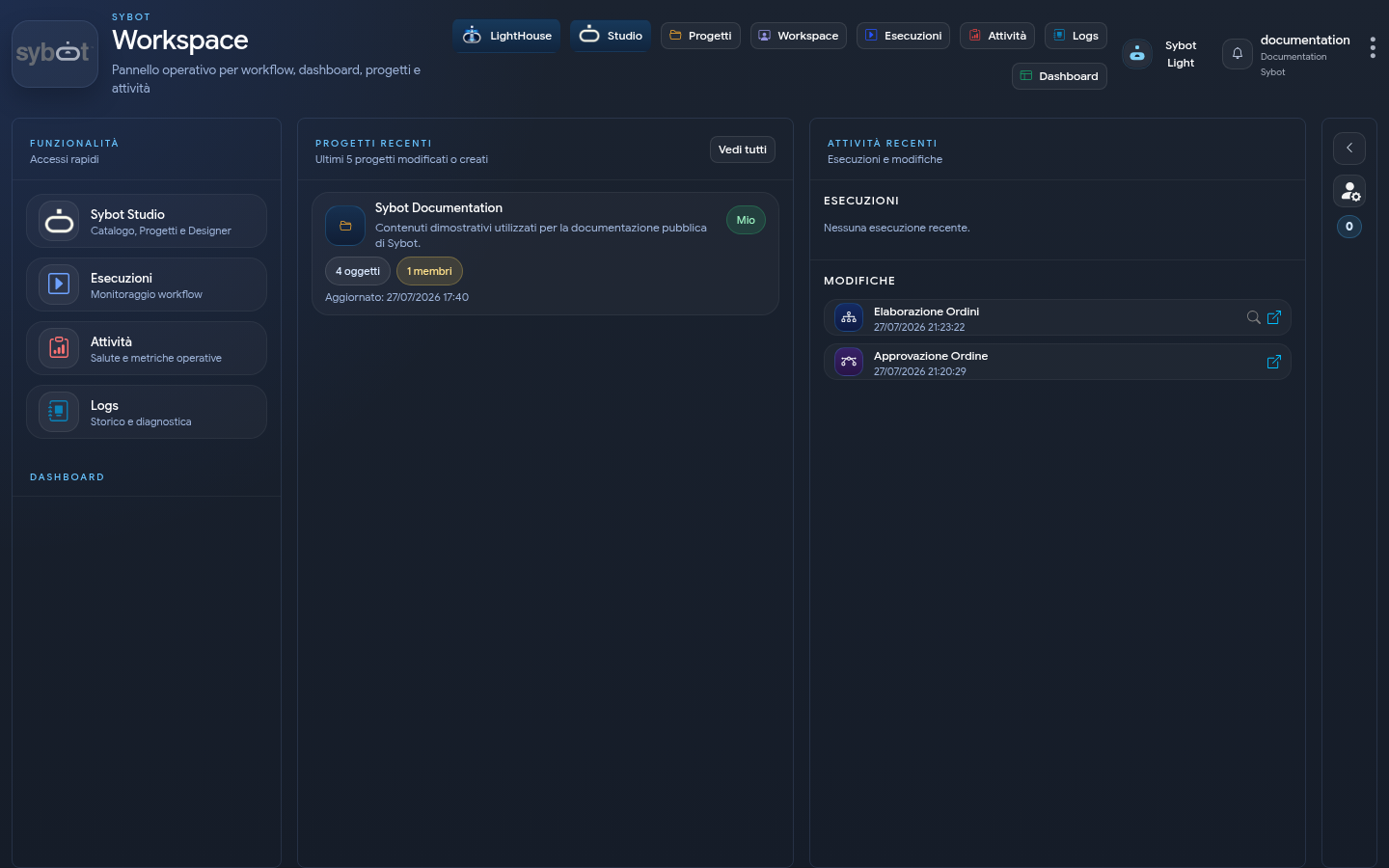
The Workspace represents the main page of Sybot after user authentication.
The page consolidates access to workflows, dashboards, projects, and operational tasks within a single interface, providing an immediate view of the most relevant elements for the user.
The page organisation is based on distinct functional areas, designed to support the immediate consultation of the platform's operational status and navigation to the system's main modules.
Top Navigation Bar
The top navigation bar is always available within the page and allows direct access to the main sections of the platform.
Navigation Menu
The main menu includes links to the following application areas:
- Sybot Studio
- Designer
- Projects
- Workspace
- Executions
- Tasks
- Logs
- LightHouse
- Dashboard
Each item allows access to the corresponding operational or administrative module of the platform.
User Profile and Notifications
On the right side of the top bar are tools related to the user session and notification management.
The following are available:
- access to information about the authenticated user
- access to profile settings
- access to the notification centre
- indication of unread notifications via a numeric badge
Functionality Area
The area dedicated to functionality collects quick links to the main modules of the platform.
Sybot Studio
The Sybot Studio item allows access to the operational environment dedicated to the management of automation and analysis elements.
From this section, the user accesses functionality related to:
- Workflow, BPMN, User Views, and Semantic Models catalogue;
- projects and their members;
- inventory and organisation of accessible objects.
Designer
The Designer item opens the design Workbench.
From this area, it is possible to:
- create, import, and export supported objects;
- open Workflows, BPMN, User Views, and Semantic Models;
- work with multiple editors in internal tabs;
- reactivate an already opened tab without duplicating the same object;
- explicitly manage any modification conflicts.
Executions
The Executions item allows access to the area dedicated to the management and monitoring of workflows.
In this section, it is possible to start new workflows, monitor the status of ongoing and completed executions, stop active executions, and schedule automatic execution of workflows. It is also possible to consult operational details related to each execution.
Tasks
The Tasks item allows access to the workflow monitoring dashboard.
The page provides an overview of the platform's health status, the progress of executions, and the last recorded status for each workflow. Synthetic indicators, statistical charts, operational rankings, and filtering tools for period, status, and category are also available.
Logs
The Logs item allows access to the area dedicated to the consultation of workflow execution logs.
The module allows analysis of workflow executions recorded by the platform, providing information on the general execution status and details of processed tasks.
Through this section, it is possible to consult:
- overall status of the executed workflow
- sequence of executed tasks
- parameters used during execution
- execution times of individual tasks
- total duration of the execution
- tasks completed successfully
- tasks terminated with error
- workflow interruption point in case of failure
The section supports technical analysis of executions, verification of workflow outcomes, and identification of error causes in automated processes.
Dashboard
The Dashboard area collects the configured dashboards and makes them available based on the user's role.
User Views
The User Views section displays the published views accessible to the user. Search, sorting, and navigation between result pages are available.
Selecting a view opens the corresponding operational interface. A User View can contain indicators, charts, tables, interactive filters, and commands to start or monitor Workflows.
The section is visible when the feature has been enabled by the administrator and at least one published view is available for the user's role. For more information, see User Views.
LightHouse
The LightHouse button opens the document library and the corporate knowledge area. The content displayed depends on the permissions assigned to the user and the Collections.
Sybot Light
When available, the Sybot Light icon opens the assistant without leaving the current page. The assistant can work in general mode or query the authorised LightHouse documents, showing the sources used.
For more information, see Sybot Light.
Recent Projects
The Recent Projects section displays the list of the last projects created, modified, or consulted by the user.
For each project, concise information useful for operational consultation is available.
The displayed information includes:
- project name
- sharing status
- number of associated objects
- number of associated members
- date and time of the last update
Recent Activities
The Recent Activities section displays the most recent events recorded on the platform.
The section collects the last executions and modifications recorded on the platform, including activities related to BPMN workflows.
The information is organised into distinct streams, related to executions and modifications.
Recent Executions
The Recent Executions stream displays the last workflows started or processed by the platform.
For each execution, the following are shown:
- associated workflow
- start date and time
- execution status and outcome
- access to operational details and related logs
This section allows rapid monitoring of the operational progress of workflows.
Recent Modifications
The Recent Modifications stream displays the last workflows and BPMN processes modified within the platform.
For each element, information on the modification date and direct access to the related workflow is available.
Human Task List
The Human Task List collects manual tasks that require user intervention to allow the continuation of workflows.
When a workflow reaches a Human Task of type, the execution remains pending until the assigned activity is completed.
For each task, the main operational information is displayed:
- task name
- source workflow
- start date and time
- due date
- configured timeout
- assignee
- priority
Human Task Management
The user can access the task details to perform the required operations.
The available actions include:
- opening the assigned task
- filling in the required data
- validating the entered information
- completing the activity
Completing the task allows the workflow to proceed with the subsequent phases provided by the process.
The section constitutes the main operational point for managing Human-in-the-Loop processes.
Notification Center
The Notification Center is accessible from the top navigation bar via the dedicated icon.
Notifications inform the user about relevant operational events generated by the platform.
The numeric badge highlights the presence of unread notifications.
Notification Management
The Notifications panel allows you to view and manage received events.
The available operations include:
- viewing recent notifications
- marking notifications as read
- removing notifications
- clearing the notification list
Unread notifications remain highlighted until you have viewed or managed them.