Console workflow
Integrates the start, progress, stop, and history of workflow tasks.
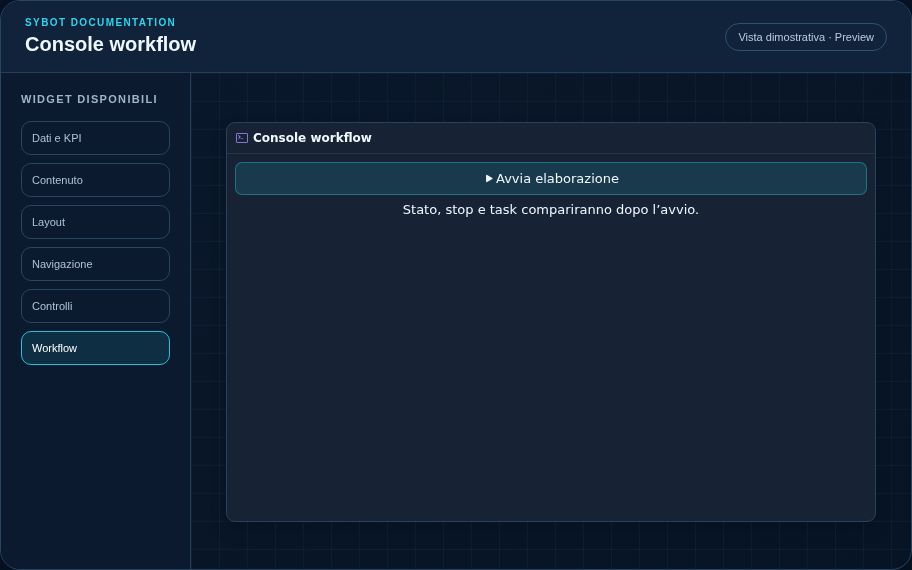
Recommended configuration
- Select the authorised workflow in the Content section.
- Resize the widget based on the operational detail you wish to expose.
- Verify behaviour in Preview; actual execution remains subject to view permissions.
Configuration options
| Area | Options |
|---|---|
| Workflow | Authorised workflow, command text, and optional confirmation request. |
| Parameters | Required values from the user and mapping from prompt, default, formulas, filters, selection, or literal values. |
| After start | Widget to refresh and context preservation during refresh. |
| Identity | Title, Subtitle, header visibility, type icon, and action button. |
| Presentation | Standard, Compact, or Dense variant and message to show when no data is available. |
| Appearance | Background, background image, border, radius, padding, shadow, and typography for different areas. |
| Position | Coordinates and dimensions in cells within the page or container grid. |
Best practices
- Use it when the user must govern the entire execution cycle from the view.
tip
Always verify the widget in Preview, in both light and dark themes, and with an empty data state before publishing the View.