Start workflow
Start the configured workflow without showing the full monitoring.
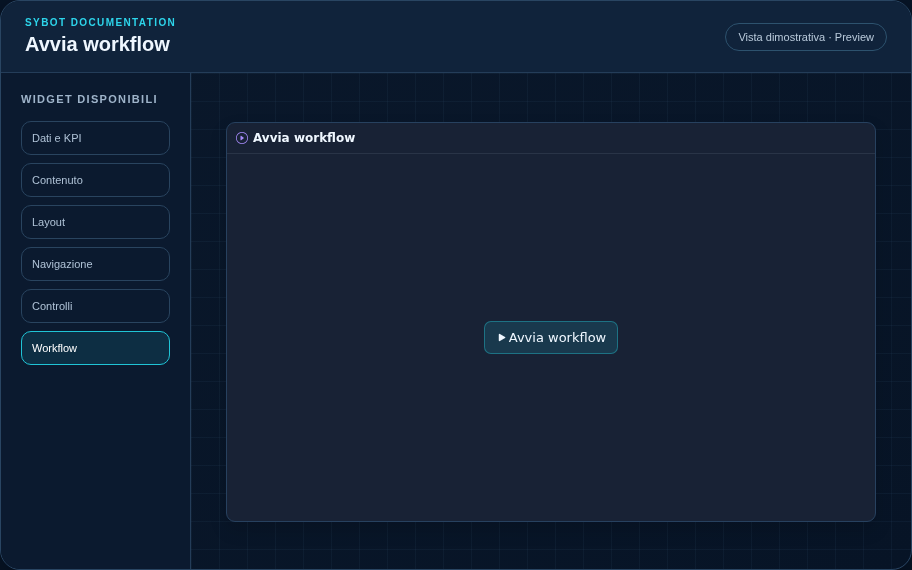
Recommended configuration
- Select the authorised workflow in the Content section.
- Resize the widget based on the operational detail you want to make available.
- Check behaviour in Preview; actual execution remains subject to view permissions.
Configuration options
| Area | Options |
|---|---|
| Workflow | Authorised workflow, command text and optional confirmation request. |
| Parameters | Required values from the user and mapping from prompt, default, formulas, filters, selection or literal values. |
| After start | Widget to refresh and context preservation during refresh. |
| Identity | Title, Subtitle, header visibility, type icon and action button. |
| Presentation | Standard, Compact or Dense variant and message to show when no data is available. |
| Appearance | Background, background image, border, radius, padding, shadow and typography for different areas. |
| Position | Coordinates and dimensions in cells on the page or container grid. |
Best practices
- Use it when you need a compact start command.
tip
Always check the widget in Preview, in both light and dark themes, and with an empty data state before publishing the View.