Refresh data
Reload the data for the widgets present on the page.
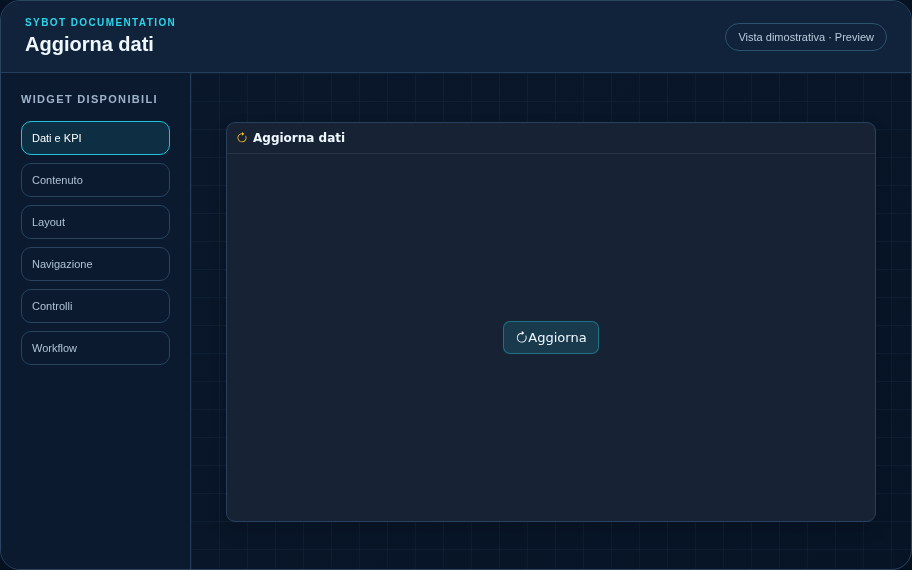
Recommended configuration
- Position the command near the data widgets.
- Configure the button label and style.
- Check the loading feedback in Preview.
Configuration options
| Area | Options |
|---|---|
| Command | Button label and refreshed data widgets while keeping active filters. |
| Identity | Title, Subtitle, header visibility, type icon and actions button. |
| Presentation | Standard, Compact or Dense variant and message to show when no data is available. |
| Appearance | Background, background image, border, radius, padding, shadow and typography for different areas. |
| Position | Coordinates and dimensions in cells on the page or container grid. |
Best practices
- The refresh maintains the current filters applied by the user.
tip
Always check the widget in Preview, in both light and dark themes, and with an empty data state before publishing the View.