Image
Displays a loaded image and manages it as a User View asset.
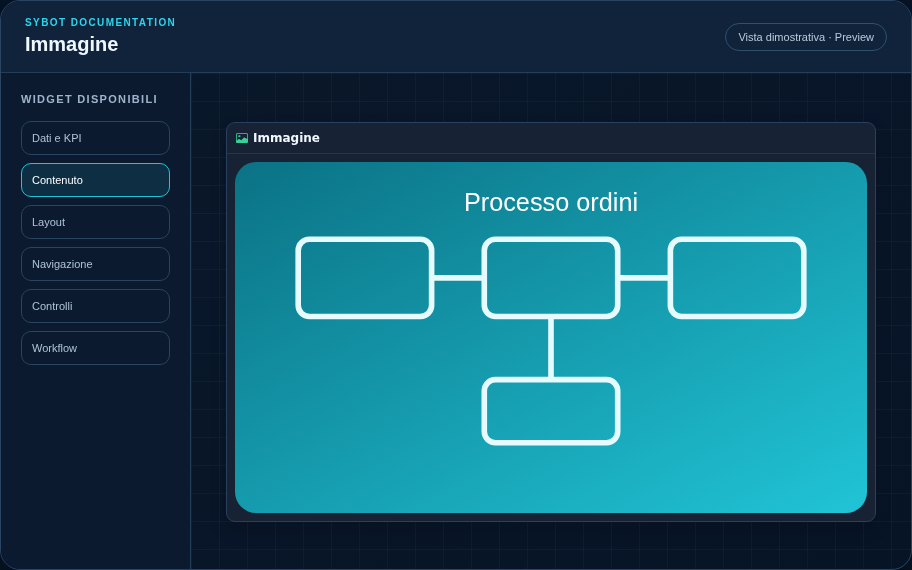
Recommended configuration
- Select the image file in the Content section.
- Wait for the asynchronous upload to complete.
- Resize the widget and configure the container, border, and shadow.
Configuration options
| Area | Options |
|---|---|
| Image | Uploaded asset, alt text, and fit within the container. |
| Identity | Title, Subtitle, header visibility, type icon, and actions button. |
| Presentation | Standard, Compact, or Dense variant and message to show when no data is available. |
| Appearance | Background, background image, border, radius, padding, shadow, and typography for different areas. |
| Position | Coordinates and dimensions in cells within the page or container grid. |
Best practices
- Use optimised images to avoid unnecessary load times.
tip
Always verify the widget in Preview, in both light and dark themes, and with an empty data state before publishing the View.