Sybot Nova
Your operational space, wherever you are
Control & Intelligence, ready when you are.
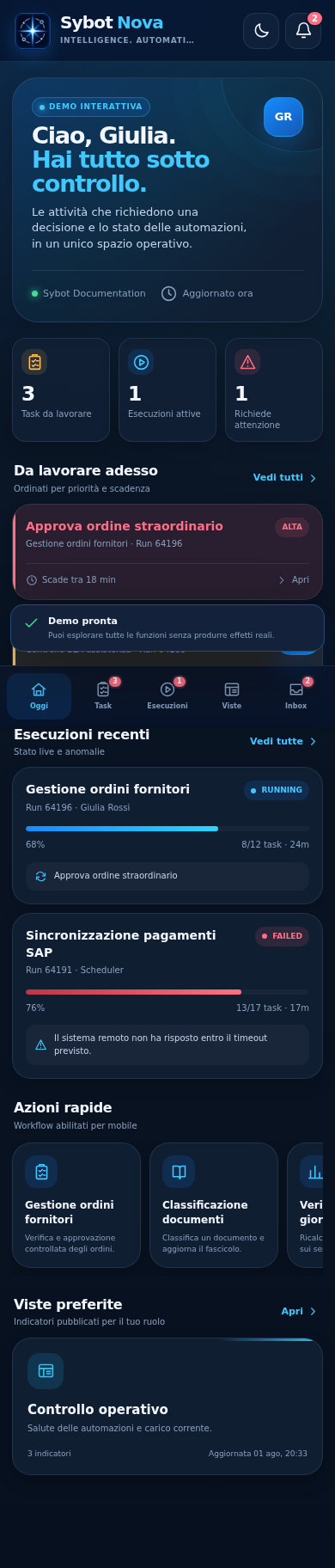
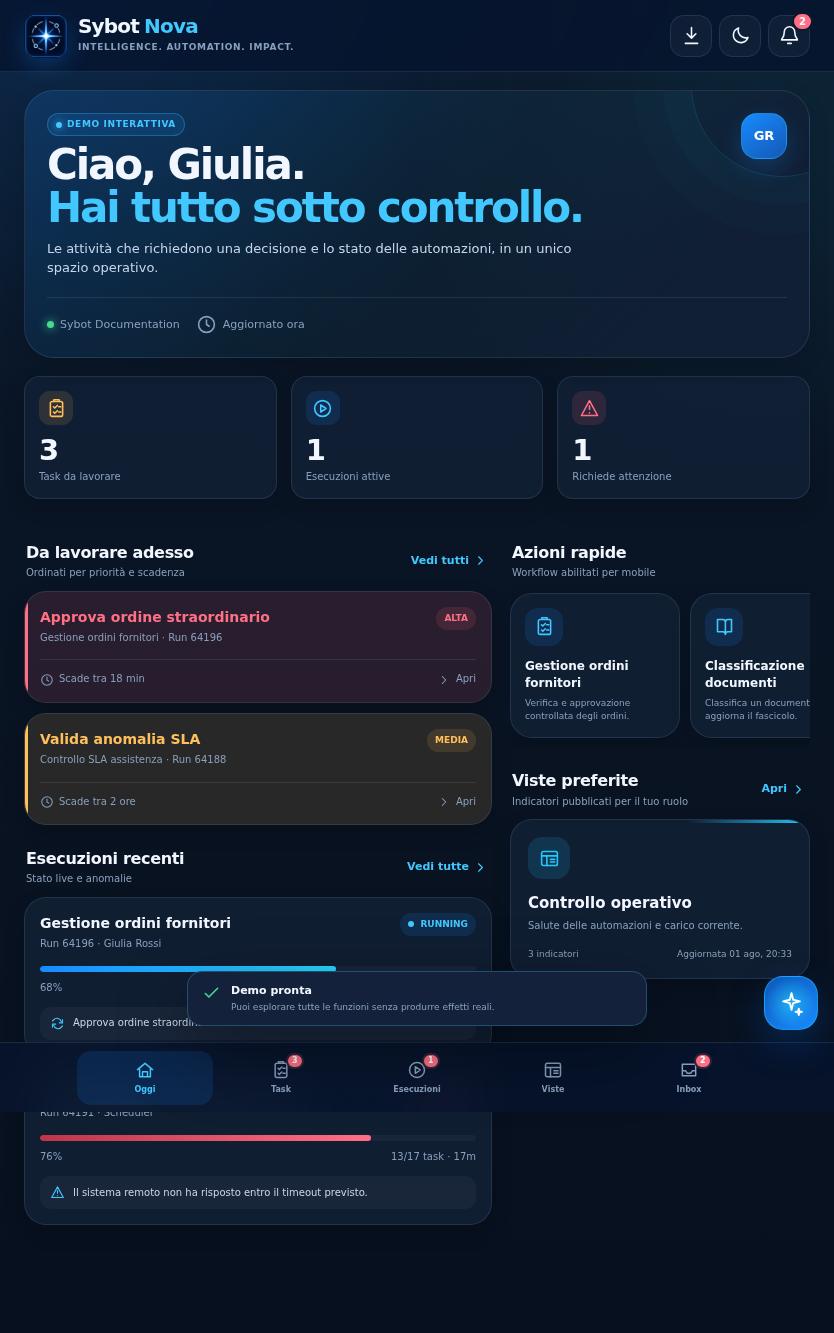
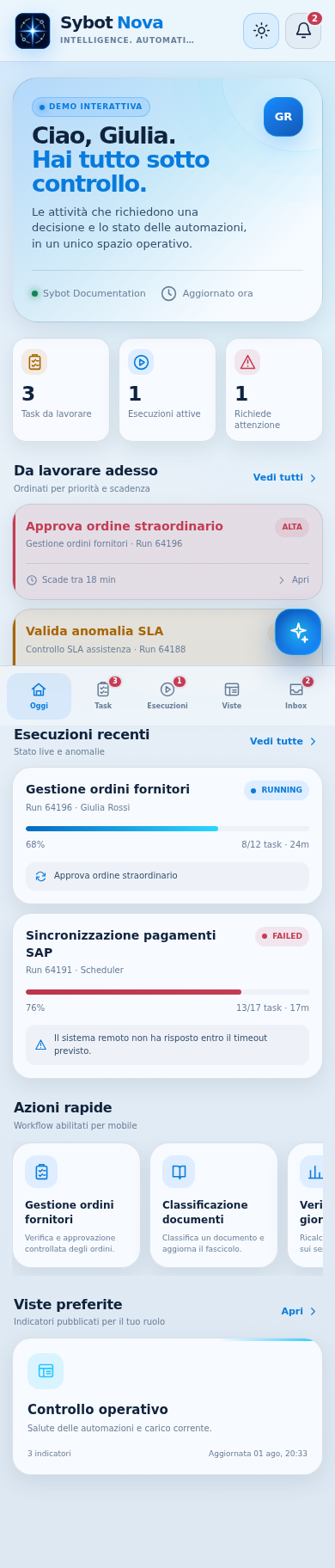
Sybot Nova is Sybot's mobile-first PWA: it brings together decisions, automations, published data, and contextual assistance in an experience designed for smartphones and tablets.
The feature must be made available by the platform administrator.
Accessing
- On the login page, select Open Nova.
- On the Nova-specific login page, enter your normal Sybot credentials.
- After logging in, the Nova home opens with the data permitted to your user.
If an active Sybot session exists, Nova opens directly. When the session expires, authentication is requested again on the Nova page. Accounts and permissions remain the same as on the Sybot platform.
Available features
Nova allows you to:
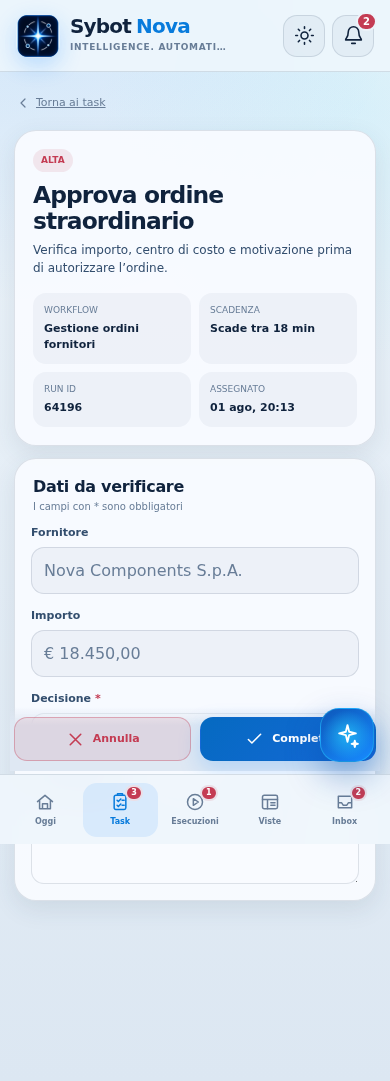
- consult active and assigned Human Tasks, fill in the form, and complete or cancel them;
- start Workflows published on Nova and permitted to your role, setting their parameters;
- track progress, timelines, and outcomes of your executions using the same criteria as the Logs page;
- restart a completed execution via Run again;
- stop your own active execution;
- open published User Views accessible without leaving the PWA, in full-screen mode, with actions gathered in a hamburger menu;
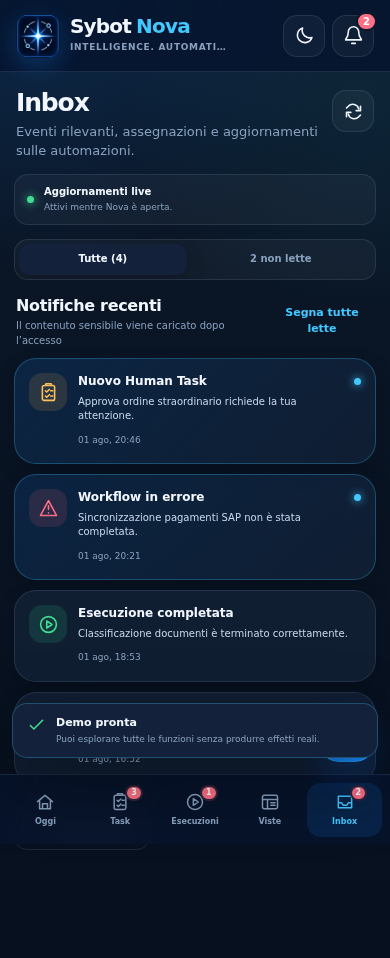
- read, mark as read, or remove personal notifications; cards do not open resources, while any explicit links in the HTML body remain clickable;
- search for accessible LightHouse documents;
- ask Sybot Light for a summary of pending tasks, failed runs, or relevant documents, and the complete list of executable Workflows in Nova.
Sybot Light responses support Markdown for emphasis, lists, tables, quotes, and code blocks. When a question requires a complete list, Sybot Light uses directly the authorised data available; if a free-form response instead uses a partial context, it must declare this.
The Designer is not included: creation and modification of Workflows remain in the full web app.
An authorised user decides which Workflows to make startable from the PWA via the Nova column in the Studio Catalogue. Normal visibility, validation, and roles continue to apply anyway.
Starting and monitoring Workflows
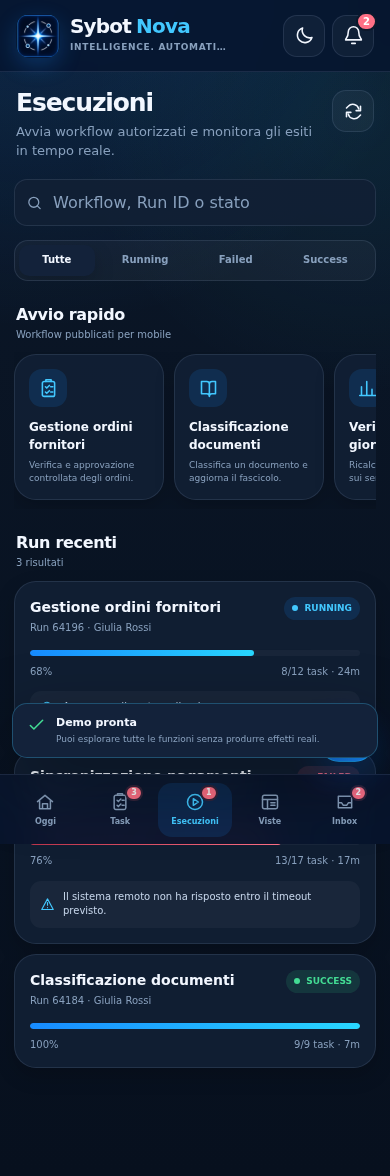
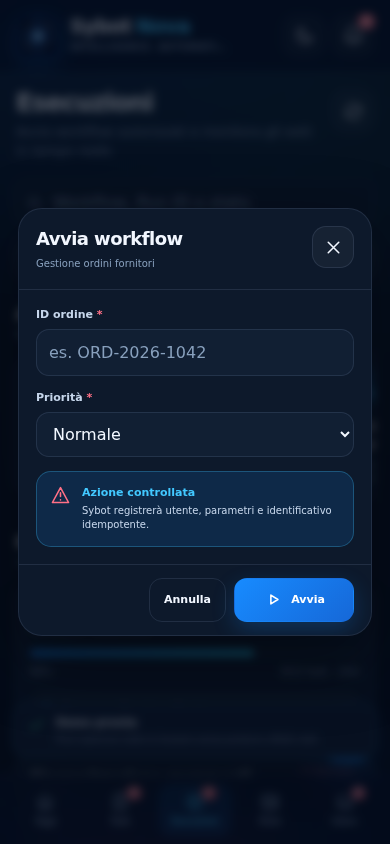
On the Executions page, the Quick Start section displays all published Workflows for Nova that are authorised to the current role. If the Workflow requires parameters, Nova collects them in a dedicated dialog and indicates that the action will be logged.
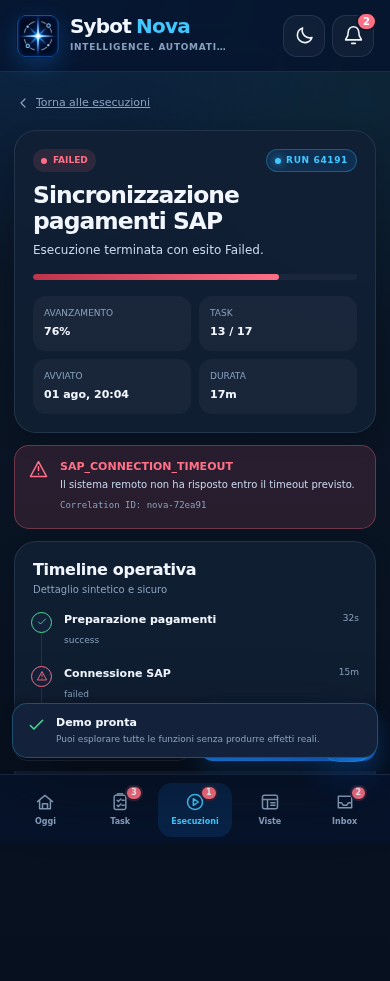
The run details report progress, number of tasks, duration, timeline, and safe diagnostics when the execution does not terminate correctly. Steps not belonging to the actual execution are not shown. From here, you can stop an active run, re-run a completed run, or ask Sybot Light to analyse it.
Consult User Views and Sybot Light
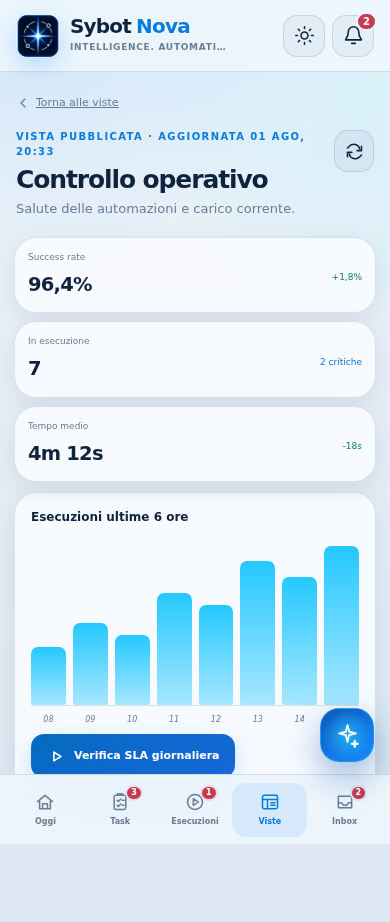
The Views section lists published and accessible User Views. The view opens within Nova, full screen, without navigating to an external browser page. Actions remain available and secondary commands are collected in the view's mobile menu.
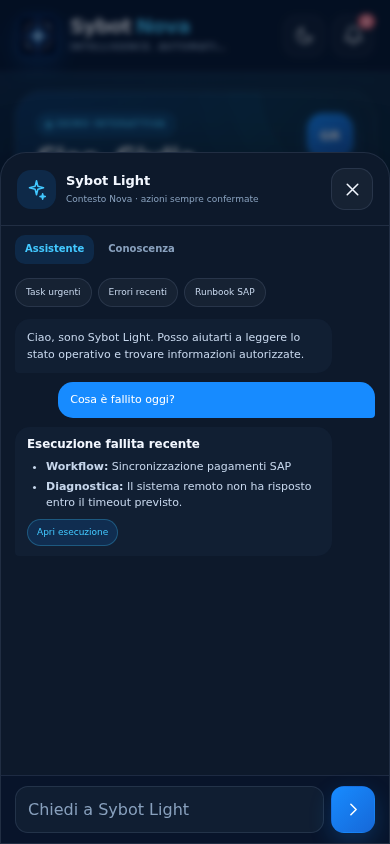
Sybot Light uses the app's authorised context to summarise tasks, analyse executions, and find information in LightHouse. Responses support Markdown and can propose relevant actions, always subject to normal permissions.
In the Knowledge tab, Sybot Light offers a dedicated chat for LightHouse documents. The Document collections selector allows you to choose one or more accessible collections; without selections, all authorised documents are used. Responses cite sources and can leverage relationships available in the Knowledge Graph. Use all removes the current scope; the next turn opens a new document context without reusing sources from previous collections.
Dictate a request to Sybot Light
The assistant composer has the microphone button available. Before starting, you can choose IT to speak in Italian or EN to speak in English.
- Select the language and then the microphone.
- Authorise access to the microphone if the device requires it.
- Pronounce the request and check the text that appears in the field.
- After a few seconds of silence, Nova automatically sends the question and clears the field.
If you select the microphone again before sending, dictation stops and the text remains editable. Language and microphone remain visible even when the device does not expose voice recognition: in that case, Nova shows an explicit message and it is always possible to write the message. Recognition requires a protected connection and the browser's relevant support.
Operational actions
Completion of a Human Task, starting a Workflow, and stopping an execution produce real effects in Sybot. Nova always shows a confirmation request before sending the action.
If in the meantime another assignee has already worked on the same Human Task, Nova signals the conflict and updates the status. Elements no longer authorised are not shown or cannot be opened.
Install Nova
After opening Nova:
- On compatible Android devices and browsers, open the profile and select Install Nova, or use the browser's installation command;
- On iPhone, use Share → Add to Home Screen.
The Sybot Nova icon is added to the device and opens the app's home screen directly. Installation does not replace the login: access continues to respect the Sybot session and permissions. If the icon has been updated, on iPhone you may need to remove Nova from the Home Screen and add it again.
During the process of adding to the Home Screen, the proposed name is Sybot Nova. The badge shown remains the same whether starting the installation from the dedicated login or from the already authenticated app.
Themes and updates
From the profile, you can choose a light, dark, or device theme. While Nova is open, notifications arrive in real time; tasks and runs continue to update in the background without closing active dialogs or panels. The update button forces an immediate refresh.
Live and push notifications
Inbox tabs are purely informational: tapping them does not open projects, workflows, human tasks, or other pages of the web app. Notifications created in HTML format retain formatting and lists; only links explicitly inserted in the body are clickable.
On a compatible device, you can receive notifications even when Nova is closed:
- install Nova and open it from its icon;
- enter Inbox;
- tap the bell and accept the system request.
On iPhone, this feature requires iOS 16.4 or later and Nova added to the Home Screen. Tapping a system notification opens exclusively the Nova Inbox, without automatically opening the referenced resource. The bell also allows disabling push notifications; events remain available in the Inbox when Nova is open.
Offline usage
The app structure can reopen even without network after first use, but operational data is not saved for offline use. Until the connection returns, Nova prevents actions that modify Sybot.
Without a connection, new notifications remain available on the operating system according to device capabilities, but the Inbox and updated data require an online connection.
In case of error
- If Session expired appears, log in again from the suggested page.
- If Connection lost appears, wait for the connection to return and refresh.
- If an action has already been executed, re-read the status shown by Nova before retrying.
- If the error includes a reference, report it to the administrator without copying sensitive data into the message.