Sybot Light - Virtual assistant
Sybot Light is the integrated assistant in Sybot. It opens above the current page and can help you understand features, configure tasks, formulate expressions, analyse a problem, or prepare a workflow draft.
For questions about the product, the current page, and executions, the assistant uses authorised context and relevant documentation. If these sources do not contain sufficient elements, it reports this without completing the response with hypothetical functions or data.
Every question is first interpreted semantically by the model. Based on the recognised intent, Sybot Light then consults the relevant authorised resolver: for example, Catalogue, executions, User View data, or documentation. The mere presence of words such as "workflow" or "failed" does not determine the response. If the interpretation is not available, the assistant reports this and does not apply an approximate keyword search.
Responses should be considered operational support: always verify configurations, results, and sources before applying them to a process.
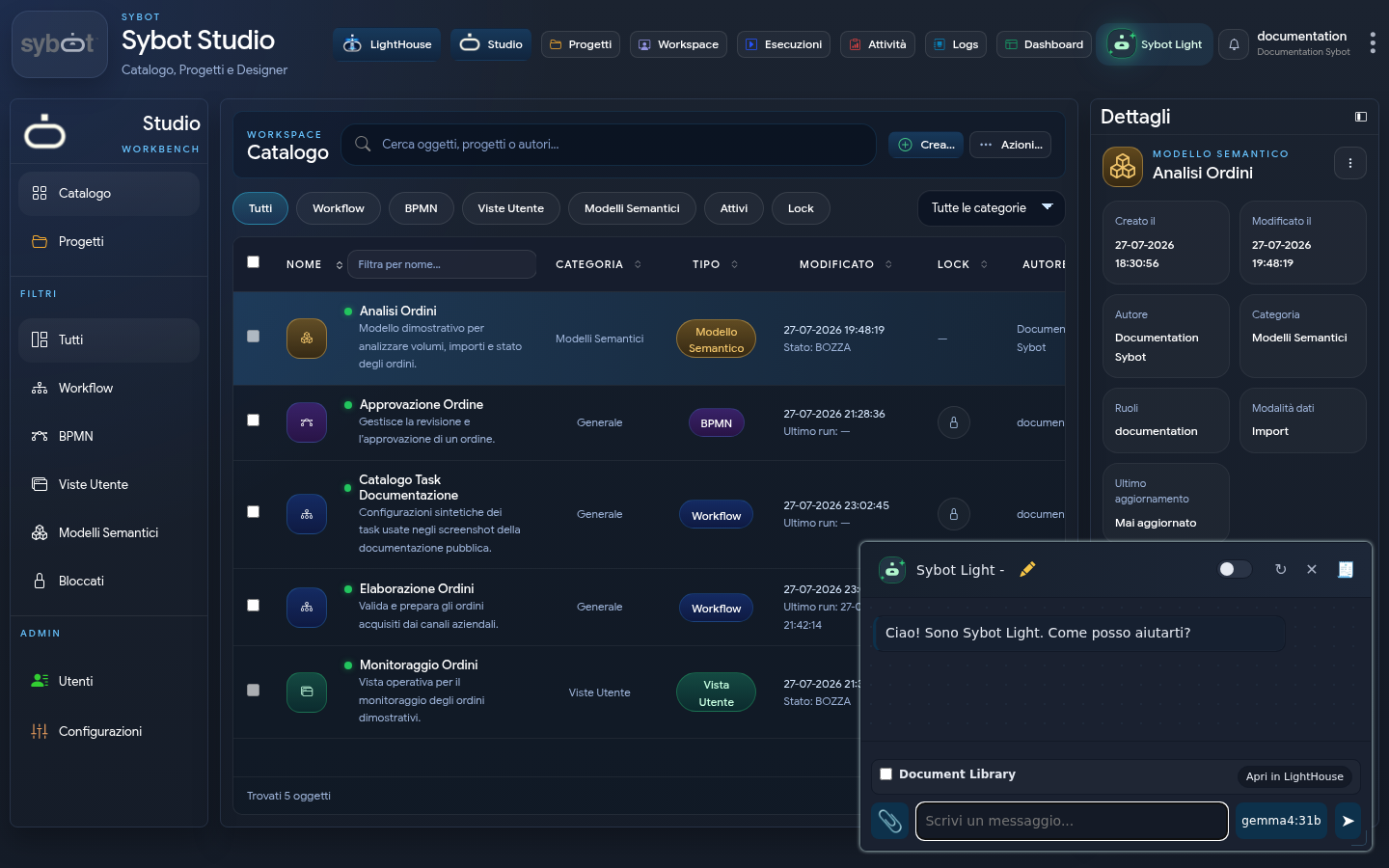
1. Open and manage the window
Select Sybot Light in the top bar. The window can be:
- moved by dragging the header;
- resized from the bottom corner;
- closed without leaving the page;
- displayed with a light or dark theme.
The conversation title is editable. New chat resets the current conversation, while Download PDF exports the available transcript.
2. General chat
In standard mode, you can:
- ask questions about how Sybot works;
- request clarification on tasks, parameters, and conditions;
- obtain examples of JSONPath, XPath, regular expressions, or data transformations;
- attach images and supported files;
- copy a response or block of code;
- interrupt an ongoing response.
When an AI model choice is available, use it only if you are aware of the expected differences in the environment. Otherwise, keep the proposed selection.
In User Views, the choice relates to conversational responses. Verified contextual queries and actions use the planner configured by the system, so their behaviour does not change by selecting a more compact chat model.
Attachments
The paperclip icon adds files or images to the request. The selected files appear above the text field and can be removed before sending.
Do not include passwords, tokens, or other sensitive data in attachments.
3. Propose a workflow
Sybot Light recognises explicit requests such as "create", "generate", or "propose a workflow". It is also possible to start the message with /workflow.
An informational question such as "How do I export a workflow?" does not trigger a proposal: it is treated as a request for product support.
The proposal can include:
- name and description;
- data to clarify;
- suggested tasks;
- configurations to complete;
- exit conditions and connections;
- adopted assumptions.
Before creating the draft:
- read the data to clarify and the assumptions;
- verify proposed tasks and connections;
- choose an accessible role;
- modify the name if necessary;
- select Create workflow draft.
At the end, the link Open in designer is available. The draft must be completed, validated, and tested before use.
Creation generates a draft, not a production-ready workflow. Parameters, connections, permissions, conditions, and error handling require user verification.
4. Document Library
By enabling Document Library, Sybot Light queries exclusively the LightHouse documents accessible to the user.
Below the option, the selector Limit to collections appears. Open it and tick one or more collections to restrict the search; the summary shows the chosen collection or the number of selected collections. Only active document collections for which you have access are available.
If no collection is selected, Sybot Light uses all accessible documents, as in standard behaviour. Use all removes current selections in a single action. Changing the perimeter causes the next query to start a new document context consistent with the selected collections; previously visible messages are not cleared.
The response shows:
- response text;
- confidence level, when available;
- warnings;
- document sources;
- cited excerpts;
- Open, Download and Open in LightHouse actions.
If the LightHouse Knowledge Graph contains relevant links, Sybot Light can use them to reach related evidence present in different documents. Permissions and scope remain those of the Document Library: links not supported by accessible sources are not included, and citations always refer back to the original documents.
New document chat starts a separate LightHouse session. Open in LightHouse opens the full Library interface.
General chat attachments are not sent to the Document Library: in this mode, documents already present in LightHouse are used.
To manage scope, search depth, document attachments and file generation, consult Document chat. To explore available relationships, consult Knowledge Graph.
5. Choose the correct mode
| Need | Mode |
|---|---|
| General clarification on Sybot or automation | General chat |
| Analysis of an attachment to the message | General chat |
| Verifiable response on corporate documents | Document Library |
| Search on one or more document collections | Document Library with collection selection |
| Search on specific documents or advanced scope configuration | Full chat in LightHouse |
| Preparation of a workflow draft | Workflow request in general chat |
| Question on data or command related to an open User View | General chat from the User View |
| Question on functions or data shown on the current page | General chat from the affected page |
| Explanation of an execution error | General chat from the Log or Executions page, after selecting the run |
6. Use the context of a User View
Opening Sybot Light from a User View, the assistant can recognise the view, pages, widgets, sources, filters and update status available. It can also apply filters, change page, open a widget in Focus mode, update data and execute authorised aggregations.
The information bar above the response indicates the User View name used as context. Data queries exclusively interrogate that view: starting a new chat clears the conversation, but does not extend the perimeter to other views. If the required fields are not available, Sybot Light names the current view and invites you to verify that you are in the correct view or to specify the fields to use.
For counts, clearly specify what must be counted:
- “How many rows does the Private Notes source return?” counts records from the indicated source;
- “How many orders result per Country?” counts the Orders entity and groups by Country;
- “How many distinct values are present in the Customer field?” counts unique values of the field;
- “What is the value of the Total Invoices measure?” uses the measure defined in the Semantic Model.
If the view contains multiple sources, entities or fields with similar names, specify their name. When the target is not unique, Sybot Light requests clarification before executing the calculation.
Results respect active filters and criteria indicated in the query. For example, “What is the total sales for country Australia?” calculates the total limited to Australia and reports in the response the filter used for the analysis, without changing the dashboard.
You can also ask for rankings, for example:
- “What are the 5 best-selling products?”;
- “What are the worst-selling products?”;
- “What are the best-selling products in Italy?”.
In the third case, Sybot Light groups by product, uses the relevant measure and applies the country as the sole analysis criterion. If the number of results is not specified, it returns a maximum of the first ten.
A criterion contained within a calculation query applies only to that specific result. To also modify the view, explicitly formulate a command such as "Filter the view for country Australia". Actions update the interface without replacing view or source access controls.
Recent conversation history allows for follow-up requests such as "use the same criterion for Italy" or "show me the first five". If a previous response proposes multiple alternatives and the subsequent message does not indicate which to choose, the assistant asks for clarification. Values mentioned previously are not treated as certain data: when a new calculation is required, Sybot Light re-executes it on the authorised sources.
If it cannot construct a verifiable analysis using the available fields, Sybot Light explicitly reports this. It does not return example values, placeholders, or simulated results.
During processing, a brief progress phrase is displayed, for example Analysing User View context, Querying authorised data, or Preparing the response. The phrase is updated in the same space and disappears when the result arrives; the model's detailed internal reasoning is not shown.
7. Using context from other pages
Sybot Light also recognises the product page from which it is opened. It can describe documented functions and, in prepared areas, use filters, selection, and visible data to respond substantively. Operational procedures directly report relevant steps from product documentation; individual task documentation is used only when the query explicitly concerns a task or block. The task guides consulted are the current ones published in this documentation, not pages from the previous Wiki, and are presented directly without adding undocumented steps.
Supported questions include, among others:
- "Which page am I on and what can I do?";
- "Which recent projects are visible?";
- "Which objects are present in the filtered catalogue?";
- "Which User Views are present in the catalogue?";
- "Which executions are shown?";
- "Which filters are active?";
- "Where can I consult task errors?";
- "Refresh page" or "Search reconciliation", when the page exposes the corresponding action.
Consulting catalogue objects from operational pages
On the Catalogue, Projects, Project Detail, Designer Workbench, Workspace, Executions, Activities, and Log pages, Sybot Light can describe the objects available within the authorised perimeter. You can specify the object type and name, or refer to the selected or opened object when the context is unique.
Examples:
- "How is the Order Management workflow structured?";
- "What is the Order Management workflow used for?";
- "Are there workflows in the Finance or Operations roles?";
- "Which tasks and connections does the selected workflow contain?";
- "Describe the Invoice Approval BPMN.";
- "Which pages, widgets, and sources does the Sales Monitoring view use?";
- "Which entities, measures, and relations does the Orders semantic model contain?";
- "Describe this project and the objects it contains.";
For Workflows, the description includes roles, category, status, associated projects, tasks, types, connections, and declared parameters; for BPMN activities, events, gateways, flows, and variables; for User Views, pages, widgets, and sources; for Semantic Models, entities, fields, measures, relations, and hierarchies. In Project Detail, the analysis is limited to objects belonging to the project and accessible to the user.
Catalogue lists are not derived solely from the currently visible cards. Sybot Light queries the entire authorised catalogue and can therefore list Workflows, BPMN, User Views, and Semantic Models separately, even when filters, sorting, or pagination do not show them all together.
When the query indicates one or more roles, Sybot Light compares the requested names with the roles actually associated with accessible Workflows and shows objects belonging to at least one of them. If the indicated role is not recognised, the assistant reports the limitation and shows the available roles within the authorised perimeter, without fabricating results.
The structure shown respects permissions. Users who can modify a User View or a Semantic Model can receive information about the current draft; users with view-only access receive information about the published version available. Sybot Light does not include credentials, reserved parameter values, or connection secrets in query responses.
If the name does not identify a single object, the assistant lists the candidates and asks which one to analyse. A procedural question such as "How do I export a workflow?" remains a request about product functionality and is not interpreted as a workflow analysis.
When Sybot Light uses a tab opened in the Designer Workbench, the context follows the active editor. Returning to the Workbench tab, the assistant returns to describing the catalogue, recent objects, and Workbench commands.
A workflow name does not alone determine the search type. A question about description, structure, configuration, or roles queries the Catalogue; a question about start, status, outcome, date, or last execution instead queries the authorised runs and also applies the indicated workflow name.
Visible data may be a subset, for example due to pagination, filters, or progressive loading. In this case, Sybot Light states this and does not present the subset as a total. For detail requests, select the item of interest first when the page provides a selection option.
Analyse runs and errors
From any product page, you can request information about accessible runs. Sybot Light can combine status, period, and workflow name in a single request, for example:
- "Are there workflows running?"
- "Are there workflows that failed today?"
- "What is the last failed workflow?"
- "When was the 'Order Management' workflow last executed?"
- "How many runs failed in the last seven days?"
The response uses the entire authorised perimeter and not the list of catalogue objects. When a workflow is indicated, the filter on its name is maintained along with any status and period criteria. On the Runs and Logs pages, a run already selected does not replace these criteria in general questions.
On the Runs and Logs pages, select the run to analyse or explicitly indicate its Run ID and formulate a specific question, for example:
- "What is the status of this run?"
- "Which tasks failed?"
- "Why did the send task end in error?"
- "Summarise duration, attempts, and outcome of tasks."
Sybot Light uses only runs and logs accessible to the user. The explanation reports the run, relevant tasks, their status, and the actually logged message. An exception management task is not automatically presented as the root cause when logs show another error. If no run is selected, no Run ID is indicated, or available data is insufficient, the assistant indicates which selection or information is missing.
Assistant indications help with diagnosis but do not replace verification of technical details and workflow configuration.
8. Dictate a request
The button with the microphone allows dictating the message when the browser and connection support voice recognition. The dropdown next to the microphone allows choosing IT for Italian or EN for English.
- Select the microphone and authorise its use if required by the browser.
- Speak the question: the recognised text appears in the message field.
- After a few seconds of silence, dictation ends, the question is sent, and the field becomes empty.
- To correct the text before sending, select the microphone again while speaking: dictation stops and leaves the text editable.
If the microphone is blocked, unavailable, or unsupported, Sybot Light shows an indication without preventing use of the keyboard. For security reasons, the browser may require a protected connection to allow access to the microphone.
9. Knowledge across product areas
You can also ask where to find a general function without navigating to a different page. Sybot Light maintains basic knowledge of the main areas of the product and indicates at least where to proceed; any subsequent opening or modification of an object remains subject to the user's permissions and the commands available on the page.
Examples:
- "Where do I create a Workflow or a Semantic Model?" → Designer Workbench;
- "Where do I run or schedule a Workflow?" → Executions;
- "Where do I see execution logs?" → Logs;
- "What is Sybot Nova used for?" → description of Nova's mobile functions;
- "How do I install Sybot Nova?" → procedure derived from Nova's documentation.
Knowledge of Sybot Nova is available from any page: there is no need to open the PWA first to ask what it is, what functions it offers, or how to access it.
Operational support in LightHouse
On the LightHouse page, Sybot Light can also consult specific operational guides from the Library, not just its introduction. You can therefore ask, for example, how to upload or version a document, what collection types are available, how to manage images and templates, or how to delimit a document chat. Answers are derived from the relevant sections of the documentation and maintain a link to the source.
10. Best practices
- Provide objective, input, expected output, and constraints.
- Ask the assistant to clarify doubts and missing data.
- Do not share credentials or unnecessary confidential information in the chat.
- Verify the sources of document-based answers.
- Always test a workflow draft with synthetic data.
- Start a new chat when the topic changes, so the context remains relevant.