Sybot Studio
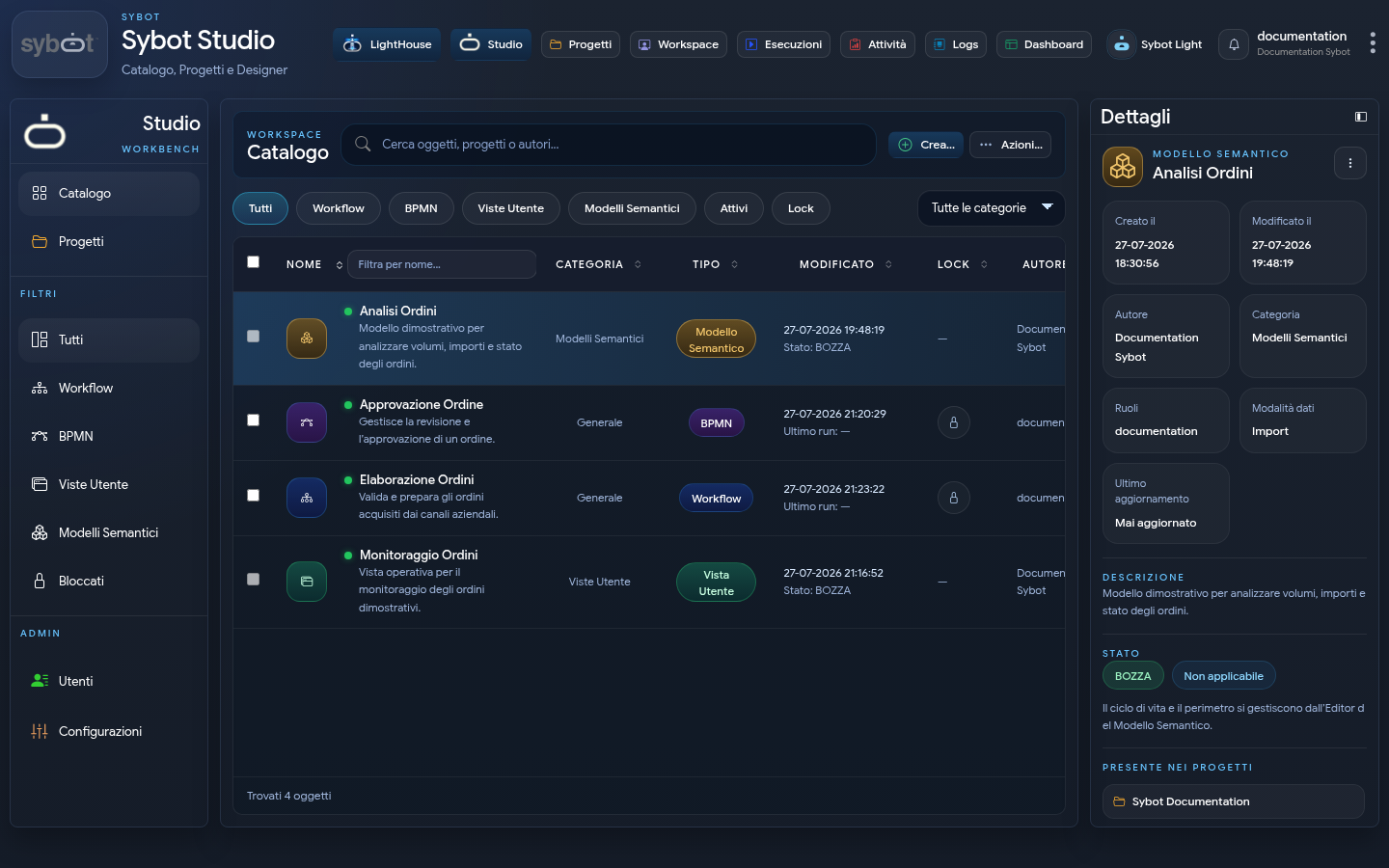
Sybot Studio is the catalogue where you can find, view and organise the automation and analysis objects available to users. Creation, import, export and modification are handled in the Designer Workbench.
The catalogue brings together four types of object:
- Workflow, for designing Sybot automations;
- BPMN, for modelling processes according to the BPMN standard;
- User Views, for building operational interfaces and dashboards;
- Semantic Models, for organising data, relationships and reusable measures.
User Views and Semantic Models are shown when these features have been enabled by the platform administrator.
Open the catalogue
Select Studio in the top bar. The page opens on the Catalogue and shows exclusively the objects accessible based on the user's permissions.
The side bar also allows you to reach:
- Projects;
- administrative configurations available for your role.
The Open Designer button leads to the Workbench to create, import, export or modify an object. The Open Editor or Open Designer buttons and actions are shown only to users who have the minimum role configured for the Designer.
Search and filter objects
The Search objects, projects or authors field filters the catalogue by object name, linked project or author.
Quick filters allow you to show:
- all objects;
- Workflow;
- BPMN;
- User Views;
- Semantic Models;
- active objects;
- objects locked in edit mode.
You can also limit results to a category. The table headers allow you to sort by name, category, type, last modified, lock status and author.
View an object
By selecting a row, the Details panel is updated. Depending on the object type and permissions, the following are available:
- name, description and type;
- Workflow ID, when the selected object is a Sybot Workflow;
- status and last modified;
- author and associated roles;
- linked projects;
- opening the editor or published view;
- allowed management actions.
An unavailable action remains disabled and shows the reason, for example an active lock, a view not yet published or insufficient permissions.
In a Portal menu, Add to project restores the link to its owning Project after detachment. A Portal belongs to a single Project, so this action does not transfer it to a different Project.
Create an object
Select Open Designer, then use the Create menu in the Workbench and choose the desired type.
Workflow and BPMN
Creation requires choosing at least one Project in which you have the Owner or Editor role. You can select more than one; at the end, the new Workflow or BPMN appears in the catalogue and is already linked to all selected Projects.
Importing one or more Workflows also requires at least one destination Project and allows multiple selection. Export does not require the choice of Projects.
User View
Specify name, description, at least one project and at least one role. Then select Create and open editor.
For the full procedure, consult User Views.
Semantic Model
Specify name, description, model mode, at least one project and at least one role. Then select Create and open Editor.
For the full procedure, consult Semantic Models.
Import and export
The Import and Export menus of the Designer Workbench collect the available exchange operations:
- Import Workflow;
- Export Workflow;
- Import User View, when the feature is available;
- Import Semantic Model, when the feature is available.
Importing a Semantic Model transfers the model and requires associating the necessary connections. User Views that use it are not imported together with the model.
By selecting a User View from the Export command, you can choose to include Semantic Models, connections, and roles, or produce a package containing only the View. During import, Sybot displays the list of dependencies and indicates which ones are already present. A conflicting View or Semantic Model can be overwritten, reused as appropriate, or duplicated with a new name. If a duplicate is created, references between imported objects are automatically updated.
Connections and roles must be associated with elements available in the target system. Passwords for manual connections are not exported and must be re-entered when choosing to recreate the connection.
Exported files may contain user-defined configurations: store and share them only with authorised personnel.
Bulk operations
Selecting multiple rows displays the bulk actions bar. Depending on the selected objects and permissions, you can:
- create a new project;
- add objects to an existing project;
- enable or disable compatible objects;
- delete objects;
- cancel the selection.
Before deletion, Sybot requires confirmation. Always verify the summary list: deleting an object from the catalogue is different from removing it only from a project.
For a User View, the summary shows versions, executions, reports, linked Workflows, and other users with access. These elements describe the effects of the operation but do not block deletion: users will lose access and any Workflows will need to be reconfigured.
For a Semantic Model, versions, updates, User Views, Workflows, and other users with access are instead constraints. You can remove them before the operation or explicitly select Ignore constraints and force deletion. Forced deletion also removes the linked sources of User Views; use it only after verifying all displayed elements.
Lock and permissions
A lock indicates that a Workflow is open for editing. The Designer Workbench extends this protection to all editable types and prevents two tabs from simultaneously writing to the same object.
Visibility and available operations depend on:
- the user's application role;
- project membership;
- the role held within the project;
- the scope assigned to User Views and Semantic Models.
If your application role is lower than the minimum role configured for the Designer, Catalogue, and Projects remain readable but do not display editor open commands. Any published User Views remain openable for read-only access according to their respective permissions.
If an expected object does not appear, check the filters and ask the project owner to verify members and roles.
Owners and Editors can duplicate User Views and Semantic Models and associate them with a project in which they hold at least the Editor role. Disabling and deletion remain operations reserved for Owners.
In a project's details, Add object to project allows you to select available Workflows, BPMN, User Views, and Semantic Models. Filters by type help to limit the list.
Expected result
Upon completion of the operations, the catalogue is updated without changing the page and displays a message with the outcome. In case of an error, read the displayed message and correct the indicated data before repeating the action.