Projects
Projects organise Workflow, BPMN, User Views, Semantic Models, Portals and LightHouse Collections in a single space. They also allow you to share these objects with a work group by controlling the operations permitted to each member.
Open the list of projects
From Sybot Studio, select Projects in the sidebar.
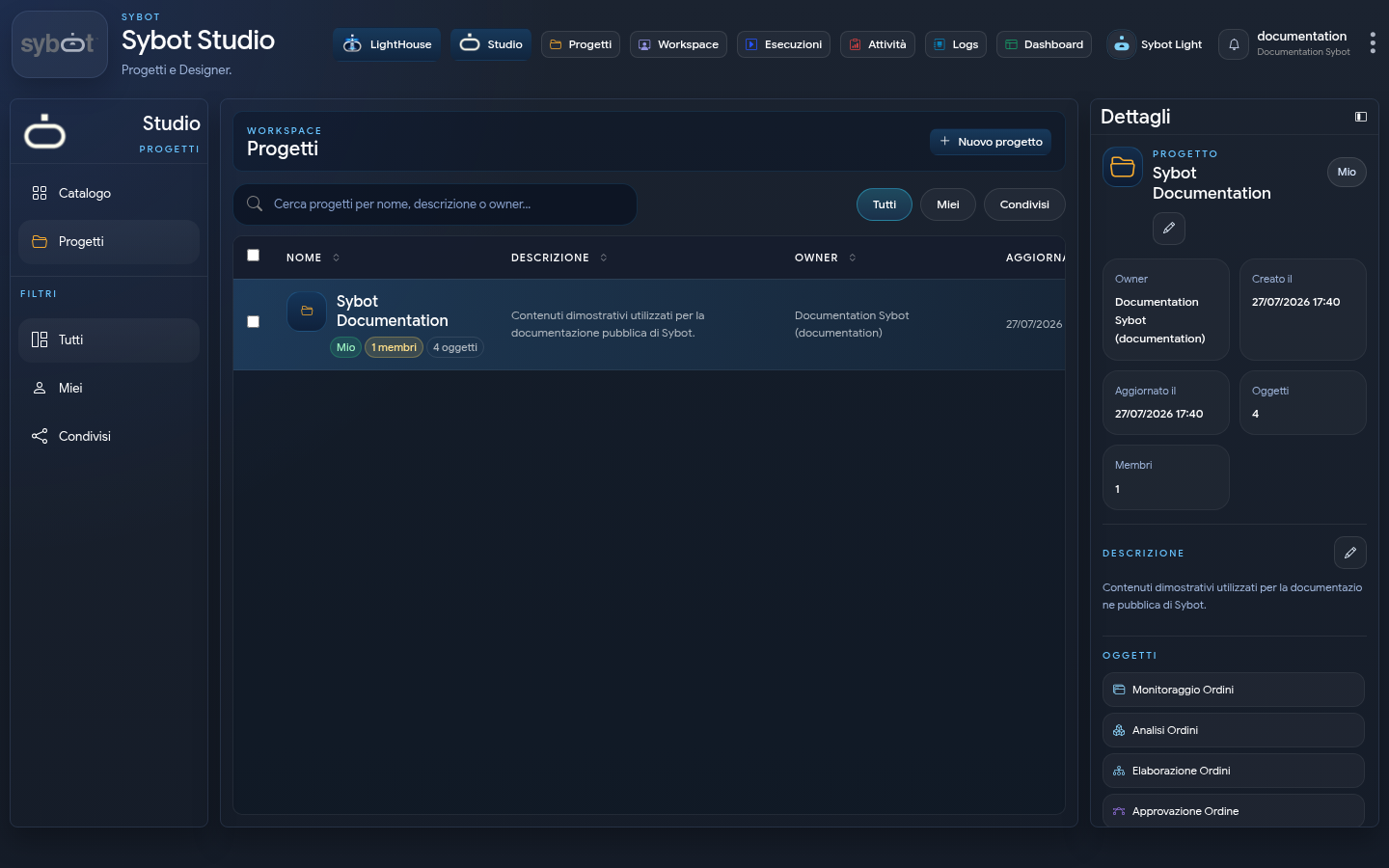
The page displays the projects accessible to the user. The search field filters by name, description or owner; the quick buttons distinguish:
- All;
- Mine, created by the user;
- Shared, made available by another owner.
The table reports owner, description, update date and object and member counters.
Create a project
- Select New project.
- Enter a recognisable name.
- Add a description that clarifies the purpose of the project.
- Confirm the creation.
The creator of the project becomes the Owner. The project is immediately available in the list and can be opened to add objects and members.
Project roles
| Role | Main operations |
|---|---|
| Owner | Edit the project, manage objects and members, change roles and delete the project. |
| Editor | View and edit project information and can add or remove permitted objects. |
| Viewer | Browse the project and open objects for which you have permissions, without modifying their organisation. |
The Owner role cannot be modified and the Owner cannot be removed from the list of members.
Manage the detail
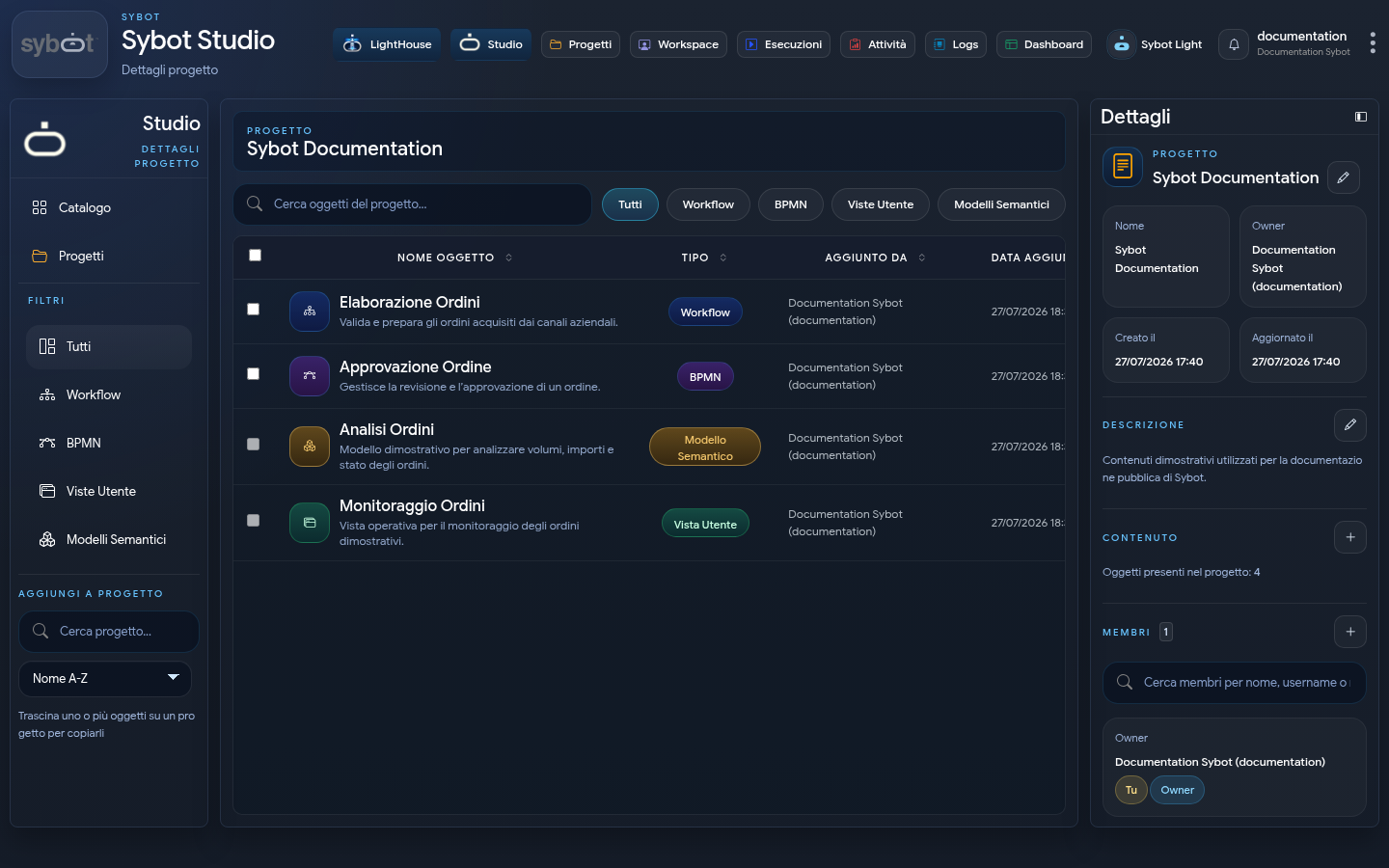
Opening a project accesses the detail page, composed of:
- search and filters by object type;
- list of present objects;
- panel with name, description and counters;
- Members section.
Available filters include All, Workflow, BPMN, User Views, Semantic Models, Portals and LightHouse Collections, based on enabled features.
Add objects
Owners and Editors can select Add workflow to project or use the actions available in the catalog.
- Open the object selection.
- Search by name and filter by type.
- Select one or more elements.
- Confirm with Add selected.
A Workflow or a BPMN can belong to multiple projects. For User Views and Semantic Models, the association to projects is also managed by the object scope.
The selection also includes the Portals filter. Each Portal belongs to a single Project, chosen during creation: a Portal that is accessible but belongs to another Project remains visible as unselectable and the reason is shown in the row. The modal does not move the Portal and does not create multiple associations.
A LightHouse Collection can also belong to multiple Projects. It can be added from the Catalog or from the Project detail when you have modification permissions on the collection. The association to the Project does not replace LightHouse permissions.
When creating a Sybot Workflow or BPMN from the Designer Workbench, it is mandatory to choose at least one editable Project. It is possible to select more than one and the connections are created automatically. The same multiple selection is required when importing one or more Workflows; it is not required during export.
Remove objects
In the project detail, you can select one or more objects and choose Remove from project.
Removal deletes the link with the project, but does not delete the object from the catalog. A LightHouse Collection must remain associated with at least one active Project: if the current one is the last, associate it with another Project first. To permanently delete an object, use the specific action in the catalog and carefully check the confirmation request.
Project Owners and Editors can use Detach from Project in the Portal row menu. This removes only the Project link; Add to project in the Catalogue restores it to the owning Project. Permanent Portal deletion is available exclusively from the Catalogue.
Manage members
Only the Owner can add, edit, or remove members.
To add a member:
- open the Members section;
- search for and select one or more users;
- assign the Viewer or Editor role;
- select Add member.
For an existing member, the Owner can change their role or remove them from the project. Changes take effect on subsequent project access and do not automatically extend other application permissions.
Bulk operations
In the projects list, you can select multiple rows. Bulk actions allow, when authorised:
- to share multiple projects with the same users;
- to delete multiple projects;
- to deselect.
In a project detail, multiple selection instead allows adding objects to another project or removing them from the current one.
Edit or delete a project
Owners and Editors can edit the name and description. Only the Owner can delete the project.
Deletion removes the container, links, and project memberships; it does not automatically delete catalog objects. If the Project is the only active Project of a LightHouse Collection, the operation is blocked and indicates which collections to associate elsewhere.
Troubleshooting
- Project does not appear: remove filters and verify that you have been added as a member.
- Cannot add objects: check that you have the Owner or Editor role and that you have permissions on the object.
- Cannot manage members: member management is reserved for the Owner.
- Object does not open: project membership does not replace any specific object permissions.
- Cannot see Open Editor or Open designer: your application role may be lower than the minimum role configured for the Designer.