Templates and generation
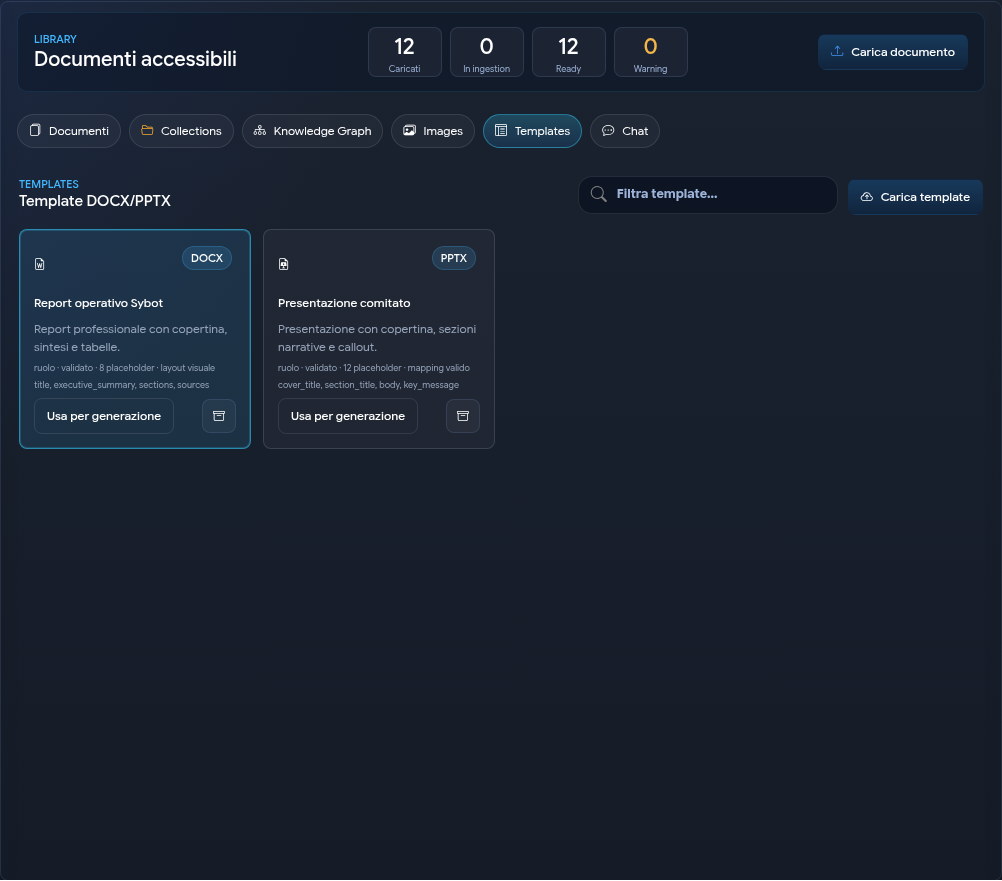
The Templates tab collects reusable DOCX and PPTX templates to shape and style files generated in the LightHouse Chat.
A template is not treated as a source document; it guides the format of the output.
1. Upload a template
- Open the Templates tab.
- Select Upload template.
- Choose a DOCX or PPTX file.
- Enter the name and description.
- Choose the visibility:
- Personal;
- Role;
- Temporary.
- For role visibility, select the available roles.
- Select Upload template.
Upon completion, LightHouse displays the format, validation, recognised placeholders, and any mapping status.
2. Placeholders and layout
Templates can use:
- explicit placeholders, which indicate where to insert content;
- a visual layout, in which LightHouse recognises reusable areas;
- a combination of both approaches.
The Details panel reports the placeholders, the layout type, and the validation result.
PowerPoint mapping
For some PPTX files without explicit placeholders, shape mapping is required. The PowerPoint shape mapping panel allows you to associate slide areas with roles such as title, cover, and body.
Until the required mapping is valid, the template shows Mapping required and cannot be used for full generation.
3. Use a template
The Use for generation action:
- opens the Chat tab;
- sets the format consistent with the template;
- selects the template file;
- leaves the question and the file title to be generated to the user.
In the Chat Generation options, you can choose:
- output format;
- document style;
- template file;
- optional title;
- inclusion of sources in the file.
Available formats include PDF, Word, Excel, PowerPoint, Markdown, CSV, JSON, and text. Actual availability depends on the request and the selected template.
LightHouse also interprets requests expressed naturally and attempts to choose the most suitable format. If the format is important, select it in the options: an explicit choice always takes priority.
PDF, Word, Excel, and PowerPoint are first planned as a coherent structure and then laid out. For Word and PowerPoint, LightHouse first develops an editorial draft with sections, descriptive paragraphs, and key messages: extracts from sources are not concatenated directly into the final file. If it is not possible to build a sufficiently complete and coherent plan, generation ends with an explicit error instead of producing a document filled with irrelevant fragments.
When the selected evidence contains Knowledge Graph relations, LightHouse can use them to better order sections and make explicit documented connections and dependencies. The graph does not add autonomous sources: every content in the file must remain supported by the accessible documents included in the search. If no relevant relations are available, generation continues normally with only the documentary evidence.
The Studio template applies Sybot logos and palettes, cover or header, typographic hierarchies, tables, and coordinated spacing. If no manual title is specified, the file name is derived from the topic. A precise request regarding recipients, objectives, expected sections, and tone normally produces a better result.
The selected level of detail also affects the file form. In-depth Word documents develop relevant sections with descriptive paragraphs linked to each other. In-depth PowerPoint presentations distribute paragraphs across readable slides and alternate narrative explanations with columns, tables, callouts, and concise lists, so that the presentation is not composed solely of bullet points. The automatic title determines the file name, but it is not used to choose or order content.
4. Generated files
The Files generated in this session panel allows, according to the file status, to:
- download it;
- open its details;
- regenerate it;
- convert it to another format;
- save it to the Library.
The generation of paginated formats continues in the background. The file card shows progress and the current phase; you can continue to use the chat. If generation fails, the message indicates the phase and allows you to correct the request or retry without losing the conversation.
With Save to Library, you define the title, collection, inherited permissions or direct roles, and an optional description.
5. Template management
From the template details, the following are available:
- status and summary;
- format and layout information;
- placeholders and mapping;
- validation result;
- visibility and roles;
- Use for generation;
- Archive, Restore, or Delete.
Management actions appear only for templates for which the user has the necessary permissions.
6. Best practices
- Use a name that clearly indicates the purpose of the template.
- Verify the result with sample content before sharing it.
- For PowerPoint, check the mapping of all reusable slides.
- Keep templates and source documents separate.
- Include sources when the file must make generated information verifiable.