Image Explorer
The Images tab allows you to explore image collections, search by content or metadata, and manage tags used for classification.
To get started, select a collection of type Images.
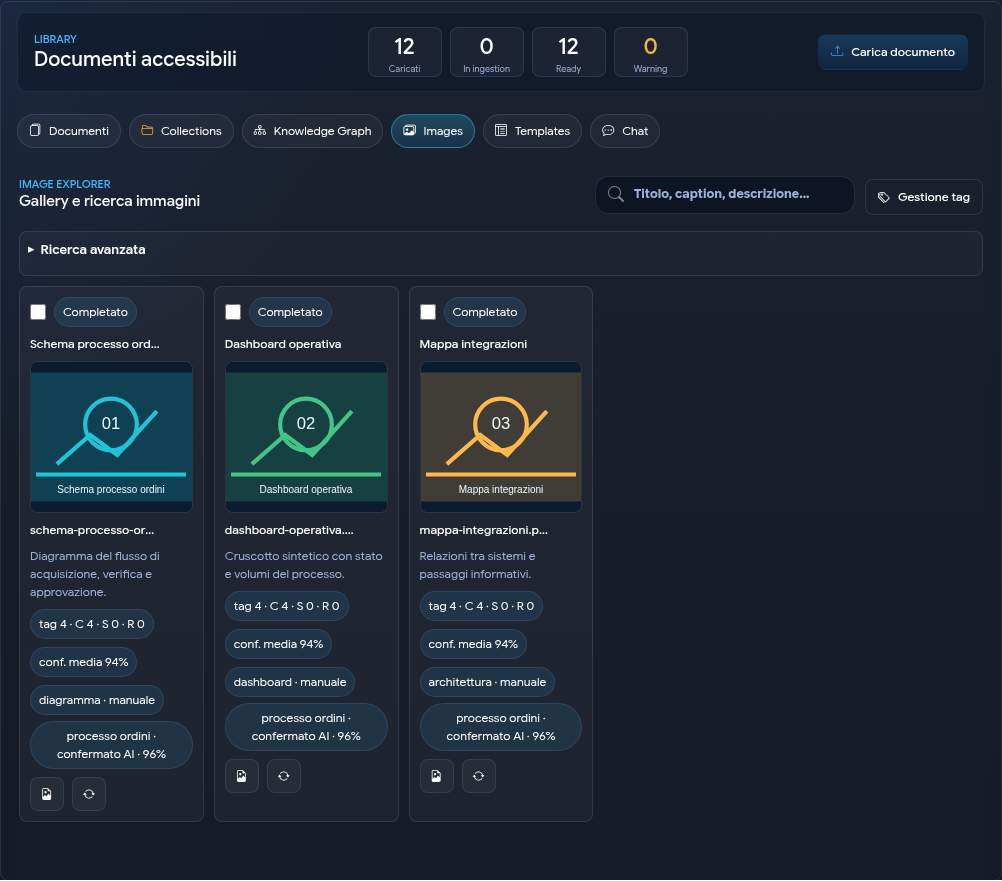
1. Quick Search
The field at the top searches within the title, caption, and description of images. Results are displayed in the gallery.
Selecting an image provides access to available actions and details.
2. Advanced Search
The Advanced Search panel allows you to combine:
- included tags with OR or AND operators;
- excluded tags;
- confirmed or suggested tags;
- minimum confidence threshold;
- image type, such as photo, screenshot, diagram, document, illustration, or logo;
- presence of people or visible text;
- tagging status;
- acquisition date, orientation, camera, file type, and dimensions;
- location or geographic area, when such data is available.
If a criterion yields no results, use Reset Filters and progressively apply the most important conditions.
3. Suggested and Confirmed Tags
LightHouse distinguishes between:
- suggested, proposed during image analysis;
- confirmed, validated by a user;
- rejected, excluded from classification.
In an image detail view, you can:
- confirm or reject a suggestion;
- add a manual tag;
- remove a tag;
- request a new analysis with Retag.
The progress of the new analysis is shown in the detail window.
4. Collection Tag Management
The Tag Management action opens the collection's tag catalogue. You can search by name, alias, category, or description and, with the necessary permissions, create a new tag.
Use consistent names and reuse existing tags to avoid variants that describe the same concept.
5. Multiple Actions
Selecting multiple images makes collective actions available:
- confirm or reject suggested tags;
- add or remove a tag;
- retag images;
- compare them;
- open the detail;
- start a chat on the selected images;
- deselect.
Comparison prepares a question that highlights common elements, differences, and tags.
6. Image Detail
The Image Detail window allows you to:
- scroll through selected images;
- view preview, description, and metadata;
- check tags and analysis history;
- download the file, if authorised;
- open the corresponding document in the Library;
- start a chat limited to the image.
For images containing text, response quality also depends on the readability of the visual content.
Confirming reliable tags and rejecting incorrect ones improves the quality of subsequent searches in the collection.