Documents and Collections
The Documents tab manages the lifecycle of files in the Library. Collections organise content and can provide a common set of permissions.
1. Upload documents
- Select Upload document.
- Drag one or more files into the upload area or select them from the picker.
- For a single file, optionally set a title.
- Select the collection, if required.
- Choose whether to inherit collection permissions or assign available roles.
- Select Upload.
With multiple files, LightHouse uses their respective names to distinguish them. The list progressively shows the preparation status of each document.
Upload permissions
If Inherit collection ACL is selected, the document uses the collection's roles. Disabling inheritance allows you to choose roles directly, within the limits of available permissions.
Users with an authorised profile for the selected roles can view and download the document; management operations remain reserved for enabled profiles.
2. Document list
The table shows:
- document title and source;
- file name, format and size;
- preparation status and quality;
- last processing status;
- Knowledge Graph status for the individual file;
- collection;
- last update date.
Selecting a row opens the Details panel. The actions menu may include:
- Download;
- Retry ingestion, when the upload did not complete correctly;
- Reindex, to update the searchable content;
- Retry Knowledge Graph, when the graph build failed or is stuck;
- Archive or Restore;
- Delete.
Actions depend on the document status and user permissions.
3. Document details
The panel is divided into:
- Details, with format, size, collection, version and statuses;
- Structure, with a summary of recognised content;
- Quality, with checks and reports on the document;
- Actions, with starting a chat limited to the document.
The last processing status and a comprehensible message in case of error are also visible. The Knowledge Graph section reports attempts, source blocks, entities, relations, chunk progress and any reason for failure; where possible, Retry build restarts only the selected document.
File availability distinguishes the presence of the record from the actual availability of the original. If the original is not present, LightHouse disables the download and shows an explicit indication: upload a new version or contact the administrator for restoration, without losing the already indexed content.
Versions
The Upload new version action replaces the current content while maintaining the document's collection and permissions.
You can add a note clarifying the reason for the update. The Versions list allows you to identify the current version and download available ones.
Modify permissions
In the Permissions block you can:
- select roles associated directly with the document;
- enable or disable Inherit permissions from collection;
- save changes.
When inheritance is active, the panel shows roles from the collection.
4. Multiple selection
The checkboxes in the table allow you to select multiple manageable documents. Available actions include:
- deleting the selected documents;
- starting a chat limited to the selected documents.
Use multiple selection with care: deletion requires confirmation and removes content from the Library.
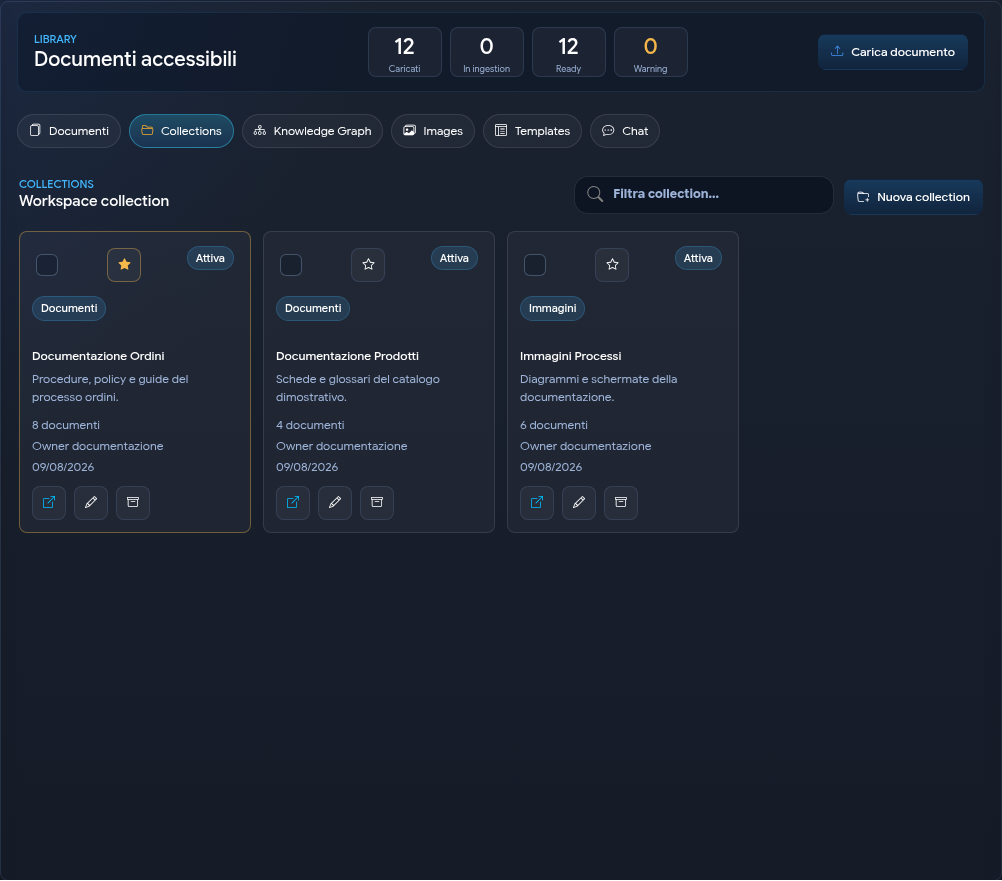
5. Create a collection
- Open the Collections tab.
- Select New collection.
- Enter name and description.
- Choose a parent collection, if necessary.
- Choose the type Documents or Images.
- Assign roles.
- Select Save collection.
Collections can then be searched, added to favourites, modified, archived, restored or deleted, according to available permissions.
6. Add and move documents
From the details of a collection, the Add documents action shows manageable documents. A document belongs to a main collection; if it comes from another collection, you must confirm its move.
In the Documents tab you can also drag a manageable document onto a compatible collection.
7. Work with a collection
Selecting a tile opens the details with:
- summary and contained documents;
- associated roles;
- permission modification;
- adding documents;
- opening the filtered Library;
- starting a chat on the collection.
You can select multiple collections via the checkboxes on the tiles. The actions bar allows you to:
- use Start chat in these collections to create a combined document scope;
- use Archive selected to archive compatible collections together;
- use Delete selected to delete compatible collections together.
Operations occur without reloading the page. Numerous selections are automatically split into groups, without imposing an operational limit on the action started from the GUI. The confirmation box shows progress during archiving and deletion, both single and massive. If only part of the selection can be processed, LightHouse updates the successful items, keeps the unprocessed ones selected and shows diagnostics usable to correct the issue.
Documents and collections are loaded progressively: the Show more documents and Show more collections buttons allow you to scroll through the entire Library without an overall cap. Filters query the entire authorised set even when not all pages are yet displayed.
8. Archiving and deletion
Archive hides content from default operational views while keeping it recoverable with Restore. Delete is a distinct action: if the collection contains documents, the confirmation allows you to choose whether to delete only the collection, leaving the documents in the Library without a collection, or to logically delete the contained documents as well. Physical files are not removed. A collection containing sub-collections must instead be reorganised before deletion. The same rules and permissions apply to single and massive actions.
Before deleting, verify collection, versions and document usage in chats or workflows.