Chat documentale
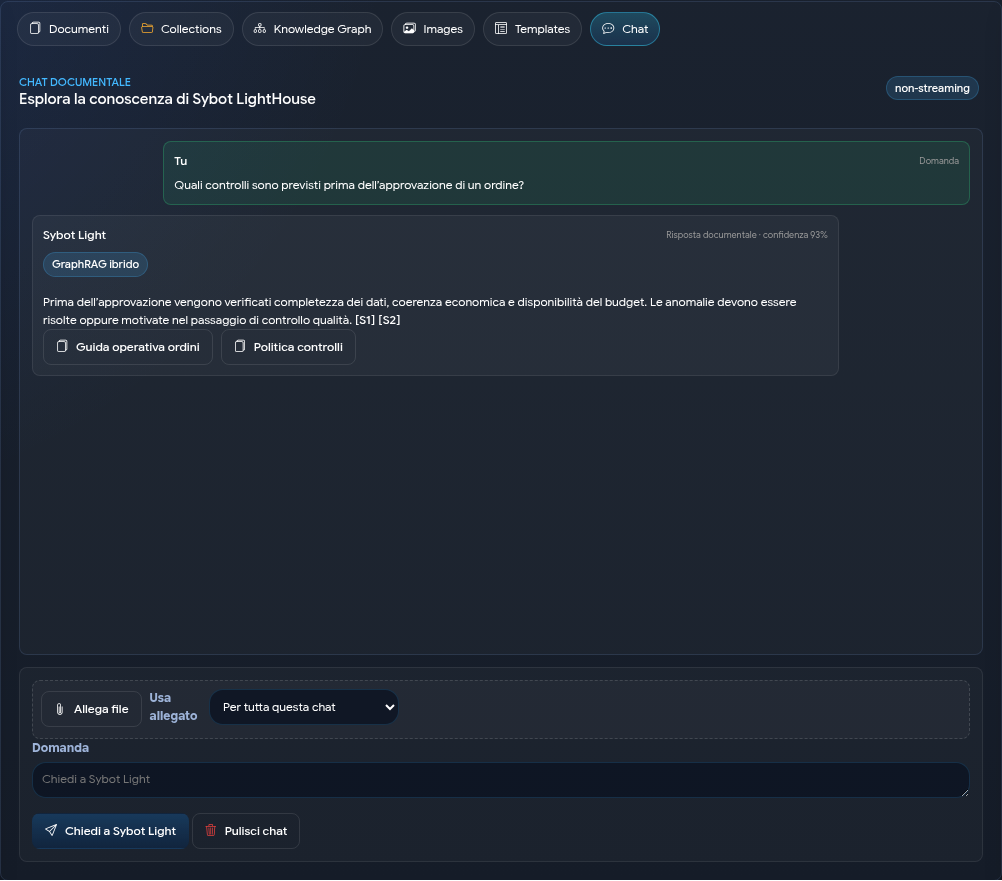
The Chat tab allows you to ask questions about authorised LightHouse content, maintain separate sessions, and verify the sources of the response.
1. Choosing the scope
In the Details panel, Response scope can be set to:
- All accessible documents;
- Selected document;
- Selected collection.
You can also start the chat directly from a document, a collection, or a multiple selection. In this case, the scope is automatically configured and displayed above the settings.
2. Response modes
| Mode | Behaviour |
|---|---|
| LightHouse documents only | Uses only accessible document sources. |
| Documents first, then general knowledge | Prioritises documents and integrates general knowledge when necessary. |
| Documents + general knowledge | Combines cited document evidence with integrations from general knowledge, distinguishing them when necessary. |
| General knowledge only | Does not use the Library as the basis for the response. |
With Respond only with certain sources, the chat avoids formulating a document response when sufficient evidence is not found.
The Detail level field allows you to choose an adaptive, concise, standard, or in-depth response. Adaptive is recommended in most cases: LightHouse calibrates the length based on the complexity of the request.
3. Search depth
- Quick uses the most relevant sources.
- In-depth considers a wider set of documents.
- Complete examines the entire scope within the limits applied by the search.
Start with Quick. Move to a greater depth when the question requires extensive comparison or the response does not identify an expected source.
4. Asking a question
- Check scope, mode and depth.
- Write a specific question.
- If necessary, attach one or more files.
- Select Ask Sybot Light.
- Open the sources shown in the response.
The Stop action halts an ongoing request. Clear chat removes displayed messages but keeps the scope active.
5. Attachments
An attachment can be used:
- only for the next question;
- for the entire current session;
- as a new document to save in the Library.
Active attachments are listed in the Details panel. Before saving an attachment to the Library, assign the correct title, collection and permissions.
6. Sessions
New chat creates a separate session. Recent sessions allow you to resume questions, scope, sources and generated files.
Create a new session when the topic or the group of documents to be analysed changes: this keeps the context clearer.
7. Sources and evidence
Every document response can show:
- source document;
- cited passage;
- position in the document;
- link to open or download the source;
- any notices regarding the availability of the evidence.
Selecting a source opens the relevant panel with cited text and context. This allows you to verify the response without losing the session.
When available, LightHouse also uses the Knowledge Graph to recognise connected entities and retrieve relevant passages distributed across multiple documents. The graph improves source selection, but is not an autonomous source: the response continues to cite the document blocks that support every connection. The Hybrid GraphRAG indicator signals that the graph contributed to the search.
To examine nodes, relationships and evidence directly, consult Knowledge Graph.
8. Generate a file
Generation options allow you to choose format, style, template, title and inclusion of sources. If a title is not provided, LightHouse assigns the file a name consistent with the requested topic. You can also request the result using natural expressions, for example «prepare a presentation for the committee» or «transform the analysis into a Word report»: it is not necessary to always use the formula «create a file».
For file templates and result management, consult Templates and generation.
9. Writing effective questions
- Specify the topic and desired outcome.
- Limit the scope to a document or a collection when possible.
- Ask for an explicit comparison between sources when needed.
- Request that missing data or contradictions be highlighted.
- Always verify citations before using the result.
If the chat does not find sources, check that the documents are Ready, that the scope is correct, and that your profile has access to the content.