Executions - Workflow Monitoring
The Executions page is dedicated to the operational management of workflows executable by the platform.
From this page, the user can consult available workflows based on assigned permissions, manually start a workflow, configure its scheduling, and monitor active executions.
The interface is divided into two main areas:
- Workflow List, in the left sidebar section
- Executions Area, in the main right section
1. Workflow Filters
The Set Filters section allows you to narrow down the list of available workflows.
The available filters are:
- Scheduling
- Validity
- Roles
- Categories
The Scheduling filter allows you to filter workflows based on the presence of at least one configured execution schedule, regardless of their activation status.
The Validity filter allows you to filter workflows based on their validation status.
The Roles filter allows you to filter workflows based on associated roles.
The Categories filter allows you to filter workflows based on their category.
The following actions are available:
- Reset, to remove the set filter criteria
- Filter, to apply the selected criteria
1.1 Workflow Search
The search field allows you to filter the list of workflows by typing part of the name or description.
The search acts on the list of workflows available in the sidebar and reduces the displayed results based on the entered text.
2. Workflow List
The Workflow List section contains the list of workflows that the user can execute or schedule based on the permissions associated with their profile.
Each workflow is represented by a dedicated card that exposes the main information and available actions.
For each workflow, the following are displayed:
- workflow name
- workflow description, when present
- validity status
- available operational actions
The actions available on the card allow you to:
- open the workflow
- configure a schedule, when the workflow is schedulable
- manually start the workflow
2.1 Opening Workflow
The open action allows you to access the selected workflow.
This function allows you to open the workflow directly in the Designer. Based on assigned permissions, the workflow is opened for viewing or for editing.
2.2 Workflow Scheduling
The scheduling action is available for all valid and executable workflows.
The calendar icon opens the configuration for the workflow schedule.
Scheduling allows you to plan the automatic execution of the workflow, customising its behaviour through the configured input parameters.
Workflows that present configuration errors, such as missing connections between tasks or incomplete definitions, cannot be executed or scheduled until the detected anomalies are resolved.
2.3 Manual Workflow Start
The manual start action allows you to start a workflow directly from the Executions page.
The start button opens a dedicated modal for configuring the execution parameters.
2.4 Execution Parameters Modal
The execution modal displays the name of the selected workflow and the list of required parameters for starting it.
The parameters are organised in a table composed of the following columns:
- Parameter Name
- Value
- Type
For each parameter, the name, the set value, and the expected data type are displayed.
Parameter types include:
- numbers
- strings
- dates
- encrypted values
- expressions
- value lists
Parameters of the encrypted type are represented as protected values.
The execution start is performed from the modal via the dedicated action.
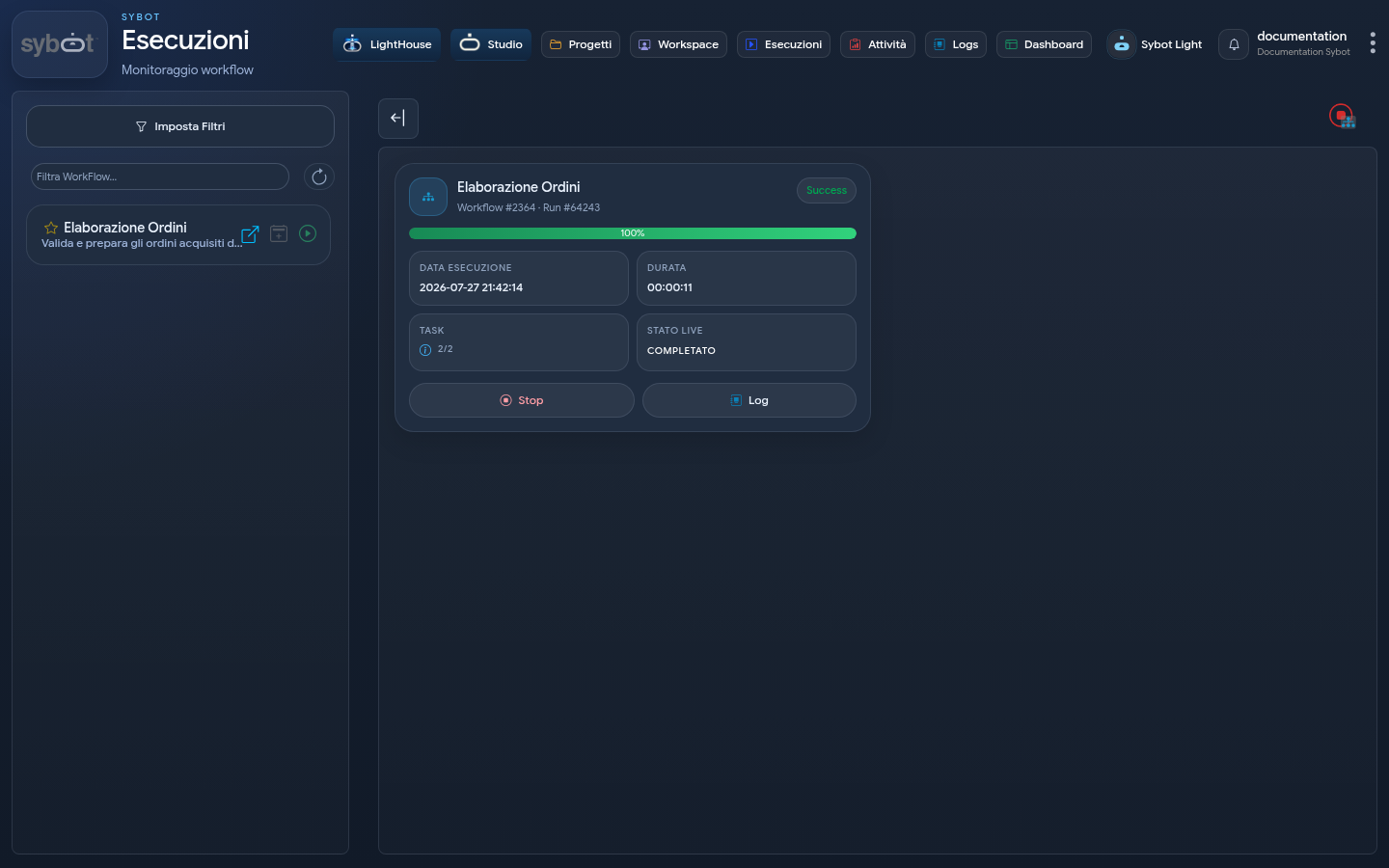
3. Executions Area
The Executions area displays the executions of workflows started by the platform.
Each execution is represented by a card that exposes the operational status of the workflow and the main progress information.
The displayed information includes:
- workflow name
- execution identifier
- execution status
- progress percentage
- execution date
- duration
- number of tasks executed versus the total
- live status of the execution
- available actions on the execution
3.1 Execution Status
The execution status indicates the current condition of the workflow.
A running workflow is identified by the Running status and the Live Status section set to In Progress.
The progress bar shows the completion percentage of the workflow.
The task count indicates the number of completed tasks versus the total number of tasks expected by the execution.
When the Live Status assumes the value Completed, the execution may have ended with a Success, Failed, Warning, or Stopped result.
| Result | Meaning |
|---|---|
| Success | The workflow has finished correctly. |
| Failed | An error prevented completion. |
| Warning | The workflow has finished with a warning result expected by the flow. |
| Stopped | The execution was interrupted before completion. |
3.2 Task Details in Execution
The field related to tasks allows you to access the details of the tasks associated with the execution.
The details are opened in a dedicated modal that collects the main operational information of the execution.
A Parameters section is available, containing the input parameters used by the workflow, and a Tasks section, from which you can consult the status and details of the individual tasks executed.
This function supports the punctual monitoring of workflow progress.
3.3 Actions on Executions
The execution cards expose the operational actions available for the started workflow.
The main actions are:
- Stop
- Log
The actions actually available depend on the execution status and the user's permissions.
3.3.1 Stop Execution
The Stop action interrupts the execution of the workflow.
When the workflow contains tasks that start other workflows, the interruption is also propagated to the child workflows connected to the main execution.
3.3.2 Access to Logs
The Log action allows you to access the logs of the selected execution.
The logs allow you to consult the operational details of the execution, including executed tasks, used parameters, processing times, general workflow status, and error point in case of failure.
For a complete description of timelines, filters, nested workflows, and parallel branches, consult Logs - Execution Explorer.
4. No Visible Executions
When no executions are present in the main area, the page displays an informational message regarding the start or scheduling of workflows.
This area remains dedicated to the display of started executions and is populated with operational cards when workflows are in execution.
If an expected workflow does not appear in the sidebar list, check the applied filters, the validity of the workflow, and the permissions associated with your profile.