Designer Workbench
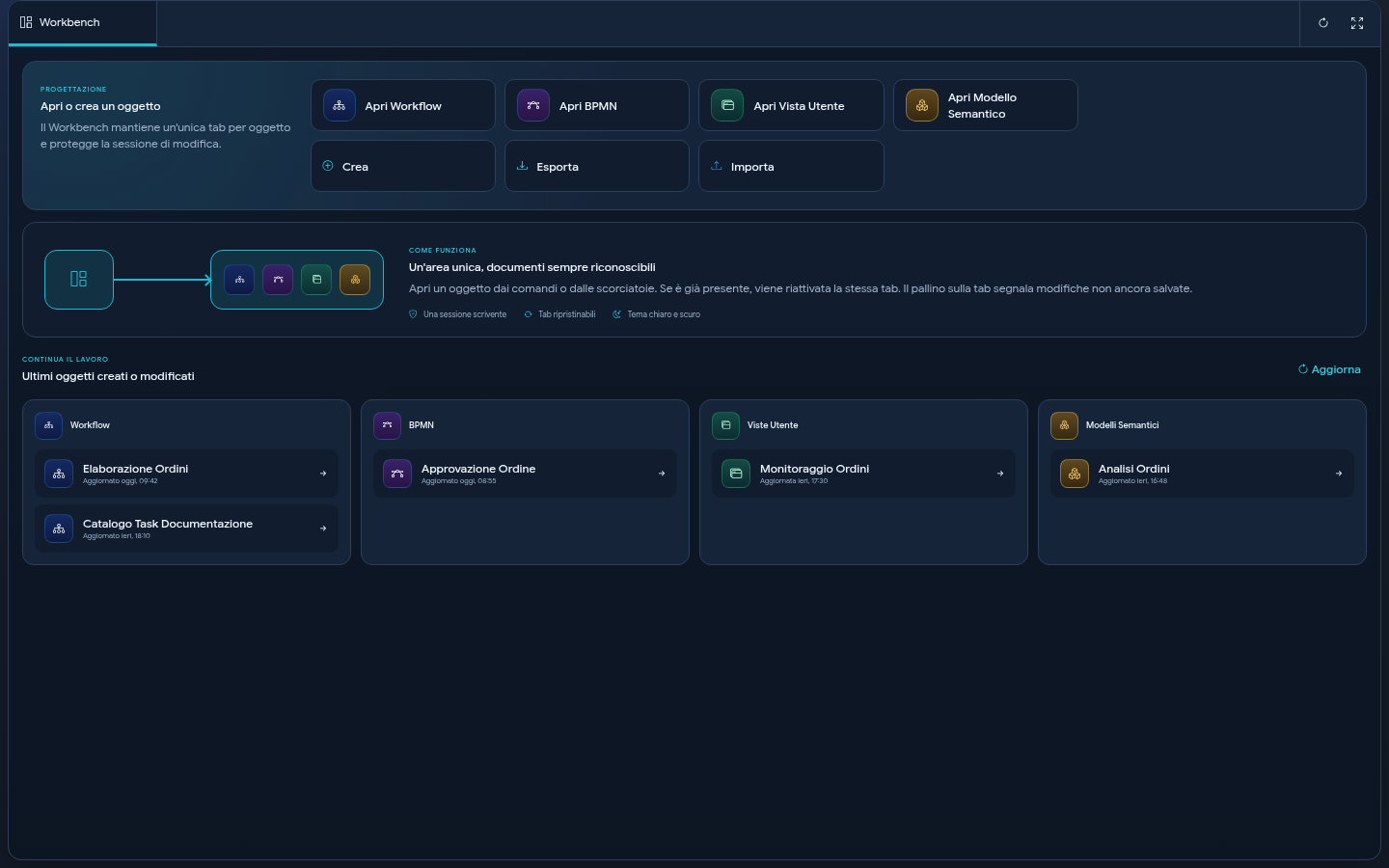
The Designer Workbench is the area of Sybot dedicated to the creation, exchange, and modification of design objects.
The Workbench manages:
- Sybot Workflows;
- BPMN Workflows;
- User Views;
- Semantic Models.
The available types depend on the enabled features and the user's permissions.
Open the Workbench
Select Designer in the top bar or in the Features area of the Workspace.
When an object is opened for editing from Studio, Projects, or another page, Sybot takes you directly to the Workbench and opens the editor in the relevant tab.
The Workbench tab is always present and cannot be closed.
Open an object
In the Workbench tab, the following commands are available:
- Open Workflow;
- Open BPMN;
- Open User View;
- Open Semantic Model.
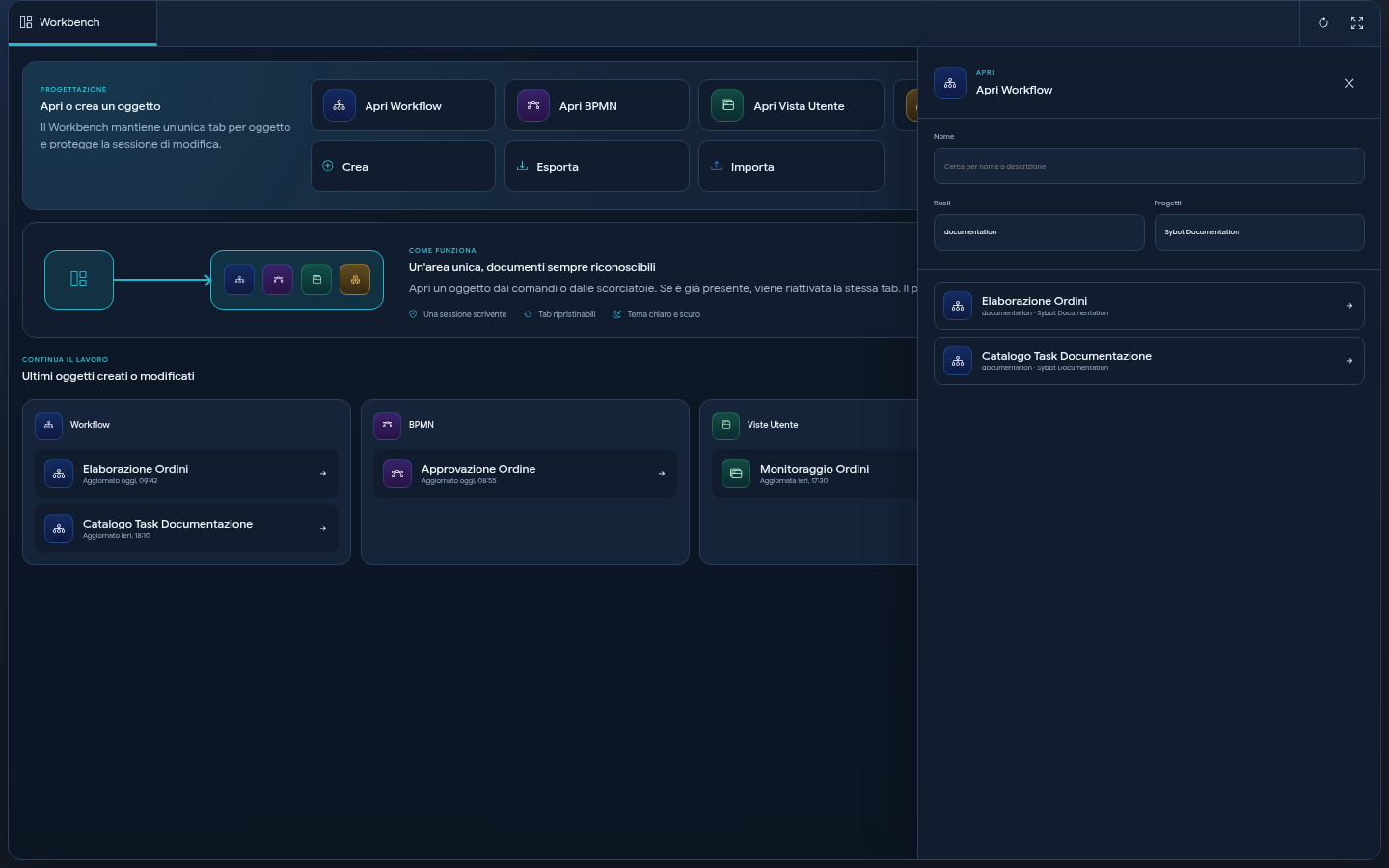
Each command opens a side panel. You can filter the list by:
- name or description;
- one or more roles;
- one or more Projects.
The coloured icon in the header identifies the type of object being handled and is also present in the Create, Import, and Export panels.
Select the desired object to open it in a new internal tab. If the same object is already open in the same mode, Sybot reactivates the existing tab without creating a copy.
Create an object
Open the Create menu and choose one of the available types. Sybot opens the procedure in a floating side panel consistent with the Open, Import, and Export panels. The page below does not change size; to close the panel use the X or Cancel.
Workflow and BPMN are distinct commands: the type is determined by the selected item and must not be selected again in the panel. Upon completion of creation, Sybot opens the new object in an editing tab.
To create a Sybot Workflow or BPMN, it is mandatory to choose at least one Project in which you have the Owner or Editor role. You can select multiple Projects and the new object is automatically added to each of them. If no editable Project is available, you must create one or ask the relevant Owner for the Editor role.
For User Views and Semantic Models, at least one Project and a role must also be specified.
During the import of one or more Workflows, it is equally mandatory to choose at least one destination Project. All imported Workflows, including any dependencies included in the package, are added to all selected Projects. Export does not require the selection of Projects.
Import and export
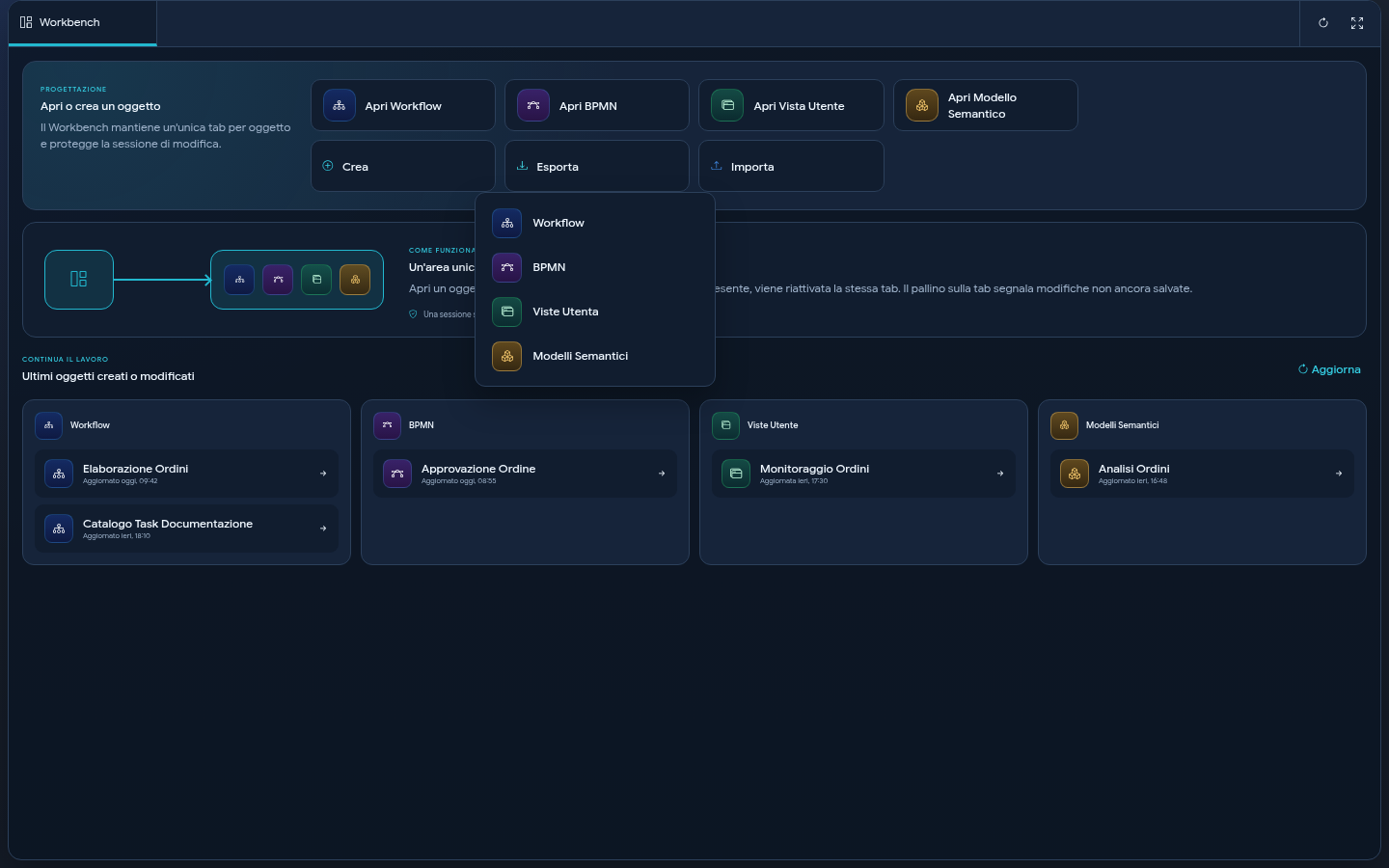
The Import and Export menus collect the types for which exchange is available.
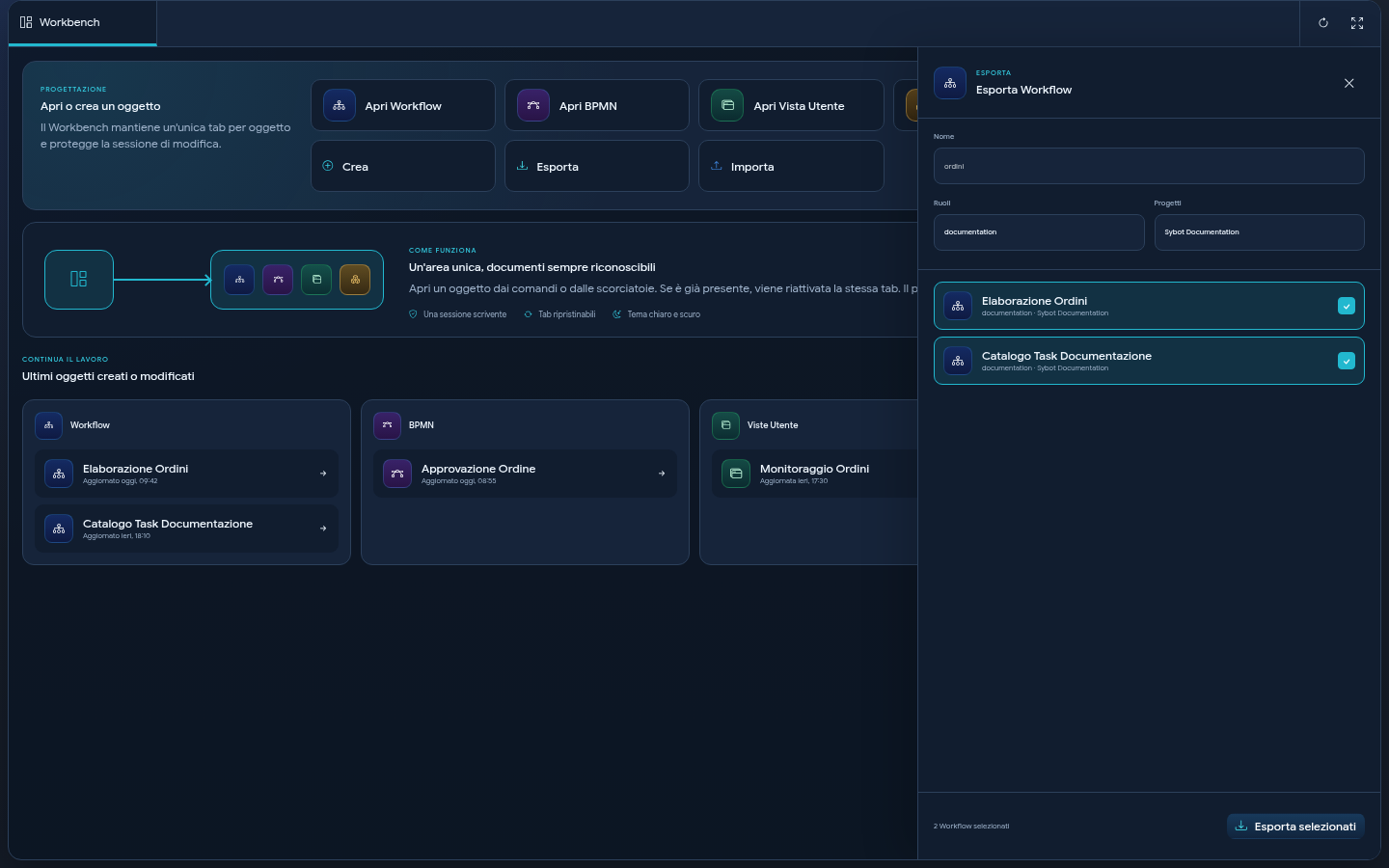
When exporting a Workflow, a User View, or a Semantic Model, the Workbench opens the selection side panel: you can therefore search and filter the object before starting the export.
For Sybot Workflows, you can select multiple elements and export them together in a single package.
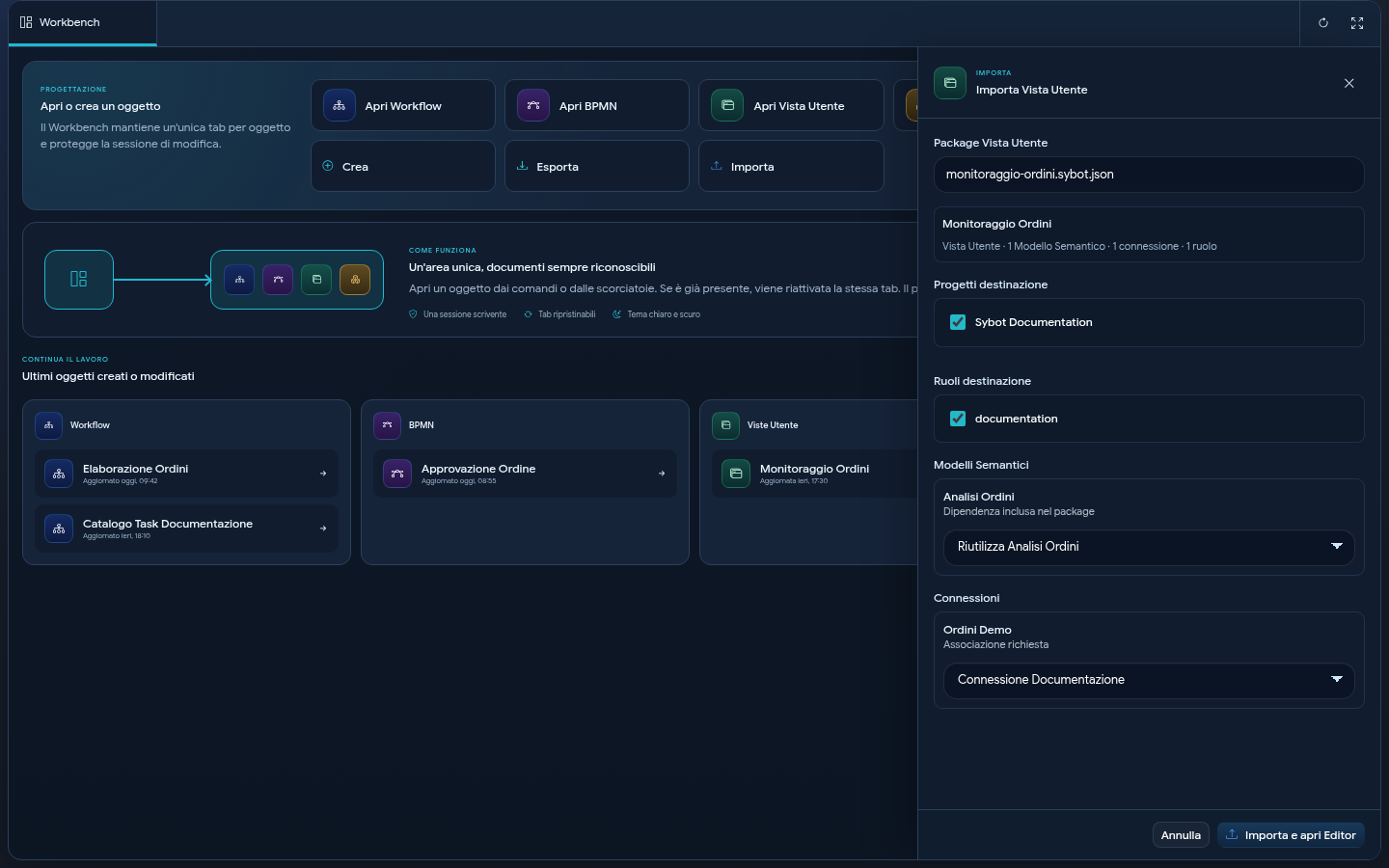
Import procedures are also opened in side panels. The panel does not prevent consulting the Workbench and maintains all specific choices provided for the type of object being imported.
The panel is floating: opening it does not change the size of the page below and open commands remain available on the left. The header and width are consistent with the Open and Export panels; destination Projects and roles are arranged vertically to keep all options readable. To close it, use the X in the header or the Cancel command.
For a User View, export allows you to choose whether to include Semantic Models, connections, and roles. In import, Sybot shows dependencies, flags those already present, and allows reusing them, overwriting them when permitted, or creating duplicates with new names.
For a Semantic Model, import requires verifying Projects, roles, and connection associations. User Views that use the model are not imported automatically.
Connection passwords for manual connections are not included in exported packages.
Recent objects
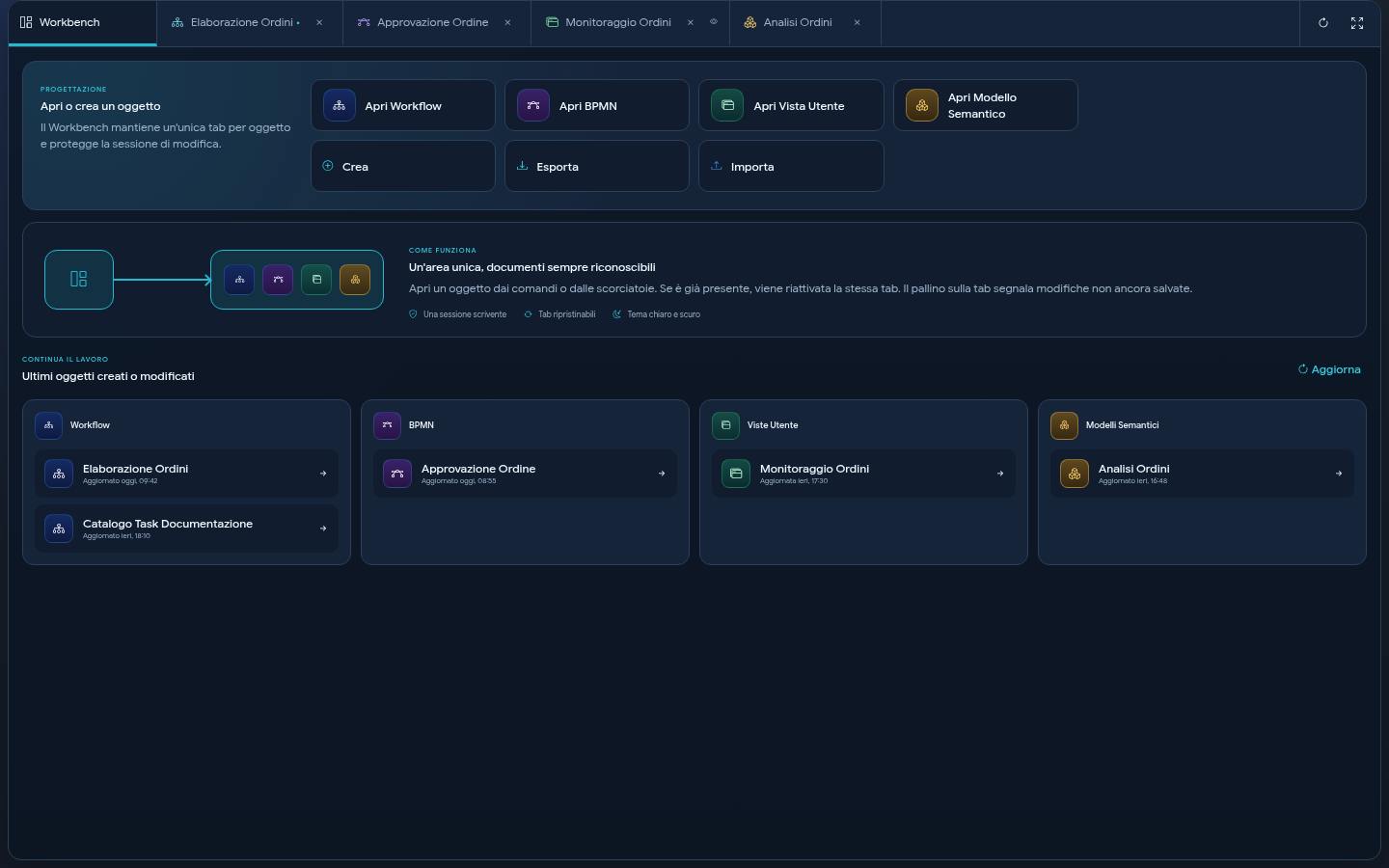
The Recently created or modified objects section is divided by type. Select an element to open it directly in the relevant editor.
The Refresh command reloads the lists after a catalog modification.
Manage tabs
Each tab shows the type and name of the object. An indicator next to the name signals the presence of unsaved changes.
Object tabs can be dragged to modify their order; the Workbench tab remains fixed at the beginning of the bar. The chosen order is preserved in the restoration of the current session. Positioning the pointer on the name of a tab, the tooltip shows object type - object name, useful when the title is truncated due to lack of space.
To close a tab, use the X. If unsaved changes are present, Sybot requests confirmation. After closing, the last consulted tab that is still open is reactivated; the Workbench is shown only when no previous document exists.
In the BPMN editor, the Close command performs the confirmation required by the editor and, upon completion, closes the relevant Workbench tab.
User View and Semantic Model tabs show the object name. The preview tab uses the title Preview · view name. If the preview is already open, a new selection of Preview reactivates the same tab and loads the draft just saved. The preview also reloads the draft when the relevant tab or window actually comes to the foreground. Normal clicks on widgets, headers, or the free space of the view do not trigger a new load.
Publishing confirmations and any operational messages from the editors are shown in the Workbench notification area, so they remain visible even when the operation occurs inside an editor tab.
Session tabs are automatically restored when the Designer is opened or reloaded. The Restore session tabs button is used to manually attempt recovery when a tab has not been reconstructed, for example because the object was temporarily unavailable or in conflict. If all tabs are already open, Sybot communicates this without creating duplicates.
The Full screen mode button next to the restore hides the product's top menu and assigns the Workbench all available space. The second click restores the menu; the preference remains valid in the browser session. It is not the browser's native fullscreen, so it does not require confirmations or additional permissions.
Edit conflicts
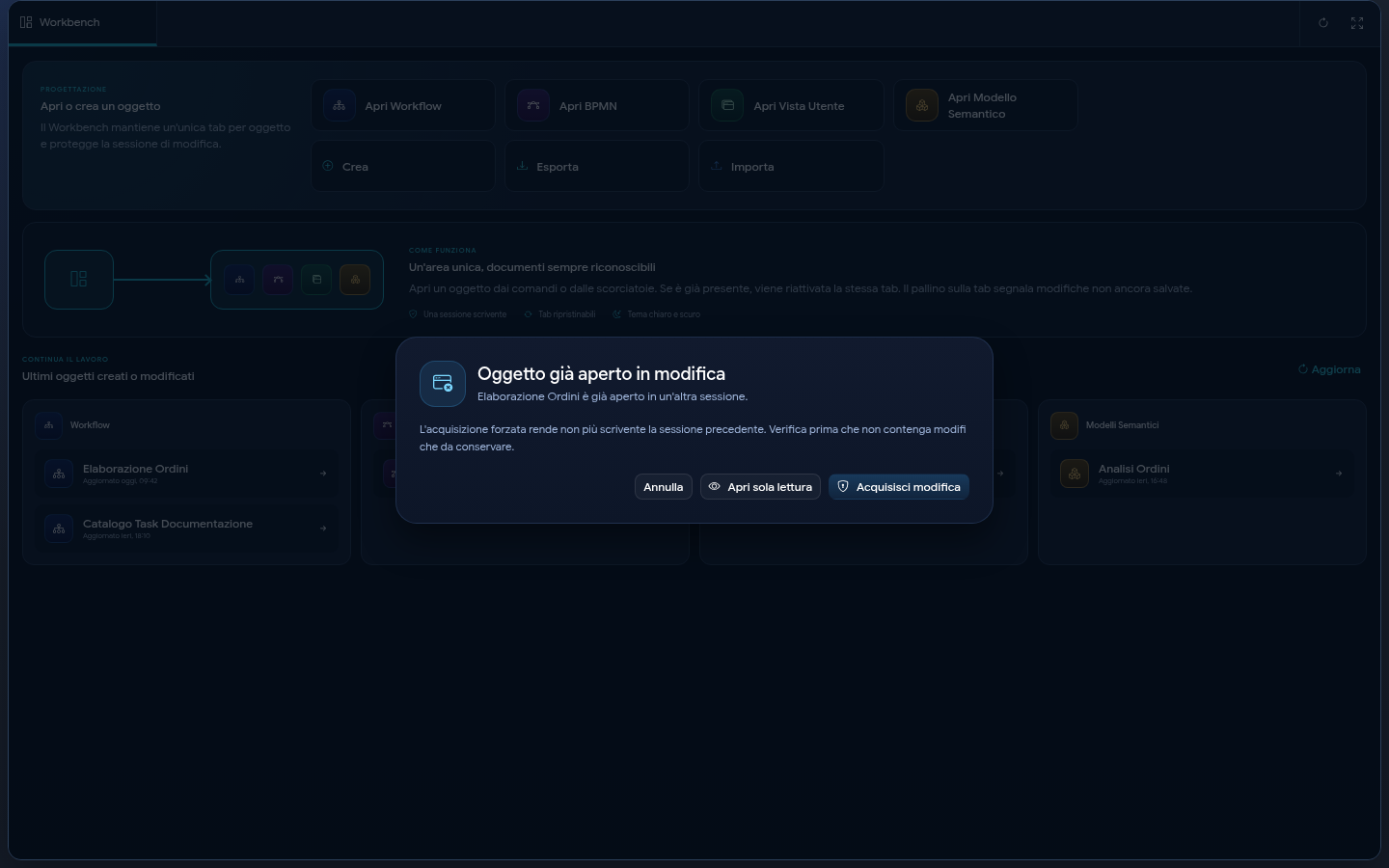
An object can have only one active editing session.
If the object is already open in another tab, window, or session, you can:
- cancel the opening;
- open the object in read-only mode;
- explicitly acquire editing.
Acquiring editing makes the previous session non-writable. Before using it, verify that no changes to be kept are present in the other session.
If a session is no longer valid, the tab shows a message and prevents further modification of the object.
Modify a Sybot Workflow
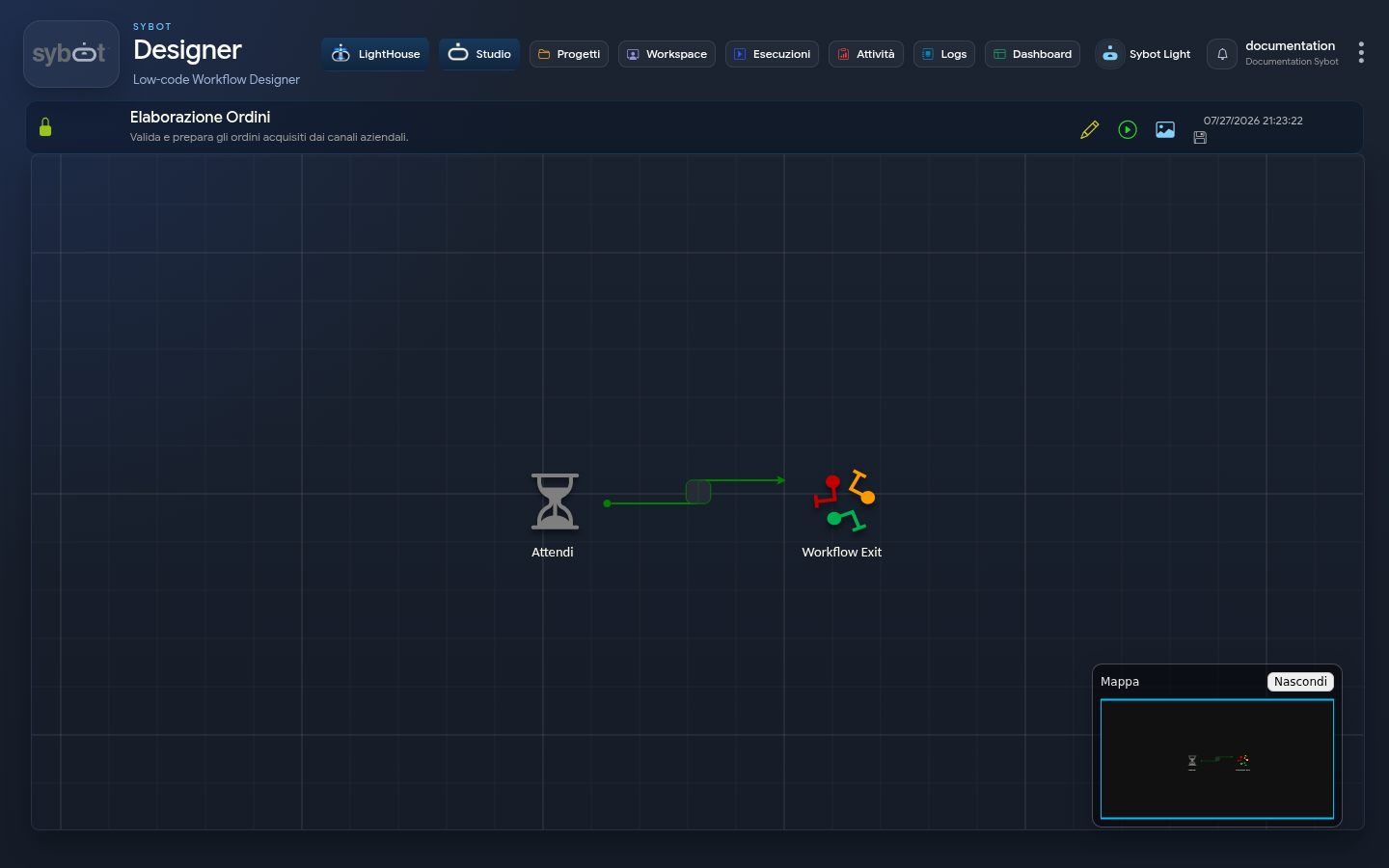
The Workflow designer occupies the full available height in the relevant tab. When an execution shows the Execution Log panel, you can resize it by dragging its header or close it with the arrow in the top right.
Upon entering edit mode, the sidebar shows tasks in use, available types, and tasks from other Workflows. The contextual guide is updated based on the selected task or section. Texts of side catalogs are rendered in high-definition mode even when the Designer is open in the Workbench or the window is resized.
From All Workflow Tasks, you can also import Declare Variable as a duplicate, provided the current Workflow does not already contain one. The Designer maintains the uniqueness constraint and signals the existing task when addition is not permitted.
The minimap, when open, remains fully visible in the bottom right corner of the diagram even when resizing the window or sidebar.
Available editors
Each object is opened in its own complete editor, hosted in the relevant Workbench tab. Changing tabs does not close other editors and does not lose the current work point.
Sybot Workflows and BPMN
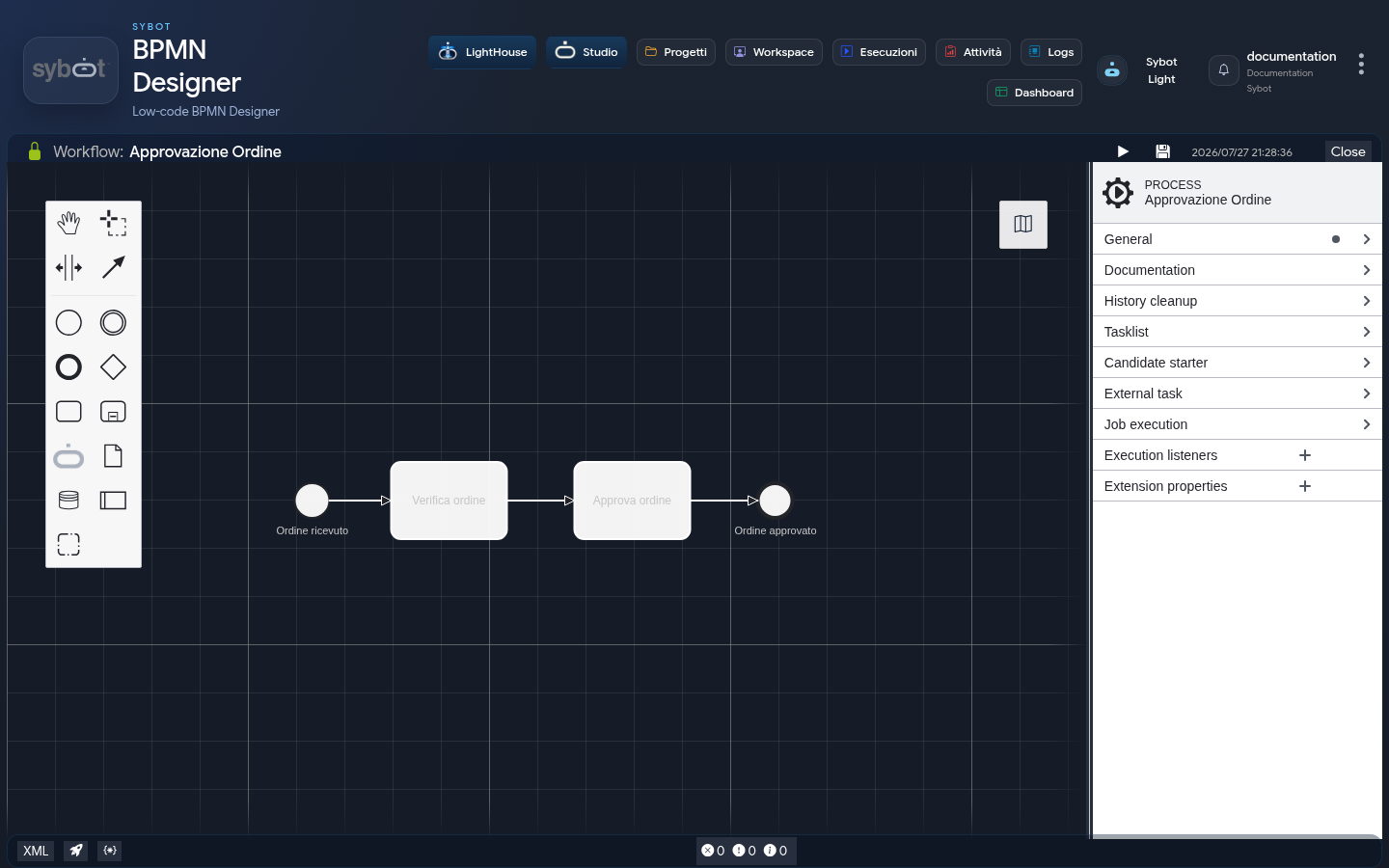
The Workflow Designer provides a low-code diagram, task catalog, contextual configuration, guide, minimap, start, and Execution Log. The BPMN Designer offers BPMN palettes, canvas, properties panel, validation, saving, and process start.
User Views and Semantic Models
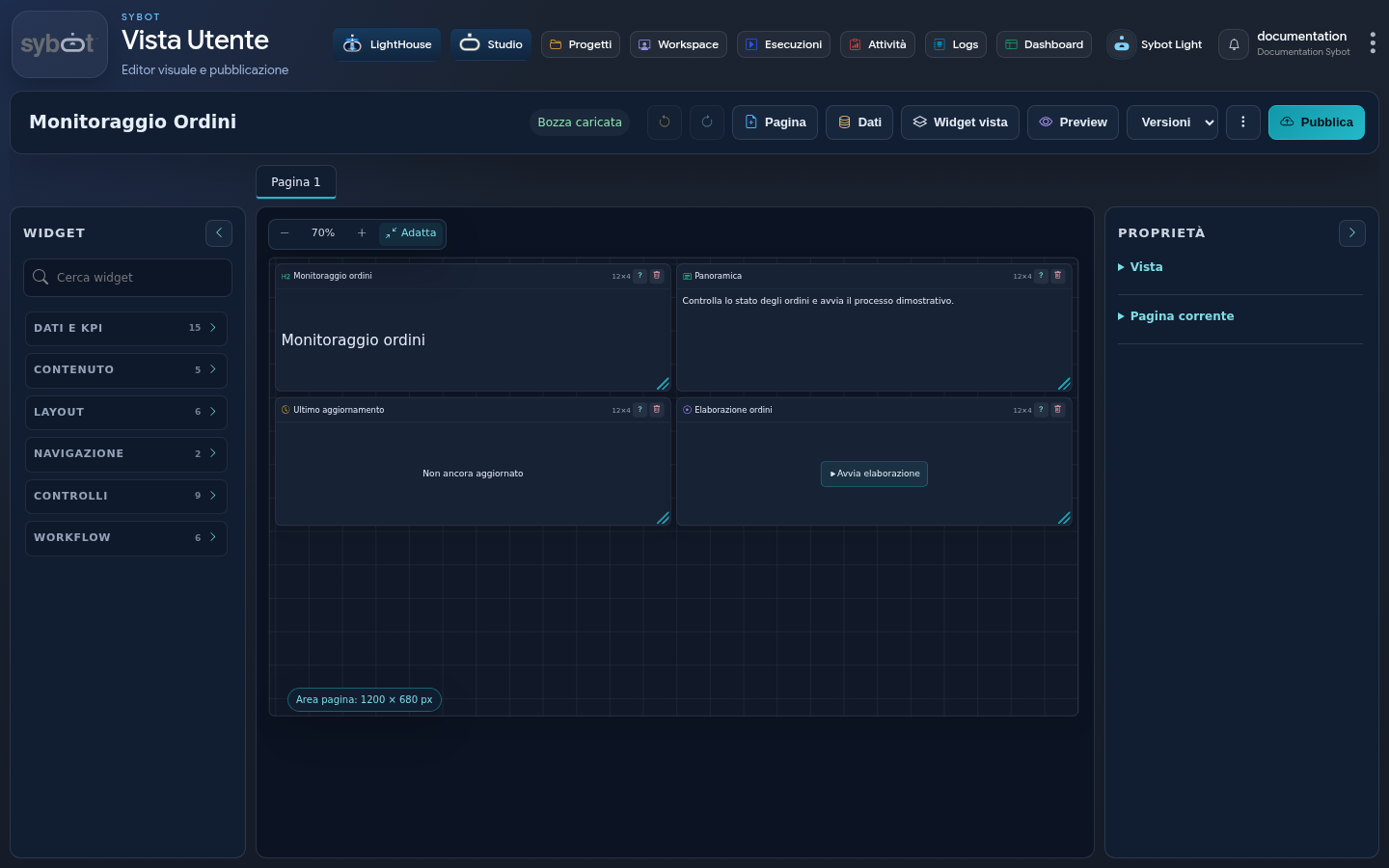
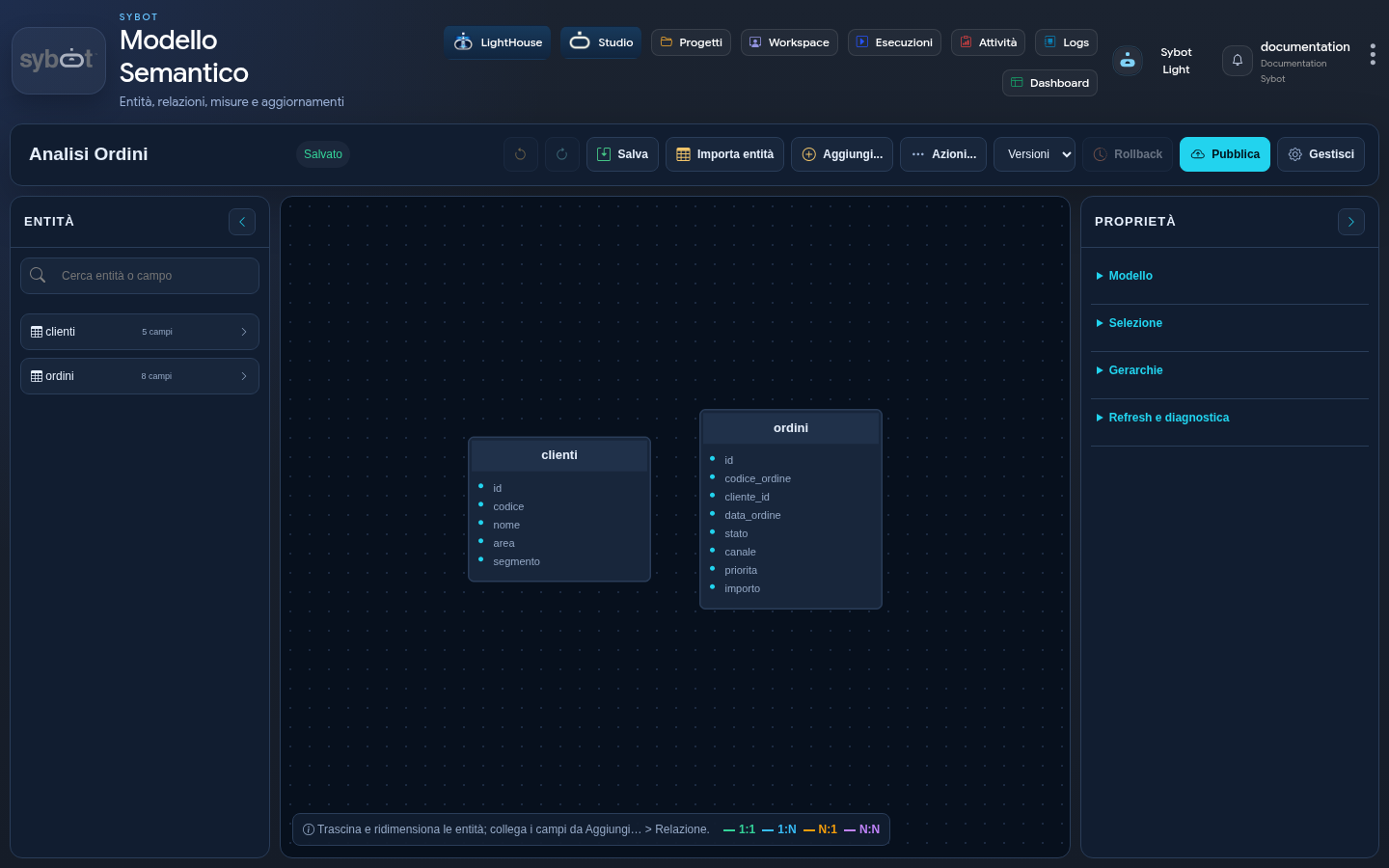
The User View Editor combines pages, widgets, data sources, properties, preview, versions, and publishing. The Semantic Model Editor allows importing entities, modelling fields and relationships, defining measures, verifying model health, and publishing.
Expected result
Editors remain collected on a single application page. Moving between objects occurs via internal tabs and repeated opening of the same object does not produce duplicates.
If an object does not appear in the open panel, check the filters, project membership, and the edit permission assigned.