Workflow Lock
When a workflow is opened for editing in the Designer, Sybot applies a lock to prevent concurrent modifications. The lock protects the user's work and prevents two sessions from overwriting the same definition.
Recognising a locked workflow
In the Studio Catalog:
- the icon in the Lock column indicates the status;
- the Locked filter shows only the affected objects;
- the Details panel and interface messages explain why an action is unavailable.
If the workflow is locked by another user, Sybot prevents it from being opened for editing. Do not force the unlock while the other user is still working.
Unlocking from the Catalog
When the action is permitted, open the workflow menu in the Catalog and select the unlock operation. Availability depends on the lock owner and the user's permissions.
Unlocking from Configurations
Administrators can intervene from:
- Studio;
- Configurations in the sidebar;
- Unlock Workflow.
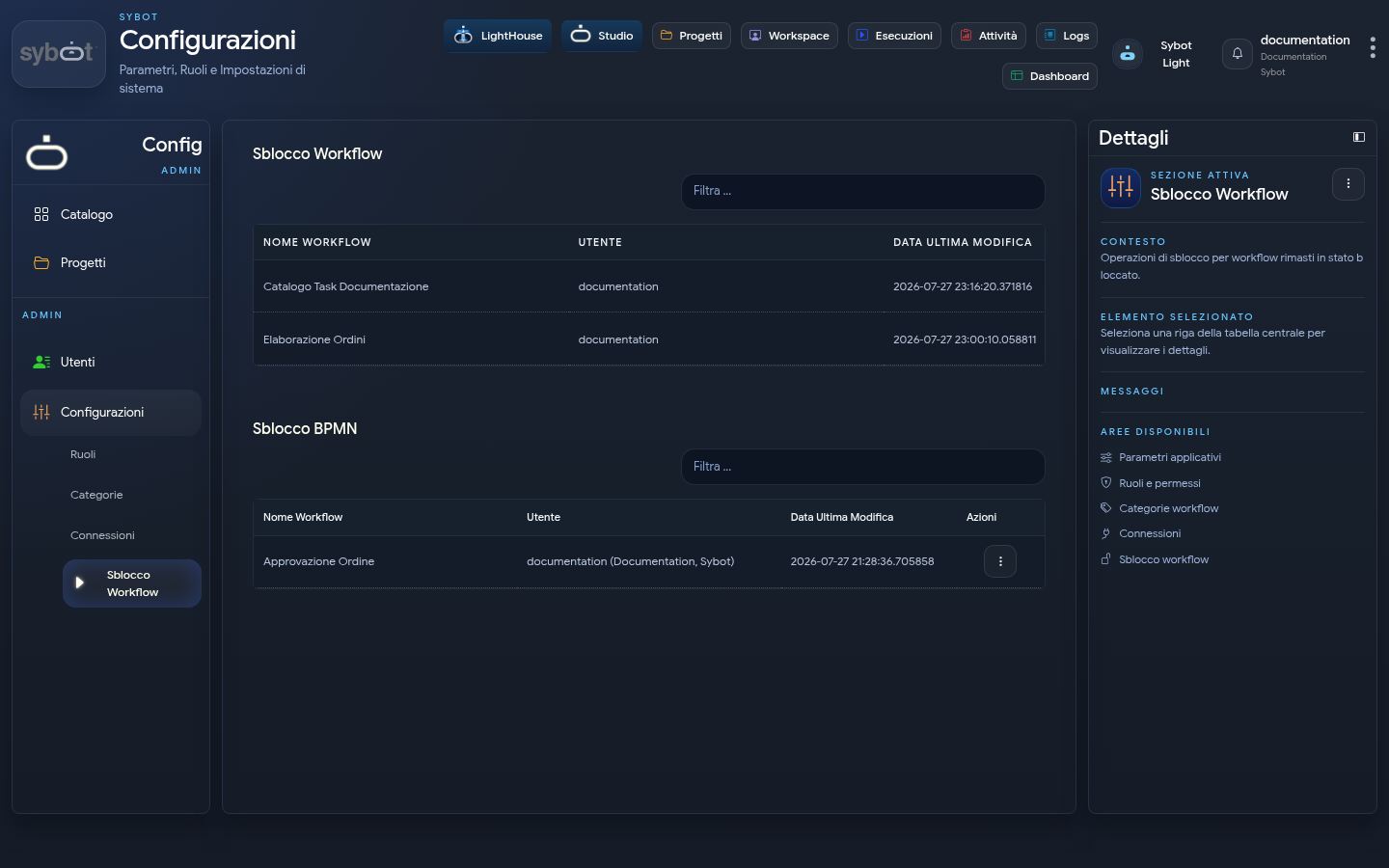
The table shows the workflow name, associated user, and date of the last modification.
When to force an unlock
Use administrative unlocking only if:
- the previous session ended abnormally;
- the indicated user confirms they are no longer in the Designer;
- it has been verified that no further modifications are in progress.
After unlocking, reopen the workflow from the Catalog and check that the displayed definition is the expected one.
Forcing an unlock during active editing can cause loss or overwriting of work. The presence of a lock is not in itself an error.