Workflow BPMN
The BPMN Designer allows you to model processes using BPMN 2.0 notation and link them to Sybot workflows. It is recommended when the process needs to explicitly represent events, decisions, automatic or human activities, and organisational responsibilities.
BPMN workflows are distinct objects from standard Sybot workflows, but they can invoke them via the Sybot Task component.
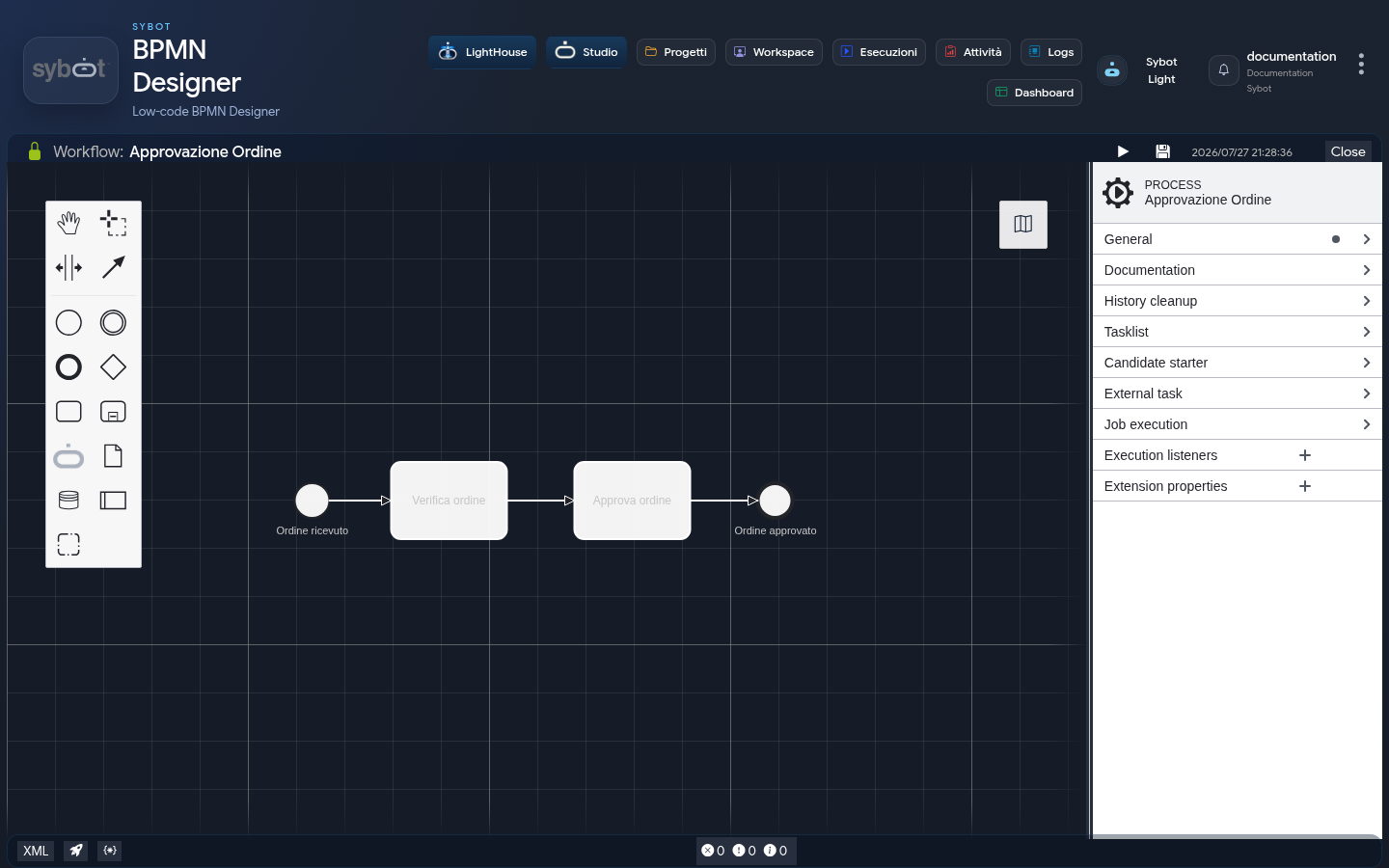
1. Main elements
In the diagram, you can use the BPMN elements available in the palette. Among the most common:
- Events: indicate the start, end, or an intermediate event of the process;
- Activities: represent a unit of work;
- Gateways: split or join the flow based on process logic;
- Sequence Flow: define the execution order;
- Pool and Lane: organise activities by participant, role, or area.
Selecting an element displays the applicable settings in the properties panel on the right. Options depend on the type of element chosen.
2. Create and edit the diagram
- Create or open a BPMN workflow from the Designer Workbench; during creation, you must select at least one Project in which you have the Owner or Editor role, and you can select more than one. Opening from the Catalog or Project also leads to the relevant internal tab.
- Drag elements from the palette to the canvas.
- Connect elements with sequence flows.
- Select each element and complete its properties.
- Check the Problems panel and correct errors or warnings.
- Select Save BPMN.
The header shows the modification status and the date of the last save. The Close action releases the workflow; unsaved changes are lost.
Save before closing the designer. Saving the diagram and Deploy are different operations.
3. Sybot Task
Sybot Task is the activity that starts a Sybot workflow within the BPMN process.
To configure it:
- add Sybot Task from the palette;
- select it in the diagram;
- in the Sybot Workflows group, choose the workflow to execute;
- fill in the values required by the parameters of the chosen workflow.
The list contains only the workflows available to the user. If an expected workflow does not appear, check its validity and permissions.
Parameters can use:
- a static value, for example
Approved; - a process variable, with syntax
${nome_variabile}.
4. Process variables
The Create Variables action opens the Variables Workflow window, from which you can add the name and initial value of variables.
Variables:
- make values common to different steps available;
- can be invoked in properties using
${nome_variabile}; - are requested again at startup, so that you can set values for the specific execution.
Use clear and unique names. The designer signals empty, duplicate, or invalid names.
5. Model verification
The Output/Problems button opens the lower panel:
- Problems lists errors, warnings, and information about the diagram;
- Output shows messages produced by operations performed by the designer.
Before deploying:
- verify that the process has a coherent start and end;
- check connections between elements;
- complete mandatory properties;
- resolve errors present in Problems;
- save the diagram.
6. Diagram XML
The XML action displays the BPMN representation of the model. From the same panel, you can download it.
This function is useful for preserving or sharing the model in a standard BPMN format. For normal design work, it is not necessary to modify the XML directly.
7. Deploy
Deploy makes a saved version of the process available for execution.
- select Deploy diagram;
- enter a recognisable Deployment Name;
- confirm the operation;
- verify the result in the message shown by the designer.
If multiple organisational realms are available in the environment, the window may allow you to select the target realm. Use only the realm authorised for the process.
Repeat the Deploy after any modification that needs to be made executable.
8. Execution
The Run BPMN action opens the startup values window:
- check or update variables;
- select the proposed realm, when present;
- start the process;
- consult the Output tab to verify its start or any error.
Execution uses the last distributed version of the process. Saving the diagram without performing a new Deploy does not update the executable version.
9. Troubleshooting
| Problem | Check |
|---|---|
| The workflow is not selectable in Sybot Task | Check validity and permissions of the workflow. |
| Deploy does not start | Enter the Deployment Name and resolve model errors. |
| Execution uses a previous version | Save and repeat the Deploy. |
| A parameter does not receive the expected value | Check variable name and syntax. |
| The diagram cannot be closed without losing changes | Save before using Close. |